.svg)



.png)
Apple’s iOS places strict constraints on apps running in the background to preserve battery life and performance. In this blog, I’ll explain what background execution actually means, why iOS limits it so heavily, which APIs Apple provides, common pitfalls, and how you can work within these limits to deliver seamless user experiences.
What is Background Execution in iOS?
Background execution = running code when your app is not in the foreground.
By default, iOS suspends apps shortly after entering background to protect battery and system resources.
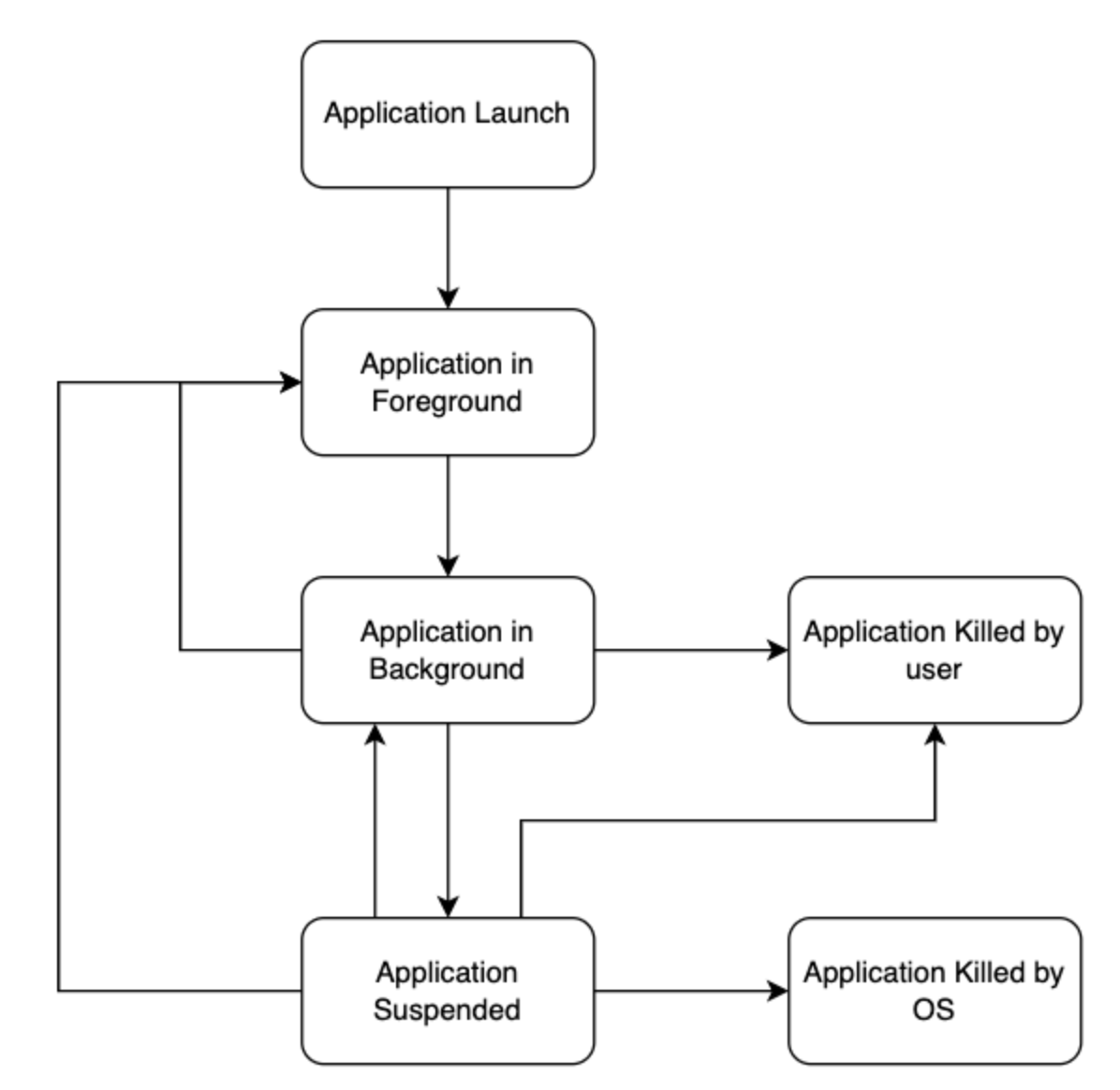
Why this matters for developers:
Without specifically approved mechanisms, your app will not continue running arbitrary code when moved to the background
Core iOS Background Execution Concepts
iOS tightly controls what an app can do after it leaves the foreground. Understanding suspension, time limits, and system callbacks is essential for building reliable background behavior.
- App Suspension — App suspended shortly after background entry.
- BackgroundTimeRemaining property — shows how much time your app has left before suspension (limited).
- Expiration Handler — the block the system calls if your background task is about to be terminated.
let timeRemaining = UIApplication.shared.backgroundTimeRemaining
print("Background time remaining: \(timeRemaining)")
Background Execution Limits
System-Enforced Limits
- No general purpose: iOS doesn’t let you run code arbitrarily in the background.
- Background run time is opportunistic and not guaranteed — system heuristics decide frequency.
Time Limits You Should Know
- Standard beginBackgroundTask gives a short grace period to finish work — typically seconds to under a minute.
- For background fetch and processing, use Apple’s BackgroundTasks framework rather than relying on raw background tasks.
Official Apple APIs for Background Work
BackgroundTasks Framework
- BGTaskScheduler for scheduling work that runs later.
- Useful task types:
- BGAppRefreshTaskRequest for small refresh jobs.
- BGProcessingTaskRequest for longer background processing.
- Useful task types:
- Important: The system decides timing, not the app.
let request = BGAppRefreshTaskRequest(identifier: "com.example.refresh")
try? BGTaskScheduler.shared.submit(request)
UIKit Background Tasks
beginBackgroundTask(withExpirationHandler:) provides a short, system-granted time extension to complete critical work after the app enters the background.
var taskID: UIBackgroundTaskIdentifier = .invalid

taskID = UIApplication.shared.beginBackgroundTask {
    UIApplication.shared.endBackgroundTask(taskID)
    taskID = .invalid
}

// Do short background work here

UIApplication.shared.endBackgroundTask(taskID)
taskID = .invalid
Background Fetch & Silent Push
- Background Fetch (legacy) — requests periodic wakeups.
- Silent push (remote push without UI) can wake app to fetch content.
NSURLSession (Background Transfers)
- System-managed downloads/uploads that continue even if your app isn’t running — ideal for big transfers. (Docs in Apple BackgroundTasks)
What iOS Doesn’t Let You Do
iOS does not allow continuous background execution for arbitrary code (such as constant polling). Background tasks are managed by the system and run at times determined by iOS. Execution timing is not guaranteed, and tasks may be delayed, throttled, or skipped based on system conditions like battery level, network availability, and user activity.
- No continuous background execution for arbitrary code (e.g., constant polling).
- No guarantees on exact intervals for background tasks
Best Practices (2026)
To ensure reliable background behavior on iOS while maintaining battery efficiency and App Store compliance, follow these recommended guidelines:
- Always pick the correct API for your job
- Complete tasks quickly & signal completion handlers
- Use background tasks sparingly for battery friendliness
- Test using real devices; simulators don’t reflect real behavior
Testing Background Execution
iOS background behavior is highly system-driven and can’t be reliably simulated. Use the tools below to validate real execution paths and time limits during development.
- Use the Xcode debugger to manually trigger background tasks
- Measure remaining execution time using UIApplication.shared.backgroundTimeRemaining
- Always validate behavior on real devices, not simulators
References
- Apple background execution modes
- BackgroundTasks framework overview
- Push background updates guide
- Apple Dev video: Finish tasks in the background (WWDC25)
- Apple forum discussion on limits