.svg)





.png)
Design tools like Figma make it incredibly easy to export assets as PNGs. However, when these assets move from design to distribution—especially into Apple’s App Store ecosystem—a subtle but critical technical detail can cause major submission failures.
The Core Problem
Apple enforces a strict rule for certain image assets—such as iMessage App Icons and App Store screenshots:
Images must not be transparent and must not contain an alpha channel.
When uploading assets via Transporter or App Store Connect, Apple may reject images with the following error:
“ ERROR ITMS-90647: Invalid Image Asset. The image asset can't be transparent or contain an alpha channel. “

This error is particularly frustrating because:
- The image visually contains no transparency
- The background is fully filled
- The alpha channel appears empty
- The image passes all visual checks
Yet Apple still rejects it.
Why This Happens (And Why It’s Confusing)
The confusion comes from a subtle difference between visual transparency and file encoding. Many assume that if an image doesn’t use transparency, it shouldn’t be a problem. Unfortunately, that’s not how Apple evaluates assets.
Technically:
- PNG files commonly use RGBA format
- An alpha channel can exist even when fully opaque
- Apple does not check transparency usage
- Apple only checks whether an alpha channel exists
Why Figma Makes This Harder
This issue is amplified by a limitation in Figma itself. Figma clearly states:
“It’s not possible to export PNGs without an alpha value.”
As a result:
- All PNGs exported from Figma are RGBA
- There is no built-in option to export RGB-only PNGs
- Even solid, non-transparent images fail Apple’s checks
This creates a gap between modern design workflows and Apple’s legacy-style image requirements.
From Apple’s perspective, the mere presence of an alpha channel is enough to fail validation, regardless of how the image looks.
The Real Impact
In practice, this problem usually appears at the worst possible time—near the end of the release cycle.
It often shows up:
- After design work is finalized
- During App Store or Transporter uploads
- When dealing with many assets at once
- In projects with automated or CI-based pipelines
At that stage, manually fixing each image is not scalable, and redesigning assets just to satisfy a file-format rule is unnecessary and error-prone.
How to Resolve This Issue
The solution is not about redesigning images or changing how they look. The visual output is already correct. What needs to change is the image encoding—specifically, removing the alpha channel while keeping the appearance exactly the same.
Approach 1: Simple (For a Small Number of Images)
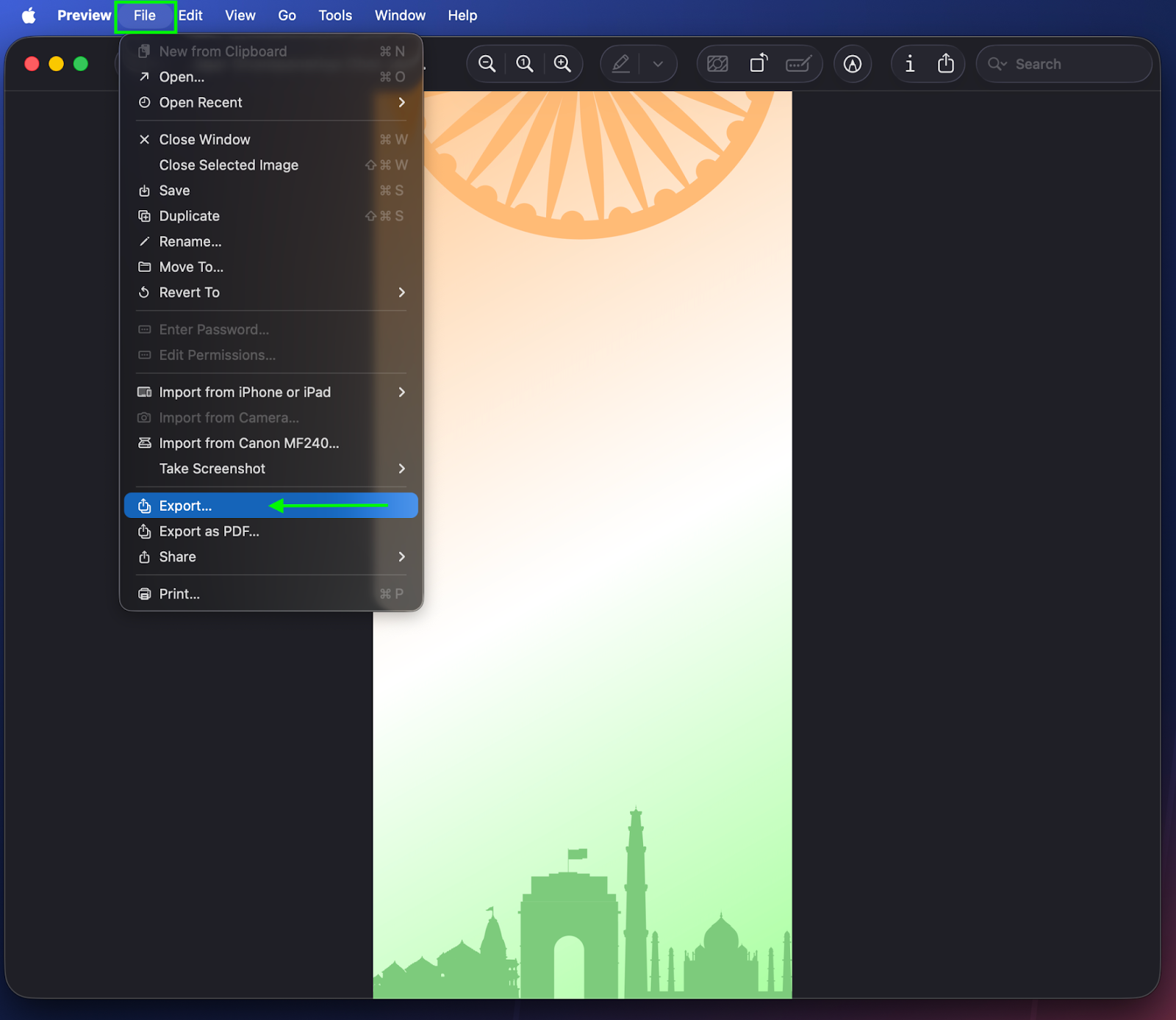
- Open the image that contains an alpha channel in Preview.
- Go to File → Export.
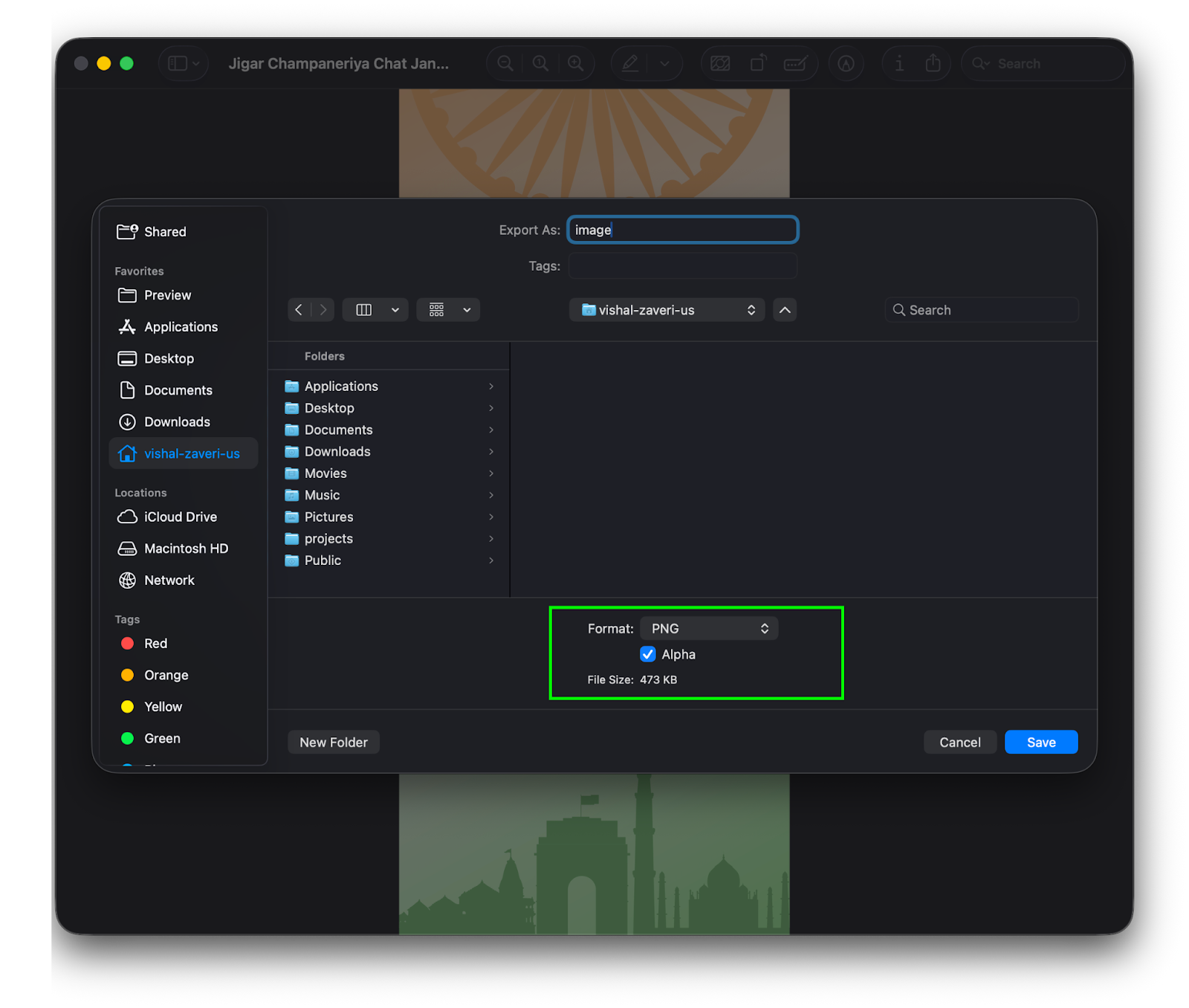
- Uncheck the Alpha option. It will also reduce file size.
4. Click Save and choose the destination path to store the new image.
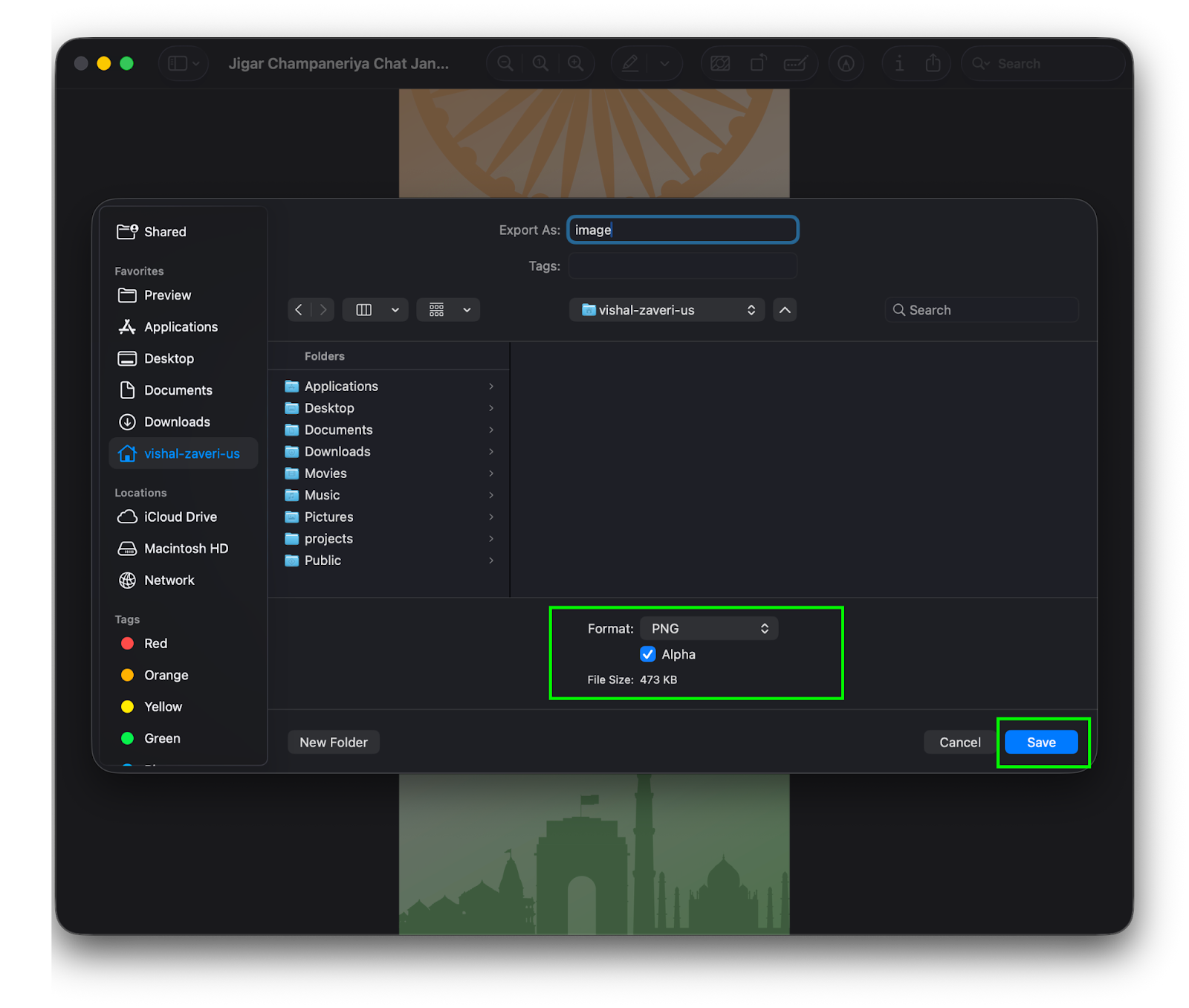
Your image no longer contains an alpha channel, and the Apple App Store upload error is now resolved.
Approach 2: if you have bunch of images
- Check if Homebrew is installed
brew --version
- If Homebrew is not installed, install it using:
For more details visit this website.
/bin/bash -c "$(curl -fsSL
https://raw.githubusercontent.com/Homebrew/install/HEAD/install.sh)"
- Install ImageMagick
By simply using the below command you can install imagemagick on your machine.
brew install imagemagick
- Verify Image Magick installed or not
Using the below command you can verify if Image Magick installed properly on your machine or not.
magick -version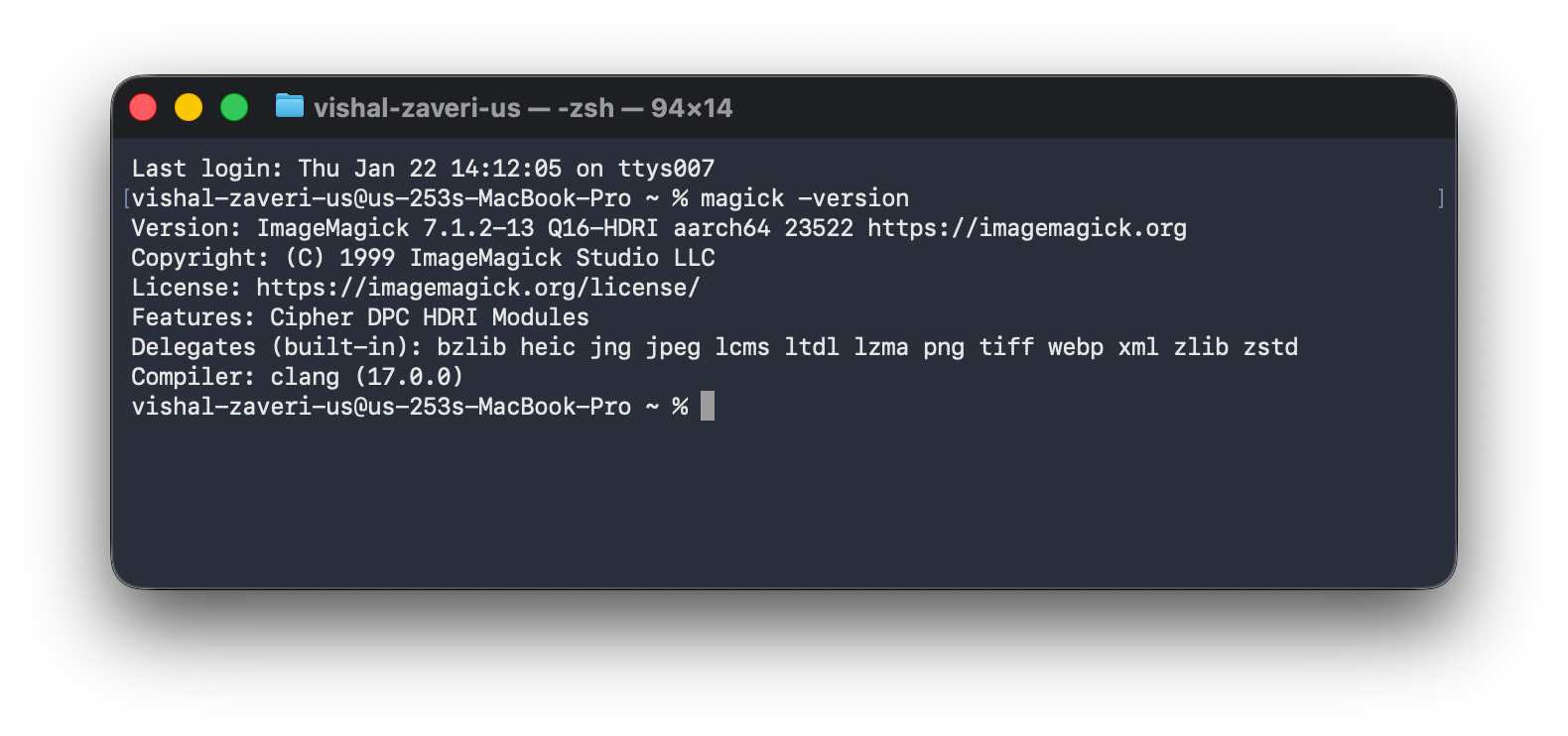
- Navigate to the images folder
Using the CD command you need to open Terminal in the folder that contains all your images. You can do this in either of the following ways:
cd /full/path/to/your/images
- Run the alpha-removal command
This command will:
- Create a no_alpha folder
- Keep the same folder & file name structure.
- Export images without an alpha channel in just single commands.
mkdir -p no_alpha
find . -type f -iname "*.png" ! -path "./no_alpha/*" | while read -r f; do
  out="no_alpha/$f"
  mkdir -p "$(dirname "$out")"
  magick "$f" -background white -alpha remove -alpha off "$out"
done
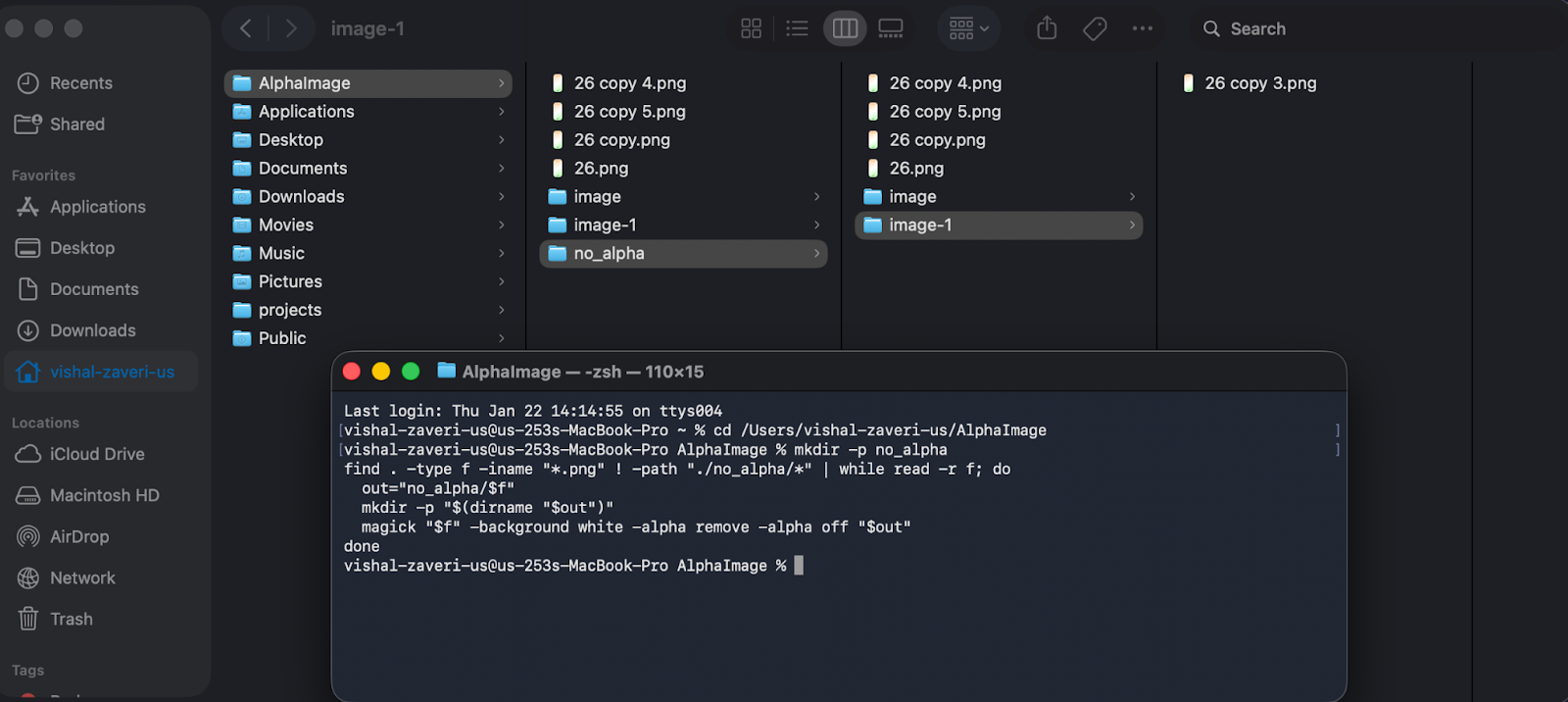
This process removes the alpha channel from all images and recreates them in a new directory with the same folder structure, ensuring successful Apple App Store uploads.
Conclusion
By using the Above approaches, you can quickly remove the alpha channel from all images in bulk while preserving the original directory structure. This ensures the assets meet Apple App Store requirements and eliminates upload errors.