.png)


Introduction
Managing app versions is one of the most underestimated yet critical parts of mobile app development. A poor version update strategy can directly impact ratings, revenue, and user trust.
This guide explains common pitfalls of version management, the challenges businesses face, and a practical step-by-step integration of AppSync by AppsOnAir for Flutter.
Why App Version Management Matters?
From real-world data across fintech, e-commerce, and social apps:
- Update adoption: Only 23% of users update within the first week.
- Security patches: On average, 80% adoption takes 34 days.
- Revenue loss: Poor update adoption can reduce potential revenue by 15–25%.
- Support tickets: 67% of tickets come from outdated app versions.
Every day users stay on an old version is a day they’re experiencing a broken or incomplete product.
Common Update & Challenges
1. Security Vulnerabilities
Critical bugs fixed in new versions don’t immediately protect users who stay on older builds. This gap exposes apps to compliance risks, lost trust.
2. Multiple Backend Version
Supporting several app versions in production increases infrastructure cost, complicates testing, and slows down rel ease cycles.
3. Lost Revenue
New features (like a faster checkout) only benefit users on the latest version. If most users don’t upgrade, the business loses revenue opportunities.
Why we use AppSync
After experimenting with manual prompts and custom logic, we adopted AppSync by AppsOnAir because it:
- Allows force updates for critical fixes.
- Supports optional updates for feature releases.
- Provides maintenance mode during downtime.
- Enables gradual rollouts.
- Works across Flutter, Android, iOS, and React Native.
Flutter Integration with AppSync
Step 1: Add AppSync Dependency
In your pubspec.yaml:
flutter pub add appsonair_flutter_appsync
Step 2: Basic AppsOnAirAppID Setup
Go to App Settings in the AppsOnAir web portal and copy the AppsOnAirAppId
For iOS add AppsonairAppId in Info.plist file
<key>AppsonairAppId</key>
<string>XXXXXXXX-XXXX-XXXX-XXXX-XXXXXXXXXXXX</string>
For android add AppsonairAppId in AndroidManifest file
<application>
    ...
    <meta-data
        android:name="AppsonairAppId"
        android:value="********-****-****-****-************" />
</application>
Setup AppsonairAppId for your mobile app, for more details refer to this documentation.
Step 3: Basic Setup
Call AppSync during app initialization:
import "package:appsonair_flutter_appsync/app_sync_service.dart";

@override
void initState() {
  AppSyncService.sync(context);
  super.initState();
}
This will automatically check the app version and trigger the appropriate update/maintenance flow.
Step 4: Custom UI (Optional)
You can replace the default dialog with a custom widget:
@override
void initState() {
  AppSyncService.sync(
    context,
    options: {'showNativeUI': false},
    customWidget: (response) {
      return Column(
        mainAxisSize: MainAxisSize.min,
        children: [
          Text("Application Name : ${response["appName"]}"),
          Text("Application Version : ${response["updateData"]["buildNumber"]}"),
          const SizedBox(height: 20),
          ElevatedButton(
            onPressed: () {
              // Add custom update action
            },
            child: const Text('Update'),
          ),
        ],
      );
    },
  );
  super.initState();
}
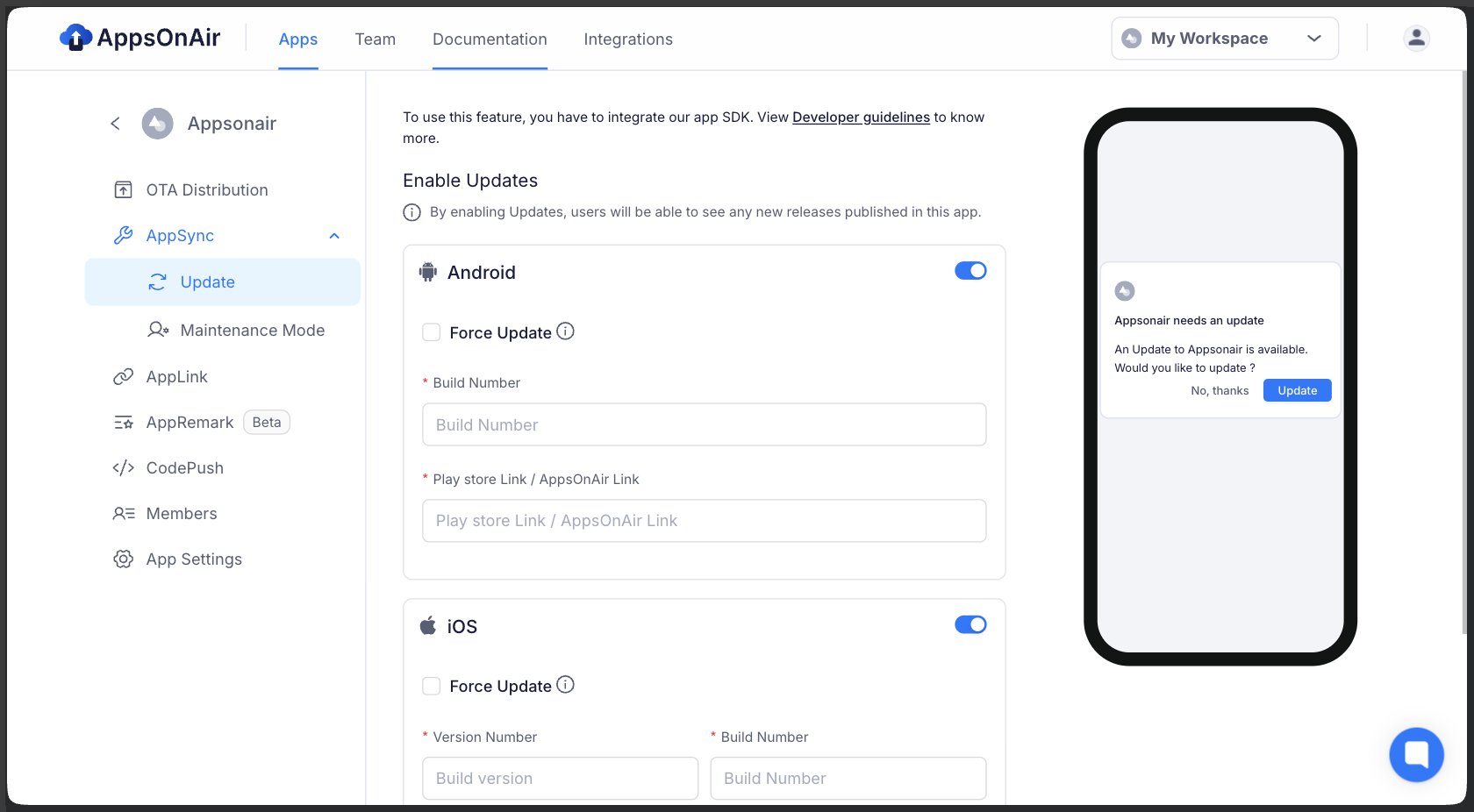
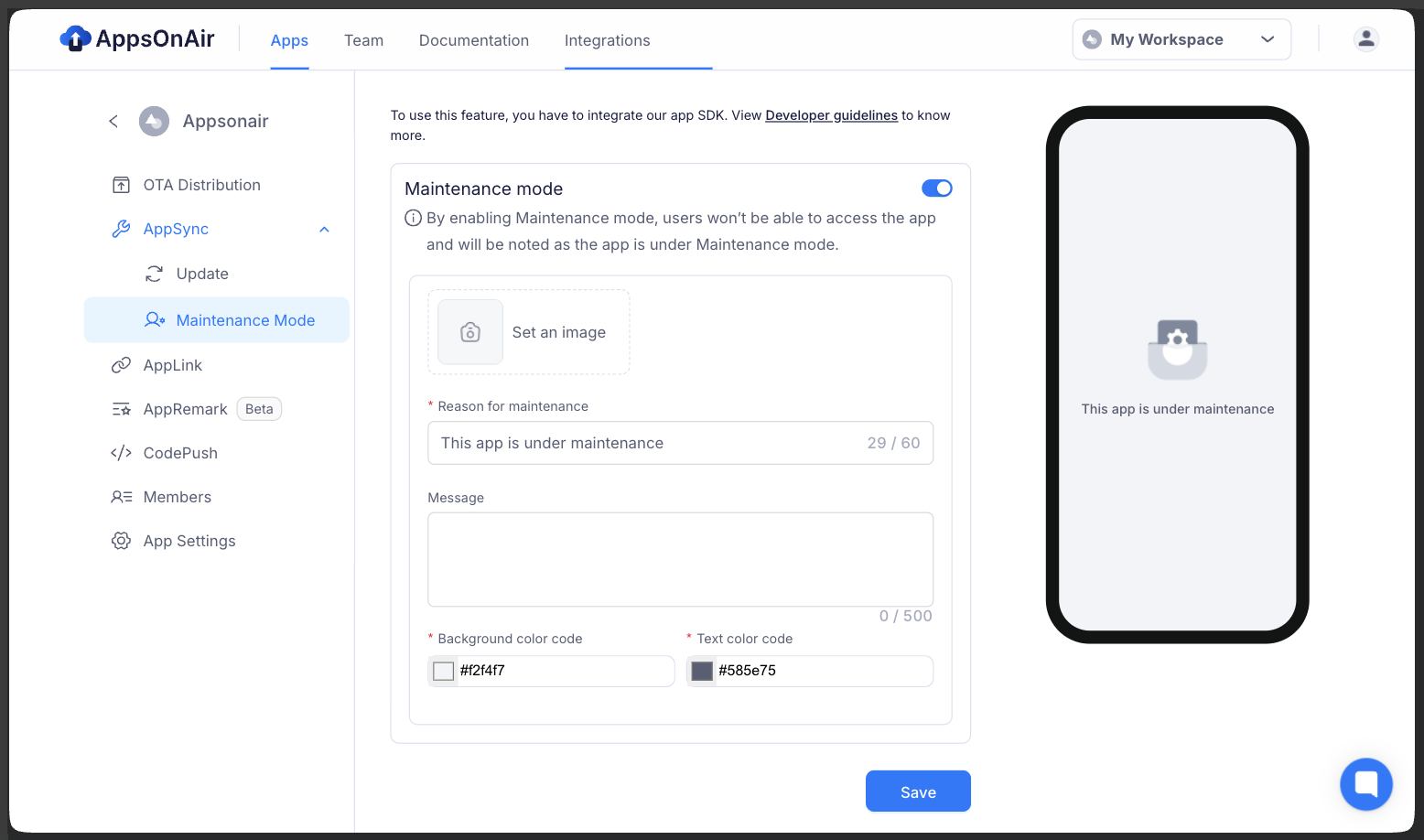
You can manage App Update & Maintenance Mode configuration from AppsOnAir web portal.
App Update
Maintenance Mode
Best Practices for Update Adoption
- Force updates only for critical patches.
- Choose the right timing. Show prompts at app launch or natural transitions, not during active tasks.
- Provide optional updates for features. Encourage with benefits: “Checkout is now 40% faster.”
Results After Implementation
With AppSync integrated, we saw:
Cross-Platform Support
Although this guide focuses on Flutter, the same concepts apply to:
- Native Android (Java/Kotlin)
- Native iOS (Swift/Objective-C/SwiftUI)
- React Native
AppSync maintains consistent update flows across all platforms
Action Plan for Developers
- Set up an AppsOnAir account.
- Add the Flutter AppSync dependency (documentation).
- Implement the service layer. (Flutter documentation)
- Test with optional and force update scenarios.
- Design/update your maintenance screen. (Optional)
- Roll out App gradually and monitor adoption metrics.
Final Notes
App version management should not be an afterthought. With the right tools and policies in place, updates can be smooth, user-friendly, and directly beneficial to both users and the business.
References
- AppsOnAir Onboarding - Official Documentation
- AppsOnAir AppSync - Official Documentation.
- AppSync SDK Setup - AppSync Flutter SDK Setup
- Flutter Pub dev SDK - Official Flutter pub dev dependency