.png)


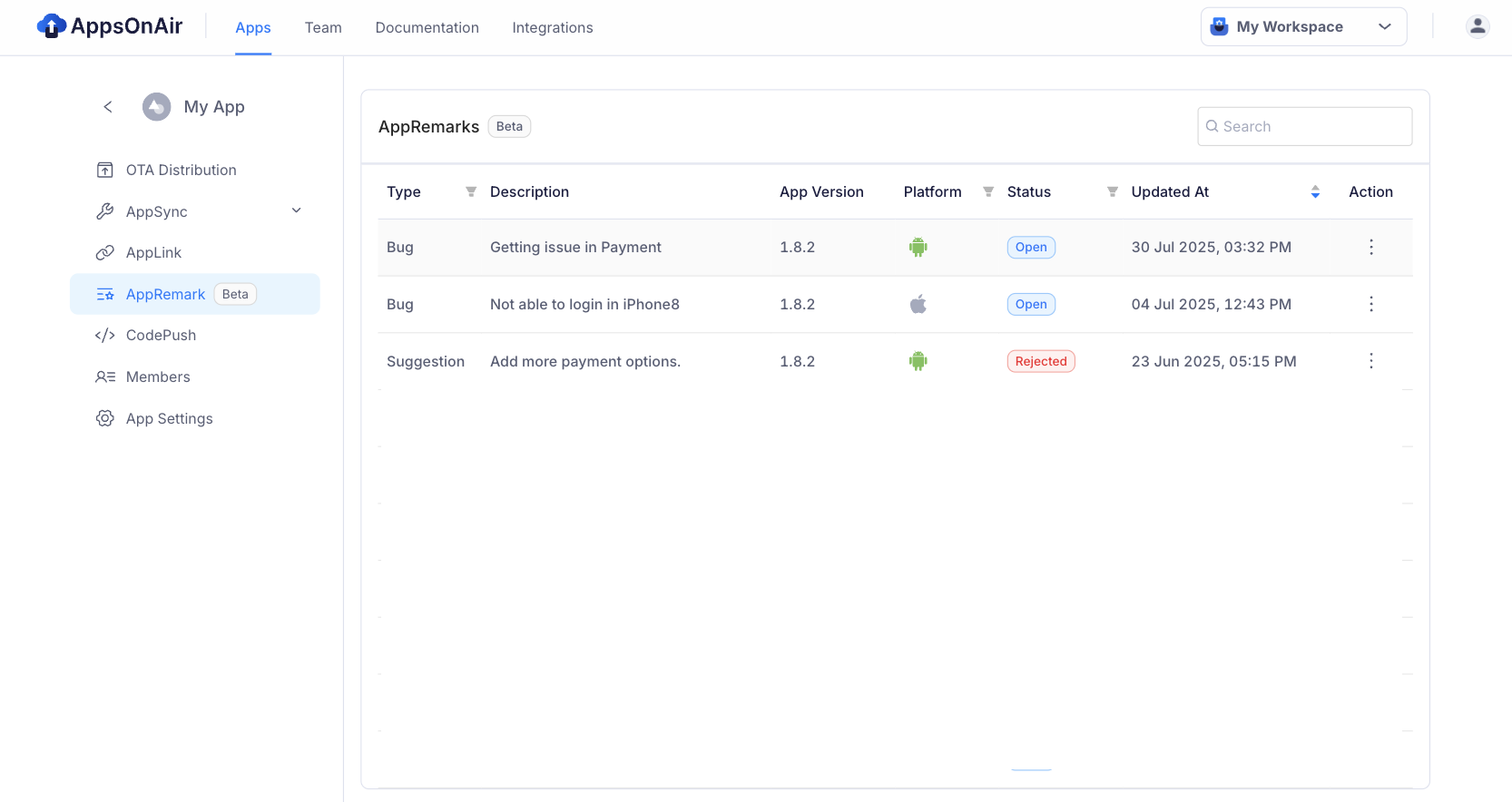
User feedback is the backbone of app improvement. But the way we ask for feedback makes all the difference. Badly timed popups often get dismissed, while smart, well-integrated flows lead to higher ratings and actionable insights. AppRemark is an in-app bug reporting tool that captures screenshots (shake to capture), allows annotation, and submits contextual feedback/bug reports to your AppsOnAir dashboard. It is not a store-rating / review prompt service
This guide shows how to integrate AppRemark by AppsOnAir in Flutter to collect user feedback and bug reports and suggestions efficiently.
Why Ratings & Feedback Matter?
- App Store visibility: Higher ratings improve app ranking and discoverability.
- User trust: New users rely heavily on reviews before installing.
- Product improvement: Structured feedback highlights bugs and feature requests.
- Retention: Listening to users increases loyalty and reduces churn.
What AppRemark provides (key facts)
- Shake-to-capture current screen (can be disabled). Dart packages
- Annotatable screenshot + customizable “Add Remark” screen.
- Manual invoke option (open the remark screen programmatically).
- Accepts extra metadata (you can attach userId, build info, etc.).
- The Flutter SDK is distributed as appsonair_flutter_appremark
Quick Integration
Step 1: Add Dependency
Use the package appsonair_flutter_appremark
flutter pub add appsonair_flutter_appremark
Or add to pubspec.yaml:
dependencies:
  appsonair_flutter_appremark: ^0.2.4
Step 2: Basic AppsOnAirAppID Setup
Go to App Settings in the AppsOnAir web portal and copy the AppsOnAirAppId
For iOS, add AppsonairAppId in Info.plist file and add Photo permission too.
<key>AppsonairAppId</key>
<string>XXXXXXXX-XXXX-XXXX-XXXX-XXXXXXXXXXXX</string>
For Android, add AppsonairAppId in the AndroidManifest file
<application>
    ...
    <meta-data
        android:name="AppsonairAppId"
        android:value="********-****-****-****-************" />
</application>
Set up AppsonairAppId for your mobile app, for more details refer to this documentation.
Step 3: Basic AppsOnAir Setup
Initialize SDK:Call initialization early. The package examples show initializing after a short delay to let the app finish launching:
@override
void initState() {
  super.initState();
  Future.delayed(const Duration(milliseconds: 100), () async {
    await AppRemarkService.initialize(context);
  });
}
This registers the shake gesture (enabled by default) and reads the “Add Remark” screen.
Step 4: Manual Trigger / Disable Shake (Optional)
Manually open the remark screen:
AppRemarkService.addRemark(context);
Use a manual trigger to display the feedback flow after a specific event.
Disable auto shake capture at init:
AppRemarkService.initialize(context,shakeGestureEnable: false);
Step 5: Add Extra metadata (Optional)
Attach identifying or debugging metadata (user id, email, app build, server id) so each report is actionable:
await AppRemarkService.setAdditionalMetaData(extraPayload: {
  "userName": "alice",
  "userId": "1234",
  "appBuild": "1.2.3+45",
});
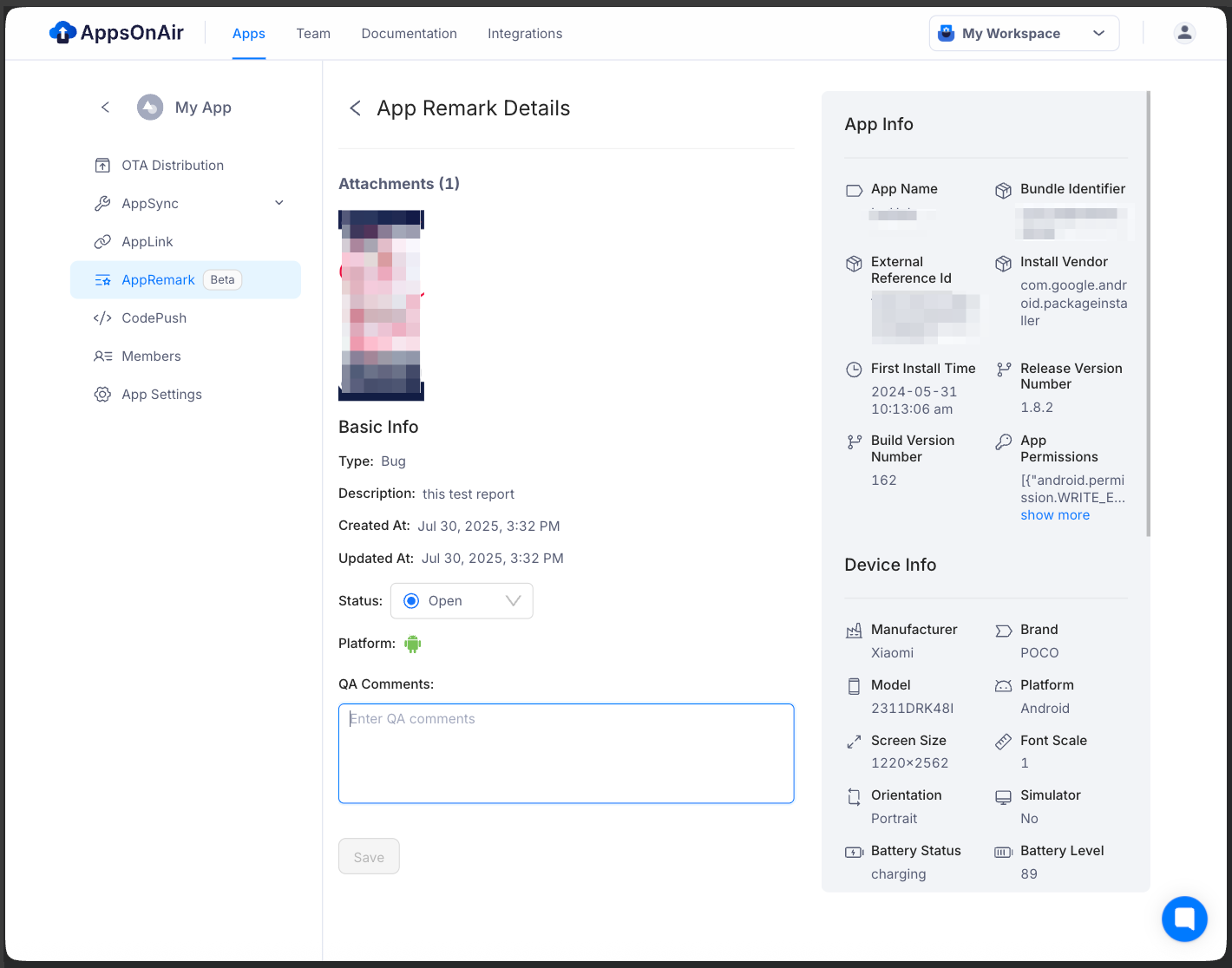
This metadata is saved with the submitted AppRemark. You can access from the AppsOnAir AppRemark web portal.
Step 6: Theming (Optional)
You can pass an options map during initialize to control visual text/colors and small UI behavior (keys like pageBackgroundColor, appBarTitleText, descriptionMaxLength, etc.). For more information, please refer to Flutter AppRemark documentation.
Best Practices & Implementation Notes
- annotations, logs), not to prompt users to rate your app on the app store. (Use a separate rating strategy or store APIs if you need that.)
- Attach useful metadata (user id, session id, OS version, build number). Use setAdditionalMetaData.
- Control frequency - if using shake-to-capture, provide an in-app "Report a Problem" button to avoid accidental captures.
- Privacy & permissions - iOS requires photo usage string if gallery use is allowed; ensure you comply with user privacy policies.
- Beta note: AppRemark was published as public beta - expect minor changes as the SDK evolves. Test before wide rollout.
What You’ll get
- Contextual bug reports with annotated screenshots. faster repro and fewer back-and-forths with users.
- Centralized feedback/bug collection in the AppsOnAir dashboard for easier triage.
References