.svg)



.png)
Introduction
If you’re an iOS developer, chances are you’ve stared at this dreaded error at least once:
error: No matching provisioning profile found: Your build settings specify a provisioning profile
with the UUID "XXXXXXXX-XXXX-XXXX-XXXX-XXXXXXXXXXXX", however, no such provisioning profile was found. (in target 'YourApp' from project 'YourApp')
It shows up right when you’re about to archive your app, run it on a real device, or push to TestFlight and it brings your entire workflow to a screeching halt.
The good news? This error is 100% fixable. It’s almost always a mismatch between your signing certificate, provisioning profile, Bundle ID, or Apple Developer account settings, nothing in your actual app code.
In this guide, we’ll break down exactly what causes this error, walk through every proven fix, and help you understand code signing well enough that this never slows you down again.
What Is a Provisioning Profile?
Before jumping into fixes, let’s quickly understand what a provisioning profile actually is
because knowing the “why” makes fixing it much easier.
A provisioning profile is a configuration file Apple requires for every iOS app. It acts as a trust bridge between three things:
[ Your App (Bundle ID) ]  +  [ Your Certificate ]  +  [ Apple Developer Team ]
                                    ↓
   Provisioning Profile (.mobileprovision)
                                    ↓
    App is allowed to run on the devices / be distributed
There are four types of provisioning profiles:
Important Note: Each provisioning profile is tied to a specific Bundle ID, Team ID, and one or more signing certificates. If any of these don’t match, Xcode throws the “No Matching Provisioning Profile Found” error.
Problem Statement
The error “No Matching Provisioning Profile Found” occurs when Xcode tries to sign your app during the build process but cannot locate a provisioning profile that satisfies all of these conditions simultaneously:
- Matches your app’s Bundle Identifier (e.g., com.yourcompany.yourapp)
- Includes your active signing certificate
- Belongs to the correct Apple Developer Team
- Has not expired
- Matches the build type (Debug/Release/Distribution)
The error typically surfaces in these scenarios:
- First-time build on a new Mac or after resetting Xcode
- After joining a new development team or switching Apple accounts
- After your certificate or profile expires (certificates expire after 1–3 years)
- After changing the app’s Bundle ID
- When cloning a project that was originally built on someone else’s machine
- After an Xcode major version upgrade
Root Causes
Here is a breakdown of the most common root causes:
Step-by-Step Solutions
Fix 1: Refresh Provisioning Profiles in Xcode
This is always the first thing to try. Xcode can download and refresh all profiles associated with your Apple Developer account in seconds.
Steps:
- Open your project in Xcode
- Go to Xcode → Settings (or ⌘ + ,)
- Click the Accounts tab
- Select your Apple ID and click Manage Certificates
- Close the window, then go back to Accounts 6. Click the Download Manual Profiles button.
 [Xcode Accounts Tab]
       ↓
 Download Manual Profiles
 (Xcode → Settings → Accounts → Download Manual Profiles)
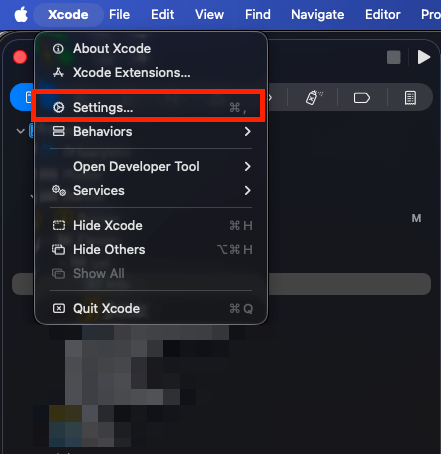
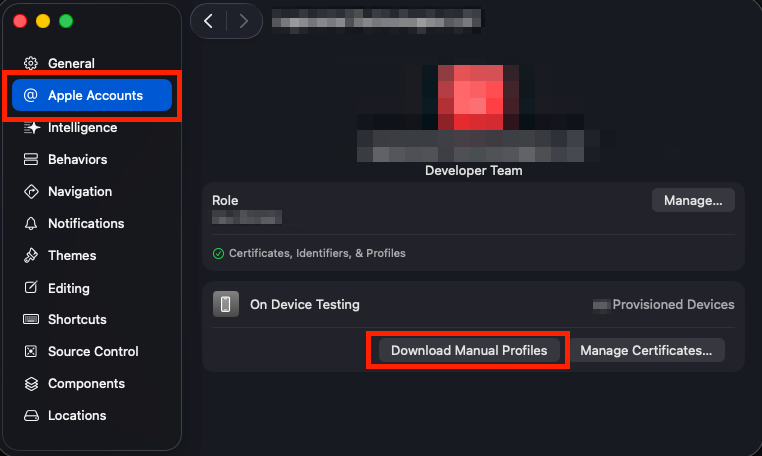
After downloading, clean your build folder with ⇧ + ⌘ + K and try building again.
Fix 2: Enable Automatic Signing
Xcode’s Automatic Signing feature lets Xcode manage provisioning profiles for you; it creates, updates, and renews them automatically. This is the recommended approach for most developers.
Steps:
- Open your project in Xcode
- Select your project in the Project Navigator
- Select your Target → go to the Signing & Capabilities tab
- Check the box“Automatically manage signing”
- Select the correct Team from the dropdown.

Project Navigator
  └── [Your Project]
        └── TARGETS
              └── [YourApp]
                    └── Signing & Capabilities
                          ☑ Automatically manage signing
                          Team: Your Team Name (XXXXXXXXXX)
Note: If you see “No account for team” error, make sure your Apple ID is added under Xcode → Settings → Accounts.
Fix 3: Manually Create & Install a Provisioning Profile
If Automatic Signing doesn’t resolve it (common in CI/CD pipelines or enterprise environments), you’ll need to manually create a profile from the Apple Developer Portal.
Step 3.1 Create a provisioning profile on Apple Developer Portal:
- Go to developer.apple.com/account
- Navigate to Certificates, Identifiers & Profiles
- Click Profiles → + (Add)
- Choose the profile type (Development / App Store / Ad Hoc)
- Select your App ID (Bundle ID)
- Select the Certificate to include
- (For Development/Ad Hoc) Select the Devices
- Enter a Profile Name and click Generate
- Click Download to save a .mobileprovision file
Step 3.2 Install the profile on your Mac:
Option A Double-click:
# Simply double-click the downloaded .mobileprovision file
# Xcode installs it automatically
open ~/Downloads/YourApp_AppStore.mobileprovision
Option B Copy manually to the profiles directory:
# Copy the provisioning profile to Xcode's profiles folder
cp ~/Downloads/YourApp_AppStore.mobileprovision \
~/Library/MobileDevice/Provisioning\ Profiles/
Step 3.3 Select it in Xcode:
- In Signing & Capabilities, uncheck “Automatically manage signing”
- Under Provisioning Profile, click the dropdown and select your newly installed profile
Tip: All installed provisioning profiles are stored at:~/Library/MobileDevice/Provisioning Profiles/
To list all installed profiles and see their details:
# List all installed provisioning profiles
ls ~/Library/MobileDevice/Provisioning\ Profiles/
# Read a specific profile's details (replace UUID with actual filename)
security cms -D -i ~/Library/MobileDevice/Provisioning\ Profiles/XXXXXXXX-XXXX-XXXX-XXXX-XXXXXXXXXXXX.mobileprovision
Fix 4: Fix Bundle ID Mismatch
A very common cause is that the Bundle ID in your Xcode project doesn’t match the App ID registered in the Apple Developer Portal.
Check your Bundle ID in Xcode:
- Select your project → Target → General tab
- Look at Bundle Identifier (e.g., com.yourcompany.yourapp)
Check your App ID in Apple Developer Portal:
- Go to developer.apple.com
- Navigate to Certificates, Identifiers & Profiles → Identifiers
- Find your app and the Bundle ID must exactly match what’s in Xcode.
❌ Xcode Bundle ID:   com.yourcompany.YourApp
 ✅ Portal App ID:     com.yourcompany.yourapp
                                      ↑
                      Case mismatch causes the error!
Bundle IDs are case-sensitive. com.example.MyApp and com.example.myappare treated as different identifiers.
Fix 5: Renew an Expired Certificate or Profile
iOS Distribution Certificates expire after 3 years (Development certificates after 1 year).Provisioning Profiles expire after 1 year. When they expire, you’ll get the “No Matching Provisioning Profile” error.
Check certificate expiry in Keychain Access:
# Open Keychain Access
open /Applications/Utilities/Keychain\ Access.app
Search for “iPhone Distribution” or “Apple Development”
Check the Expires column
Check provisioning profile expiry via Terminal:
# Decode and check expiry date of a provisioning profile
security cms -D -i ~/Library/MobileDevice/Provisioning\ Profiles/YOUR_PROFILE.mobileprovision \
| grep -A2 "ExpirationDate"
Sample output:
<key>ExpirationDate</key>
<date>2025-06-01T00:00:00Z</date>   <!-- ← if this is past, profile is expired →
To renew: - Certificate: Go to Apple Developer Portal → Certificates → Revoke old → Create new → Download & install - Profile: Go to Apple Developer Portal → Profiles → Edit → Select new certificate → Regenerate → Download & install
Fix 6: Fix Team ID Mismatch
If you’ve recently been added to a new Apple Developer Team or have multiple teams, Xcode might be using the wrong one.
- In Xcode, go to Signing & Capabilities
- In the Team dropdown, select the correct team
- Verify your Team ID:
# Find your Team ID from installed provisioning profiles
security cms -D -i ~/Library/MobileDevice/Provisioning\ Profiles/*.mobileprovision \
| grep -A1 "TeamIdentifier" | grep string
Or check it on the Apple Developer Portal:
- Go to developer.apple.com/account
- Your Team ID (10-character alphanumeric string) is shown under Membership details.
Fix 7: Use Xcode CLI to Diagnose Signing Issues
When Xcode’s GUI doesn’t give enough details, the xcodebuild command-line tool can surface the exact error.
# Navigate to your project directory
cd /path/to/YourProject
# Build with verbose output to see signing details
xcodebuild \
-project YourApp.xcodeproj \
-scheme YourApp \
-configuration Release \
-archivePath ./build/YourApp.xcarchive \
archive \
CODE_SIGN_STYLE=Manual \
DEVELOPMENT_TEAM=YOUR_TEAM_ID \
CODE_SIGN_IDENTITY="iPhone Distribution" \
PROVISIONING_PROFILE_SPECIFIER="Your Profile Name" \
| tee build_log.txt
# For automatic signing
xcodebuild \
-project YourApp.xcodeproj \
-scheme YourApp \
-configuration Debug \
-destination 'platform=iOS Simulator,name=iPhone 16' \
CODE_SIGN_STYLE=Automatic \
DEVELOPMENT_TEAM=YOUR_TEAM_ID \
build
Pro Tip for CI/CD: If you’re running into this on GitHub Actions, Bitrise, or Fastlane, use fastlane match to manage all your certificates and profiles in a shared, encrypted Git repository.
# Fastlane Matchfile example
git_url("https://github.com/your-org/certificates-repo")
storage_mode("git")
type("appstore")   # appstore, adhoc, development
app_identifier(["com.yourcompany.yourapp"])
username("your-apple-id@email.com")
team_id("XXXXXXXXXX")
# Run match to sync certificates and profiles
bundle exec fastlane match appstore
Key Takeaways
- Provisioning profiles tie your Bundle ID, certificate, and team together all three must match perfectly.
- Always try “Download Manual Profiles” first - it solves the issue 60% of the time.
- Automatic Signing is recommended for individual developers and small teams. It handles profile creation and renewal automatically.
- Manual Signing is better for CI/CD, enterprise, or multi-team workflows where profiles need to be shared or controlled precisely.
- Check expiry dates - certificates expire after 1–3 years, provisioning profiles after 1 year.
- Bundle IDs are case-sensitive - ensure an exact match between Xcode and the Apple Developer Portal.
- Use a fastlane match if you’re working in a team- it eliminates certificate/profile chaos entirely.
Quick Reference Table
Conclusion
The “No Matching Provisioning Profile Found” error is one of the most common and most frustrating roadblocks in iOS development. But as we’ve seen, it’s never a deep code problem. It’s always a configuration mismatch between your app’s identity, your Apple Developer credentials, and Xcode’s signing settings.
Here’s a quick mental checklist to run through every time this error appears:
- Refresh profiles
- Xcode → Settings → Accounts → Download Manual Profiles
- Check Bundle ID
- Xcode must match the Apple Developer Portal exactly
- Check expiry :
- Certificates and profiles must both be valid
- Check Team ID
- The correct team must be selected
- Try Automatic Signing
- Let Xcode handle it automatically
- Manual profile
- Download from the portal and install if the automatic installation fails
- Use fastlane match
- For teams and CI/CD, it’s the gold standard
With the steps in this guide, you should be able to diagnose and fix the error in under 10 minutes and more importantly, understand it well enough to prevent it from happening again.
Reference Links
- Apple Developer Certificates, Identifiers & Profiles
- Apple Documentation Code Signing Overview
- Apple Documentation Provisioning Profiles
- Xcode Release Notes (Xcode 16)
- Fastlane Match Documentation
- Apple Managing Signing Certificates
- Apple Technical Note Code Signing Troubleshooting