.png)


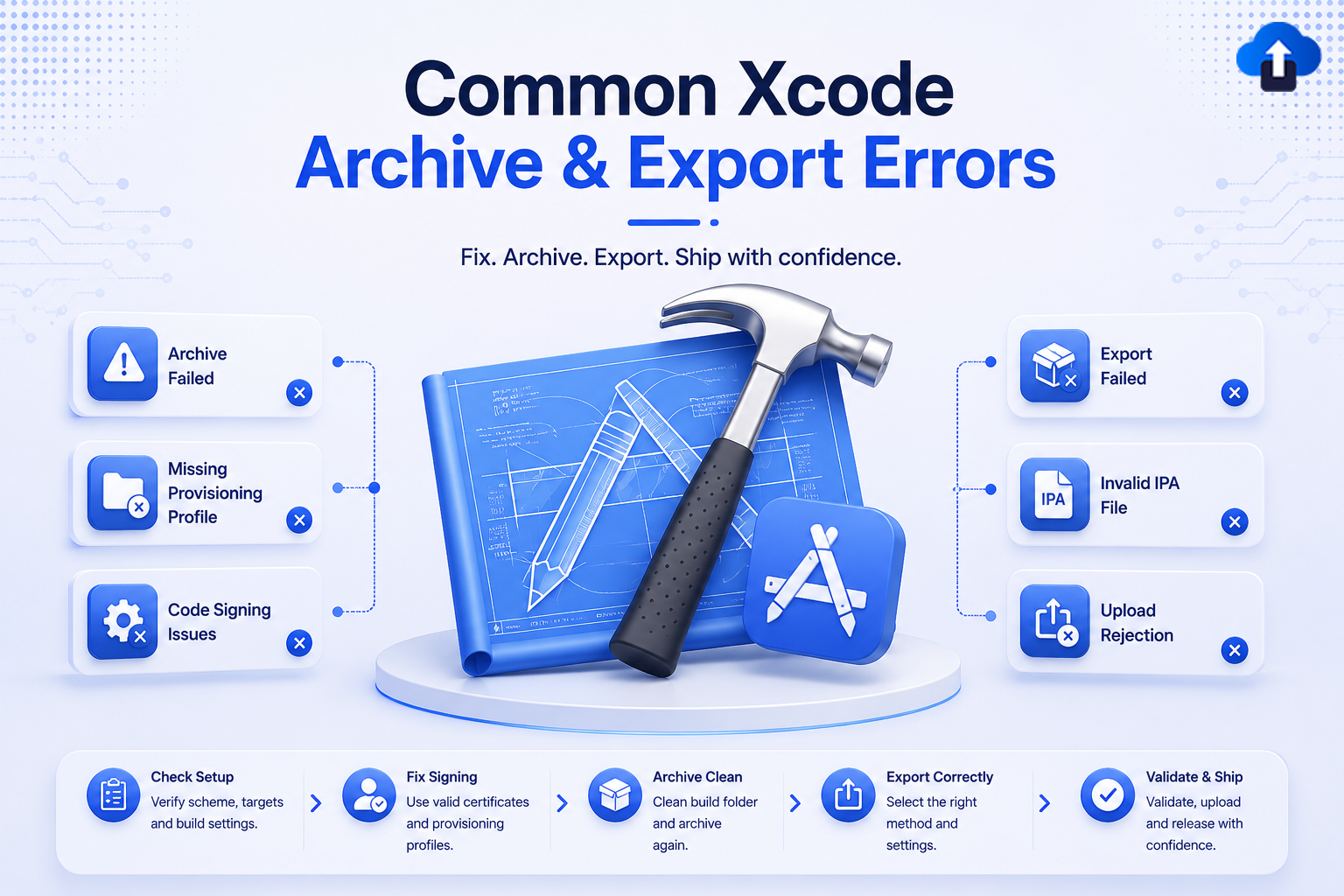
Introduction
Shipping an iOS app to the App Store is a multi-step process: you Archive the app in Xcode, then Export it to generate a signed .ipa, and finally Upload it via Xcode Organizer or altool/xcrun notarytool. Each step touches code signing, provisioning profiles, entitlements, and build settings, making each a potential failure point.
The error messages Xcode produces can be cryptic. A message like “No matching provisioning profiles found” could have five different root causes. This guide cuts through the noise and gives you the fastest path from error to fix.
Problem Statement: Why Archive & Export Errors Happen
The archive and export pipeline involves several moving parts that must all align:
When any layer is out of sync, usually because a certificate was renewed, a profile expired, a new capability was added, or Xcode was updated, the archive or export fails.
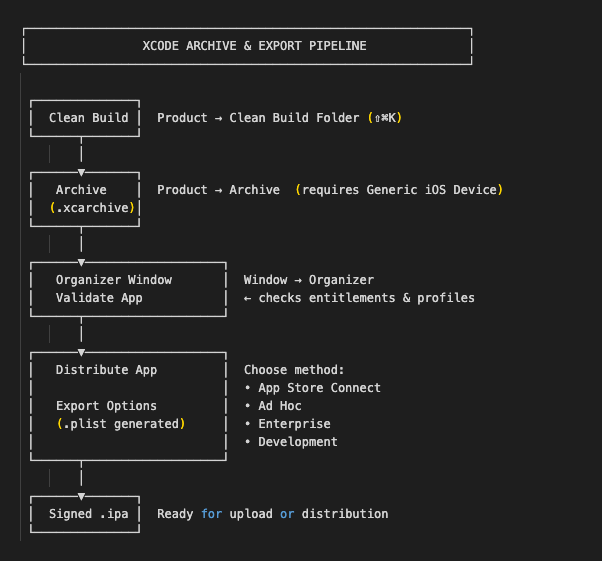
The ArchiveExport Pipeline
Before diving into errors, understand the full flow:
Common Archive Errors & Fixes
Error 1: “No matching provisioning profiles found”
Full error message: No matching provisioning profiles found: No provisioning profile with the bundle identifier "com.yourcompany.appname" was found.
Why it happens:
- The provisioning profile was revoked or expired on the Apple Developer portal.
- The bundle ID in Xcode does not match the App ID registered in the portal.
- Automatic signing is disabled, but no profile is assigned.
Fix Automatic Signing (Recommended):

Fix Manual Signing:
   1. Download fresh profile from Apple Developer portal
    https://developer.apple.com/account/resources/profiles/list


    2. Double-click the .mobileprovision file — Xcode installs it automatically


    3. In Xcode Build Settings, assign it:
    Build Settings → Code Signing → Provisioning Profile → [your profile]
Important: Always use a Generic iOS Device (not a simulator) as the build destination when archiving. Simulator builds cannot be archived.
Error 2: “Code Signing is Required for Product Type ‘Application’”
Full error message: Code signing is required for product type 'Application' in SDK 'iOS 17.0'
Why it happens: The target’s Code Signing Identity is set to Don't Code Sign or is empty for a Release build.
Fix:

# Verify via xcodebuild
  xcodebuild -project YourApp.xcodeproj \
         -scheme YourScheme \
         -showBuildSettings | grep "CODE_SIGN_IDENTITY"
Error 3: “Module Compiled with Swift X Cannot Be Imported by the Swift Y Compiler”
Full error message: Module compiled with Swift 5.9 cannot be imported by the Swift 5.10 compiler:
/path/to/Module.swiftmodule
Why it happens: A CocoaPods or binary Swift framework was compiled with a different Swift version than the one Xcode is now using (common after an Xcode update).
Fix:
  # Step 1: Update pods
  cd YourProject/
  pod update


  # Step 2: If the issue persists, clean derived data
  rm -rf ~/Library/Developer/Xcode/DerivedData/


  # Step 3: Rebuild from scratch
  pod deintegrate && pod install
For binary-only (closed-source) frameworks: Contact the framework vendor for an updated build compiled with Swift 5.10+
OR
Pin your Xcode version until a compatible framework is available.
Error 4: “Cycle Inside Target; Building Could Produce Unreliable Results”
Full error message: Cycle inside YourTarget; building could produce unreliable results.
Cycle details:
- Target 'YourTarget' has a compile command for Swift source files
- That command depends on the command in Target 'YourTarget': script phase "[CP] Copy Pods Resources"
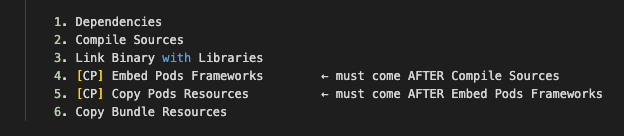
Why it happens: CocoaPods (or a custom Run Script) is placed in the wrong order in the Build Phases.
Fix:
Xcode → Target → Build Phases
Correct order:
Also check: Uncheck “Based on dependency analysis” on scripts that don’t need it, or properly configure their Input/Output Files.
Error 5: “Build Input File Cannot Be Found”
Full error message: Build input file cannot be found: '/path/to/SomeFile.swift' (in target 'YourApp' from project 'YourApp')
Why it happens: A file was deleted from disk, but its reference still exists in the Xcode project (.xcodeproj).
Fix:

  # Find all missing file references quickly
  find . -name "*.xcodeproj" -exec grep -l "sourceTree" {} \;
  # Then check project.pbxproj for paths that no longer exist
Error 6: “Scheme Is Not Configured for Archiving”
Full message: The scheme 'YourScheme' is not configured for the archive action.
Why it happens: The scheme’s Archive action has no Run Script, or the scheme is set to a Debug configuration instead of Release.
Fix:

Error 7: “armv7 / arm64 Architecture” Errors
Full error message: ld: warning: ignoring file ..., missing required architecture armv7 in file
OR
error: Building for iOS Simulator, but the linked and embedded framework 'XYZ.framework' was built for iOS + iOS Simulator.
Fix for arm64 Simulator (Apple Silicon Mac):
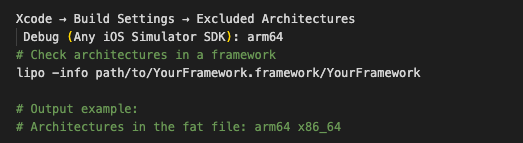
Important: Starting Xcode 14, armv7 is no longer supported. Remove armv7from ARCHS if it appears in any build settings.
Error 8: “Swift Compiler Error: Expression Was Too Complex”
Full error message: the compiler is unable to type-check this expression in reasonable time;
Try breaking up the expression into distinct sub-expressions
Fix:
  // Before — too complex for type inference
  let result = someArray.filter { $0.isActive }.map { $0.name }.sorted().joined(separator: ", ")


  // After — break into sub-expressions
  let active = someArray.filter { $0.isActive }
  let names = active.map { $0.name }
  let sorted = names.sorted()
  let result = sorted.joined(separator: ", ")
Common Export Errors & Fixes
Error 9: “The Executable Was Signed with Invalid Entitlements”
Full error message: exportArchive: The executable was signed with invalid entitlements.
The entitlements are specified in your application's Code Signing Entitlements file.
Do not match those specified in your provisioning profile.
Why it happens: A capability (e.g., Push Notifications, iCloud, App Groups) is enabled in the .entitlements file but not activated in the App ID on the Apple Developer portal or vice versa.
Fix:
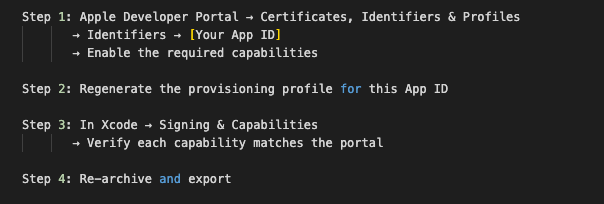
  # Inspect entitlements in your archive
  codesign -d --entitlements - \
  path/to/YourApp.xcarchive/Products/Applications/YourApp.app
Error 10: “App Store Distribution Requires a Distribution Certificate”
Full error message: No certificate for team 'XXXXXXXXXX' matching 'Apple Distribution: YourName'
Why it happens: The Apple Distribution certificate is missing from Keychain (e.g., after setting up a new Mac or after a certificate revocation).
Fix:
   Option A — Automatic (Recommended)
   Xcode → Preferences → Accounts → [Your Apple ID]
   → Manage Certificates → + → Apple Distribution
   Xcode downloads and installs it.


   Option B — Manual
   1. On a Mac that HAS the certificate:
   Keychain Access → My Certificates → Apple Distribution → Export as .p12


   2. On the new Mac:
   Double-click the .p12 file to import into Keychain


   3. Verify the certificate is valid (green checkmark) in Keychain Access
Important: Only one Mac should create and hold the private key for a distribution certificate. Share it via .p12 export; never request a new one, as that revokes the existing certificate.
Error 11: “Missing Push Notification Entitlement”
Full message: ITMS-90078: Missing Push Notification Entitlement. Your app appears to include an API used to register with the Apple Push Notification service, but the app signature's entitlements do not include the 'aps-environment' entitlement.
Fix:
   Xcode → Signing & Capabilities → + Capability → Push Notifications


   This adds to YourApp.entitlements:
   <key>aps-environment</key>
   <string>production</string>   ← for App Store builds
   # Verify the entitlement is present in the signed archive
   codesign -d --entitlements - \
   YourApp.xcarchive/Products/Applications/YourApp.app \
   | grep aps-environment
Error 12: “IPA Processing Failed”
Full error message: exportArchive: IPA processing failed
Why it happens: Usually caused by a malformed ExportOptions.plist, an extension bundle ID that is not a sub-bundle of the main app, or a bitcode mismatch.
Fix: Check ExportOptions.plist:
   <?xml version="1.0" encoding="UTF-8"?>
   <!DOCTYPE plist PUBLIC "-//Apple//DTD PLIST 1.0//EN"
   "http://www.apple.com/DTDs/PropertyList-1.0.dtd">
   <plist version="1.0">
   <dict>
   <key>method</key>
   <string>app-store-connect</string>   <!-- or ad-hoc / enterprise / development -->


   <key>teamID</key>
   <string>XXXXXXXXXX</string>          <!-- your 10-character Team ID -->


   <key>uploadSymbols</key>
   <true/>


   <key>compileBitcode</key>
   <false/>                              <!-- set false for Xcode 14+ -->
   </dict>
   </plist>
# Export using xcodebuild with explicit plist
  xcodebuild -exportArchive \
  -archivePath YourApp.xcarchive \
  -exportOptionsPlist ExportOptions.plist \
  -exportPath ./build/
Error 13: “This Bundle Is Invalid: The Value for Key CFBundleVersion…”
Full error message: ERROR ITMS-90060: This bundle is invalid. The value for the key CFBundleVersion
[3.2] In the Info.plist, it is not a valid version number.
Why it happens:
- CFBundleVersion (Build Number) must be a monotonically increasing integer string.
- It cannot contain letters, spaces, or more than three dot-separated components.
Fix:
   Xcode → Target → General → Identity
   Version (CFBundleShortVersionString): 3.2.0   ← user-facing (e.g., 3.2.0)
   Build   (CFBundleVersion):            47       ← integer, must be higher than last upload
Error 14: “No Account for Team” During Export
Full error message: No account for team 'XXXXXXXXXX'. Add a valid account in Xcode's Accounts preference pane.
Fix:
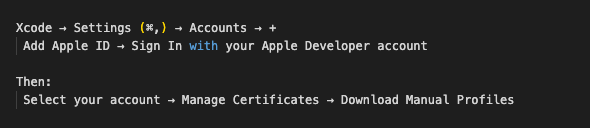
Error 15: “ERROR ITMS-90096: This Bundle Is Invalid” (Missing Architecture)
Full error message: ERROR ITMS-90096: This bundle is invalid. Apps should contain only code compiled for supported architectures.
Fix:
   # Check .ipa architectures
   unzip -o YourApp.ipa -d ipa_content
   lipo -info ipa_content/Payload/YourApp.app/YourApp


   # Should output: arm64 only for modern App Store builds
   # If x86_64 appears in the app binary (not just simulator), remove it:
   lipo -remove x86_64 YourApp -output YourApp_fixed
   Build Settings:
   VALID_ARCHS: arm64
   EXCLUDED_ARCHITECTURES[sdk=iphonesimulator*]: arm64
Error Quick-Reference Comparison Table
Universal Pre-Archive Troubleshooting Checklist
Run through this checklist before every archive attempt. It prevents 90% of the errors in this guide.
PRE-ARCHIVE CHECKLIST
BUILD DESTINATION: Destination = "Any iOS Device (arm64)" NOT a simulator
SIGNING
- Auto signing enabled, OR manual profiles are fresh (< 1 year old)
- The certificate is valid in Keychain Access (green checkmark)
- Team ID is correct in Build Settings
VERSIONING
- CFBundleShortVersionString = e.g., 3.2.0 (three parts, numbers only)
- CFBundleVersion = integer, higher than the last TestFlight/App Store build
CAPABILITIES
- Every capability in .entitlements is enabled in the App ID on the portal
- The provisioning profile was regenerated AFTER the last capability change
SCHEME
- Archive action → Build Configuration = Release
DEPENDENCIES
- Pod update or Swift package update run after Xcode upgrade
- DerivedData is cleared after a major Xcode version change
ARCHITECTURE
- VALID_ARCHS = arm64 (Xcode 14+)
- No armv7 in ARCHS or VALID_ARCHS
BUNDLE RESOURCES
- No missing (red) file references in Project Navigator
- Asset catalog images are not duplicated
EXPORT OPTIONS
- ExportOptions.plist method matches your target.
(app-store-connect | ad-hoc | enterprise | development) - Team ID in plist matches your developer account
Advanced: CI/CD Export with Xcodebuild
For teams automating builds with GitHub Actions, Fastlane, or Bitrise:
   # Step 1: Archive
   xcodebuild archive \
   -project YourApp.xcodeproj \
   -scheme YourScheme \
   -configuration Release \
   -destination "generic/platform=iOS" \
   -archivePath build/YourApp.xcarchive \
   CODE_SIGN_IDENTITY="Apple Distribution" \
   DEVELOPMENT_TEAM="XXXXXXXXXX"


   # Step 2: Export
   xcodebuild -exportArchive \
   -archivePath build/YourApp.xcarchive \
   -exportOptionsPlist ExportOptions.plist \
   -exportPath build/output/ \
   -allowProvisioningUpdates


   # Step 3: Upload to App Store Connect (Xcode 13+)
   xcrun altool --upload-app \
   --type ios \
   --file build/output/YourApp.ipa \
   --apiKey $APP_STORE_API_KEY \
   --apiIssuer $APP_STORE_API_ISSUER
Using App Distribution platform for OTA Distribution (Bypass Export Complexity)
If you need to distribute internally without going through App Store Connect every time, App simplifies the loop:

Key Takeaways
- Most archive errors are code signing or provisioning profile issues. Enabling Automatic Signing and keeping your Apple Developer account linked in Xcode resolves the majority.
- Most export errors are entitlement mismatches or missing/expired certificates. Always sync your App ID capabilities on the portal before archiving.
- Always use Generic iOS Device as the destination when archiving, never a simulator.
- Monotonically increasing build numbers (CFBundleVersion) are mandatory. Use agvtool next-version -all to automate it.
- After any Xcode upgrade, run pod update, clear DerivedData, and do a clean build to avoid Swift version mismatch errors.
- On CI/CD, use xcodebuild -allowProvisioningUpdates to let Xcode auto-refresh profiles without a Mac GUI.
- Keep one Mac as the authoritative holder of the distribution certificate private key. Export and share as a .p12 file; never revoke and recreate.
Conclusion
Xcode archive and export errors are some of the most frustrating moments in iOS development, mostly because the error messages rarely tell you what actually went wrong. But the good news is that nearly every error follows a predictable pattern: a mismatch in signing, entitlements, architecture, or versioning.
With the checklist in Section 7, you can prevent most errors before they happen. When an error appears, the quick-reference table in Section 6 provides the fastest path to a fix.
The goal is to make releasing an app feel routine, not like defusing a bomb. Build that confidence by understanding the pipeline end to end, and the next time Xcode throws a wall of red, you’ll know exactly where to look.
References
- Apple Code Signing Guide
- Apple Distributing Your App
- Apple Developer Portal
- Xcode Release Notes
- Apple App Store Connect Help
- Apple xcrun altool
- agvtool Documentation