.png)


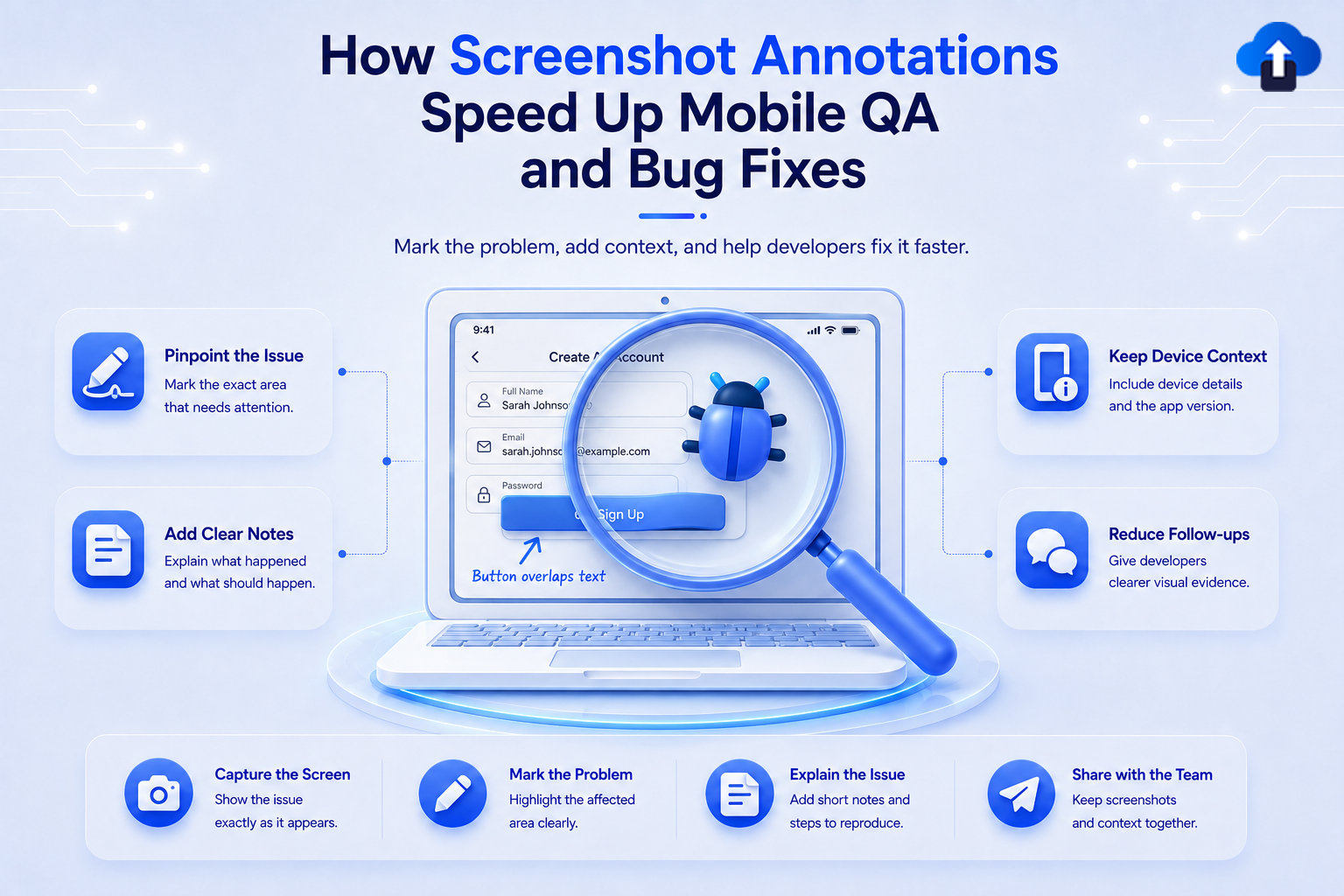
A mobile bug can sometimes be difficult to explain in words. A tester may notice that a button overlaps another element, text is cut off, or a screen behaves differently than expected. Writing a detailed description takes time, and developers may still need clarification before they understand exactly what went wrong.
Screenshot annotation for bug reporting makes this process much clearer. Testers can capture the problem, mark the exact area, and add a short note explaining what needs attention. This gives developers visual context alongside the written report and can reduce unnecessary back-and-forth.
At AppsOnAir, we built AppRemark around this type of visual feedback workflow. Testers and users can capture or upload screenshots, annotate them with drawings or text, add context, and submit everything from inside the app.
What Is Screenshot Annotation in Mobile QA?
Screenshot annotation means adding visual marks or notes to a screenshot before submitting it as part of a bug report.
A tester might draw around a broken button, highlight incorrect text, point to an overlapping component, or add a note beside the area where the problem appears. The screenshot then becomes more than evidence that a bug exists. It explains where the problem is located.
Why Visual Context Matters
Mobile interfaces contain many elements within a small screen. A description such as "the button is misaligned" may not immediately tell a developer which button is affected or what the correct placement should be.
An annotated screenshot removes much of that uncertainty. The tester can point directly to the affected component and explain the problem in a few words.
This is especially useful for layout issues, visual defects, spacing problems, incorrect labels, missing elements, and other bugs that are easier to see than describe.
How Screenshot Annotations Speed Up Mobile QA
Mobile QA often involves repeated communication between testers and developers. The faster both sides understand the same problem, the faster the team can move toward a fix.
Annotated screenshots make bug reports easier to understand at first glance, which can shorten several parts of the QA workflow.
Testers Spend Less Time Explaining Bugs
Without visual annotations, testers may need to write long descriptions such as where an issue appeared, which element was affected, and what looked incorrect.
With an annotated screenshot, much of that information becomes visible immediately. A simple arrow, circle, highlight, or note can communicate what would otherwise take several sentences.
This lets testers focus on capturing useful information rather than writing lengthy explanations for every visual issue they find.
Developers Understand the Issue Faster
Developers receiving a bug report need to determine what they are supposed to investigate. If the report is vague, the first step may be asking the tester for clarification.
An annotated screenshot gives the developer a clear starting point. They can see the affected screen, the specific UI element, and the tester's observation in one view.
That makes the report easier to triage and can help developers decide which part of the interface or codebase needs investigation.
Fewer Follow-Up Questions Are Needed
A bug report such as "text is broken on the profile screen" leaves several unanswered questions. Which text? How is it broken? Is it overlapping another element, cut off, or displaying the wrong value?
A screenshot with the affected text highlighted can answer some of those questions before the developer even begins investigating.
Reducing these clarification loops keeps QA work moving and helps both testers and developers spend more time on actual testing and fixes.
Which Mobile Bugs Benefit Most From Screenshot Annotations?
Screenshot annotations can support many types of mobile bug reports, but they are especially valuable when the problem is visual or tied to a specific part of the interface.
For these issues, showing the problem is often more effective than trying to describe every detail.
UI Layout and Alignment Problems
Spacing, alignment, and overlapping elements can vary across device sizes and screen resolutions.
A tester can capture the affected screen and mark the exact component that appears incorrectly. Developers can then immediately see whether the issue involves positioning, spacing, clipping, or another visual problem.
This can be particularly helpful when testing responsive layouts across multiple mobile devices.
Incorrect or Truncated Text
Mobile screens have limited space, so longer text can sometimes be cut off, wrap incorrectly, or overlap nearby elements.
Instead of writing a long description, the tester can highlight the affected label or paragraph directly on the screenshot.
The annotation also helps distinguish between several text elements that may appear on the same screen.
Missing or Incorrect UI Elements
Buttons, icons, images, and other interface elements may sometimes be missing, positioned incorrectly, or displayed in an unexpected state.
Annotations let testers point to where an element should appear or highlight the component that is displaying incorrectly.
This gives developers a clearer picture of the expected area of the interface before they begin reproducing the issue.
Visual Differences Between Devices
An interface may look correct on one device but break on another because of screen size, operating system differences, or device-specific behavior.
Screenshots make these differences easier to document. Combined with device information, the report can help developers understand both what the issue looks like and the environment where it occurred.
What Makes an Annotated Screenshot Useful?
Adding marks to every screenshot does not automatically create a good bug report. The annotation should make the issue easier to understand rather than making the image more complicated.
A few simple practices can help testers create clearer visual reports.
Highlight Only the Relevant Area
Avoid covering the entire screenshot with arrows, circles, and long notes. Too many annotations can make it difficult to understand which part of the screen actually matters.
Mark the smallest area needed to communicate the problem. If one button is affected, highlight that button rather than drawing across the full screen.
Combine the Screenshot With a Short Description
The screenshot should support the written report, not completely replace it.
A short note such as "button overlaps the navigation bar" gives the developer both visual and written context. Together, they are usually clearer than either one alone.
For more complex bugs, the report should still include relevant steps and expected behavior where needed.
Capture the Bug While It Is Visible
The most useful screenshot is usually captured when the problem is actually happening.
Waiting until later may require the tester to reproduce the issue again or rely on memory when explaining what occurred.
Capturing and annotating the screen at the moment of failure helps preserve the context of the original bug.
Screenshot Annotations and Faster Bug Fixes
Screenshot annotations do not fix bugs by themselves. Their value comes from improving the information developers receive before debugging begins.
Better information can reduce the time spent understanding the issue and help the developer move toward reproduction and investigation sooner.
Faster Bug Triage
QA teams often need to review many reports and decide which ones require immediate attention.
Visual reports can make this easier because reviewers can quickly see whether the problem affects an important interface element, creates a usability issue, or appears to be a minor visual defect.
This helps teams understand reported problems without opening multiple files or requesting additional explanations.
Better Communication Across Teams
Bug reports may be reviewed by QA engineers, developers, product managers, designers, and other team members.
Each person may interpret a written description differently. An annotated screenshot creates a shared visual reference for the discussion.
This is particularly useful for UI and UX issues where design expectations may be difficult to communicate through text alone.
More Actionable Bug Reports
A useful bug report should help the next person understand what happened and what needs investigation.
Screenshots become more actionable when they are combined with annotations, notes, device details, app version information, and other useful context.
The goal is not to collect as much information as possible. It is to provide the information that helps the team understand and reproduce the issue efficiently.
How AppsOnAir AppRemark Supports Screenshot Annotations
AppRemark is our in-app feedback and bug reporting SDK for mobile teams. It allows testers and users to capture feedback directly inside the app using triggers such as a shake gesture or an in-app button.
Capture and Annotate Screenshots
When a problem appears, reporters can capture a screenshot and annotate it with drawings or text before submitting the report. They can also manually upload previously captured screenshots from their gallery.
This helps users visually point to the part of the interface they are discussing rather than relying only on a written explanation.
Add Context to the Visual Report
A screenshot alone may show what happened, but developers may also need information about the environment where the issue occurred.
AppRemark keeps submitted screenshots and feedback together with contextual information such as device details and app version data. Reports are synced to a centralized dashboard where QA and development teams can review them.
Keep Feedback in One Place
When screenshots are shared separately through chat, email, or file storage, the image can become disconnected from the original bug report.
With AppRemark, submitted screenshots, annotations, notes, and form inputs are organized in the dashboard. This gives teams one place to review visual feedback and reported issues.
AppRemark currently provides SDK support for Android, iOS, Flutter, and React Native applications.
Common Mistakes With Screenshot-Based Bug Reports
One common mistake is sending a screenshot without explaining what the reviewer should look at. A screen may contain several buttons, labels, and components, so the problem may not be obvious without a note or annotation.
Another mistake is adding too many markings. An annotation should guide attention to the problem, not hide the interface behind drawings and text.
Teams should also avoid treating screenshots as a replacement for all other bug information. Reproduction steps, device details, app version, expected behavior, or other context may still be necessary for complex issues.
Frequently Asked Questions
What is screenshot annotation in bug reporting?
Screenshot annotation is the process of marking or adding notes to a screenshot to show exactly where a bug or visual issue appears.
Testers can use arrows, drawings, highlights, or text to make the affected area easier for developers to identify.
Why are annotated screenshots useful for mobile QA?
Annotated screenshots give developers visual context about a problem. They can reduce ambiguity and make UI issues easier to understand without requiring long written explanations.
This can also reduce follow-up questions between QA and development teams.
What types of bugs should be reported with screenshots?
Screenshots are especially useful for UI problems such as incorrect spacing, overlapping elements, truncated text, missing buttons, broken layouts, and visual differences across devices.
They can also support other bug reports when showing the state of the app helps explain what happened.
Can screenshots replace reproduction steps?
Not always. A screenshot shows the visible result of a problem, but it may not explain how the user reached that state.
For bugs that depend on a specific sequence of actions, reproduction steps should still be included alongside the screenshot.
What should a good mobile bug report include?
A useful mobile bug report should explain the issue clearly and include the context needed to investigate it.
Depending on the problem, that may include an annotated screenshot, short description, reproduction steps, expected behavior, device information, operating system, and app version.
Final Thoughts
Screenshot annotations can make mobile QA bug reporting faster by turning visual problems into reports that are easier to understand. Instead of relying on long descriptions, testers can point directly to the problem and give developers clearer context from the beginning.
The biggest benefit comes from reducing uncertainty. When developers can quickly see what is wrong and where it happened, they can spend less time interpreting reports and more time investigating the actual issue.
With AppsOnAir AppRemark, we bring screenshot capture, annotations, contextual feedback, and device information into the in-app reporting workflow. That helps mobile teams create clearer bug reports and build a faster path from finding an issue to fixing it.