.png)


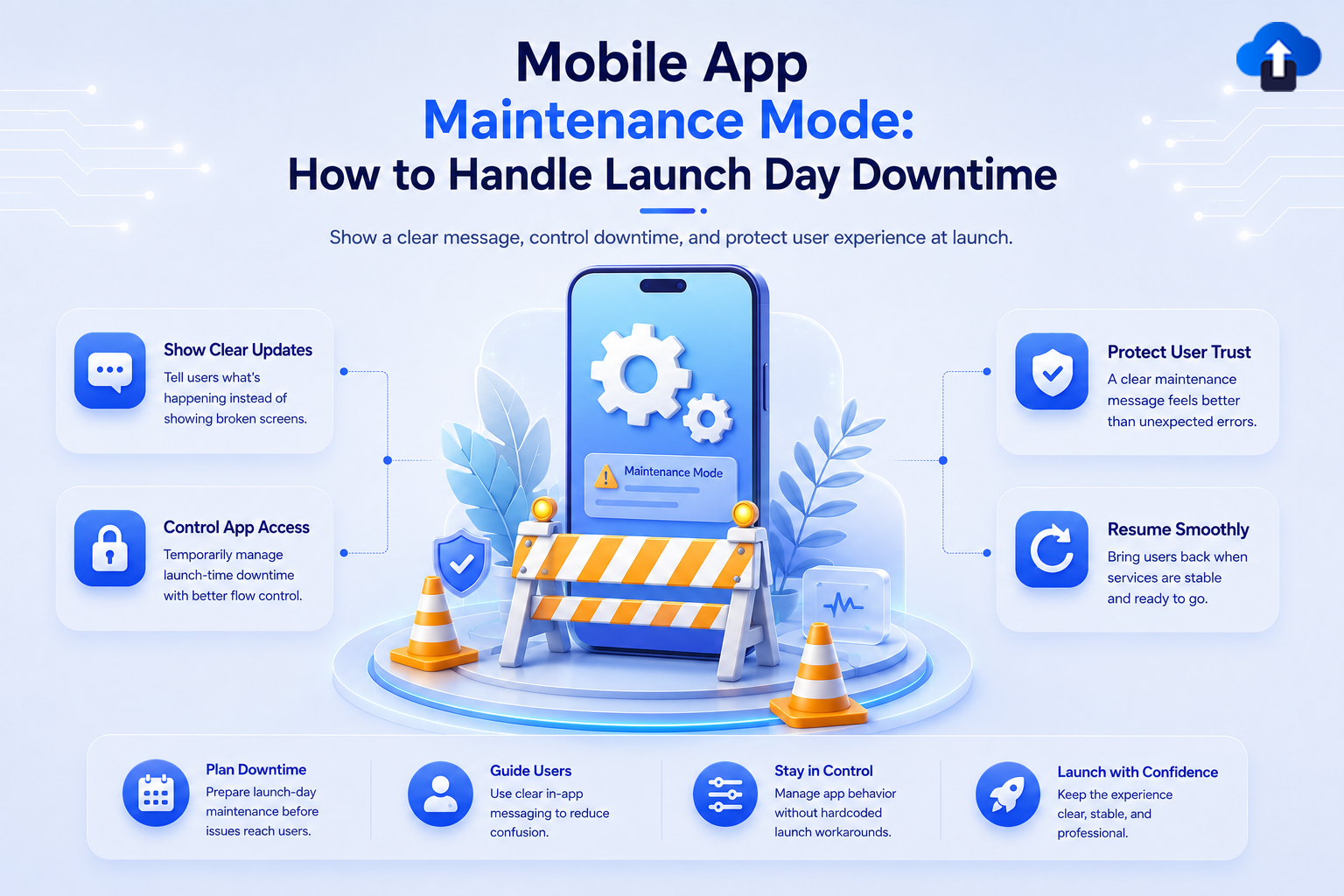
Launching a mobile app is exciting, but launch day can also expose problems that did not appear during development or testing. A sudden traffic spike, backend failure, database issue, or third-party service outage can make important parts of the app temporarily unavailable.
When this happens, users should not be left staring at loading screens, failed requests, or unexplained error messages. Mobile app maintenance mode gives teams a controlled way to temporarily limit access while the issue is being fixed.
AppsOnAir AppSync helps mobile teams manage situations like these remotely. Maintenance mode can be enabled when needed so users see a clear maintenance experience instead of entering an app that may not work correctly.
What Is Mobile App Maintenance Mode?
Mobile app maintenance mode is a temporary state that prevents users from accessing the normal app experience while important maintenance or fixes are taking place.
Instead of allowing users to enter screens that depend on unavailable services, the app displays a maintenance message. This tells users that the service is temporarily unavailable and gives the development team time to restore normal operation.
What Happens When Maintenance Mode Is Enabled?
When maintenance mode is active, users are redirected away from the normal application flow and shown a dedicated maintenance screen.
The message can explain that the app is temporarily unavailable and ask users to return later. This creates a much clearer experience than allowing users to encounter several different errors throughout the app.
The exact implementation depends on the maintenance system being used. The important point is that the app should fail in a controlled and understandable way rather than exposing users to broken functionality.
Why Launch Day Downtime Needs a Plan
Launch day often creates conditions that are difficult to reproduce during testing. Real users may arrive at the same time, production databases may receive heavier workloads, and external services may behave differently under real traffic.
Having a downtime plan means the team already knows what to do if a critical service fails. Instead of making decisions during an incident, developers can follow a prepared process for restricting access, communicating with users, fixing the problem, and restoring service.
Protect Users From Broken Experiences
Imagine that an app launches successfully, but its authentication service becomes unavailable. The app may still open, but users cannot sign in or access the features they came to use.
Without maintenance mode, users may repeatedly retry the same action and assume the application itself is unreliable. A maintenance screen provides one clear explanation instead of several confusing failures.
The same principle applies when payment systems, databases, APIs, or other essential services are unavailable. If users cannot complete important actions safely, temporarily restricting access can provide a better experience.
Reduce Confusion During Unexpected Downtime
Users usually do not know whether a failed screen is caused by their device, internet connection, account, or the app itself. Repeated error messages can make the problem even less clear.
A simple maintenance message removes some of that uncertainty. It tells users that the service is temporarily unavailable and that they do not need to repeatedly retry the same action.
Good downtime handling is therefore not only a technical decision. It is also part of the overall mobile app user experience.
When Should You Enable Mobile App Maintenance Mode?
Maintenance mode should normally be used when a problem affects an important part of the application and normal usage cannot continue reliably.
It should not be activated for every minor bug. The decision should depend on the severity of the issue, how many users are affected, and whether users can safely continue using the app.
Critical Backend or API Failures
Most modern mobile apps depend on backend systems for authentication, payments, user data, notifications, or other important functions.
If one of these critical systems becomes unavailable, keeping the app fully accessible may lead users into workflows that cannot be completed. Maintenance mode can temporarily stop those workflows until the service is restored.
Planned Server or Database Maintenance
Downtime is not always unexpected. Teams may need to perform database migrations, infrastructure upgrades, server changes, or other planned maintenance.
In these situations, a maintenance screen can be prepared in advance. Users receive a clear message instead of encountering failed requests while backend systems are intentionally unavailable.
Serious Problems Immediately After Launch
Some production issues only become visible after real users begin using the application. A major configuration problem, failed dependency, or unexpected server load can affect core features shortly after launch.
If the problem makes the app unreliable, temporarily entering maintenance mode can give the team time to investigate and verify the fix before normal access is restored.
How to Handle Launch Day Downtime
The best time to prepare for launch-day downtime is before the launch happens. Teams should decide how maintenance will be activated, what users will see, and who is responsible for restoring access.
A simple incident process can prevent unnecessary confusion when everyone is already under pressure.
Prepare Maintenance Mode Before Release
Do not wait for a production incident before thinking about maintenance behavior. The maintenance flow should already be integrated and tested before the app reaches users.
Test what happens when maintenance mode is enabled. Confirm that the correct screen appears, the message is readable, and users cannot accidentally continue into workflows that depend on unavailable systems.
Teams should also verify how normal access will be restored once maintenance is complete.
Write a Clear Maintenance Message
A maintenance message should be simple and direct. Users do not need internal server names, technical error codes, or detailed explanations of what failed.
A useful message could say that the app is temporarily unavailable because maintenance is in progress and ask the user to try again later.
If the team has a reliable estimated recovery time, it can also be shown. However, avoid promising a specific time unless the team is confident that the estimate is realistic.
Stop Users Before They Reach Broken Features
Showing error messages after users have already completed several steps creates frustration. For example, a user may spend time filling out a form only to discover that the final request cannot be submitted.
When a critical service is unavailable, the maintenance flow should ideally stop users before they begin actions that cannot be completed.
This is especially important for workflows involving payments, account changes, bookings, uploads, or other actions where failed requests can create uncertainty.
Test Before Restoring Access
Turning maintenance mode off should not be the first action taken immediately after a technical fix is deployed.
The affected workflows should be tested first. Check that backend services are responding correctly, important app actions work normally, and the original problem is no longer affecting users.
Once the system is stable, normal access can be restored with greater confidence.
How AppsOnAir AppSync Helps Manage Maintenance Mode
AppSync is built to help mobile teams control app updates and maintenance behavior remotely. Once the SDK is integrated, AppSync checks the configured rules when the application launches and can handle maintenance routing as well as forced and optional update prompts.
Enable Maintenance Mode Without a New App Release
When an unexpected production issue occurs, publishing another app version simply to display a maintenance screen is not practical.
With AppSync already integrated, maintenance mode can be enabled remotely. Users opening the app can then be shown the maintenance experience without requiring a new binary release just to activate that state.
Show Users a Controlled Maintenance Experience
When maintenance mode is enabled, users are shown a maintenance message and prevented from continuing into the application until maintenance ends. This helps replace broken app screens with a clear and intentional experience.
You can also manage update behavior through the same AppSync workflow. This includes forced updates, optional updates, and maintenance routing, helping teams manage different app lifecycle situations from one place.
Support Common Mobile Development Platforms
AppSync can be integrated with iOS, Android, Flutter, and React Native applications. The SDK runs its check when the app launches and applies the configured update or maintenance behavior.
This makes the same general maintenance strategy available to teams working across native and cross-platform mobile apps.
Common Mistakes During Mobile App Downtime
One common mistake is leaving an app fully accessible even though important backend services are unavailable. Users then encounter several errors across different screens instead of receiving one clear explanation.
Another mistake is using a vague maintenance message such as "Something went wrong." Users should be able to understand that the downtime is temporary and that the problem is being handled.
Teams should also avoid restoring access too quickly. A fix may appear successful initially but fail again under real traffic. Important workflows should be verified before users are allowed back into the app.
Frequently Asked Questions
What is maintenance mode in a mobile app?
Mobile app maintenance mode temporarily restricts normal access to an application while important maintenance, server work, or fixes are taking place.
Instead of entering the normal app experience, users see a maintenance message explaining that the service is temporarily unavailable.
When should a mobile app use maintenance mode?
Maintenance mode is most useful when a critical service is unavailable and important app functionality cannot operate reliably.
Common examples include major backend failures, database maintenance, infrastructure upgrades, or serious production problems discovered after launch.
What should a mobile app maintenance message say?
A good maintenance message should clearly tell users that the app is temporarily unavailable and ask them to try again later.
If a reliable recovery estimate is available, the message can also include an expected completion time. Technical details should usually be avoided because they do not help most users.
Is maintenance mode the same as a force update?
No. Maintenance mode temporarily prevents users from accessing the app while a service or application is unavailable.
A force update requires users to install a newer app version before they can continue. The two workflows solve different problems.
Should maintenance mode be tested before launch?
Yes. Teams should test the complete maintenance workflow before releasing the application.
This includes checking the maintenance screen, message, routing behavior, and the process for restoring normal access after maintenance is complete.
Can maintenance mode help during planned downtime?
Yes. Maintenance mode can be useful for planned database migrations, server upgrades, infrastructure changes, or other work that temporarily makes important app functionality unavailable.
Preparing the maintenance experience in advance can give users clearer information during the planned downtime.
Final Thoughts
Mobile app maintenance mode gives teams a safer way to handle situations where normal app usage cannot continue reliably. Instead of exposing users to failed screens and unexplained errors, teams can temporarily restrict access, communicate clearly, fix the issue, and verify the application before reopening it.
Launch-day downtime cannot always be prevented, but the experience around it can be planned. Prepare the maintenance flow before release, keep the message simple, test critical workflows before restoring access, and make sure your team knows when maintenance mode should be used.
With AppsOnAir AppSync, we give mobile teams a way to remotely manage maintenance mode alongside app update controls. When launch-day problems happen, that preparation can help turn an unpredictable outage into a controlled recovery process.