.png)


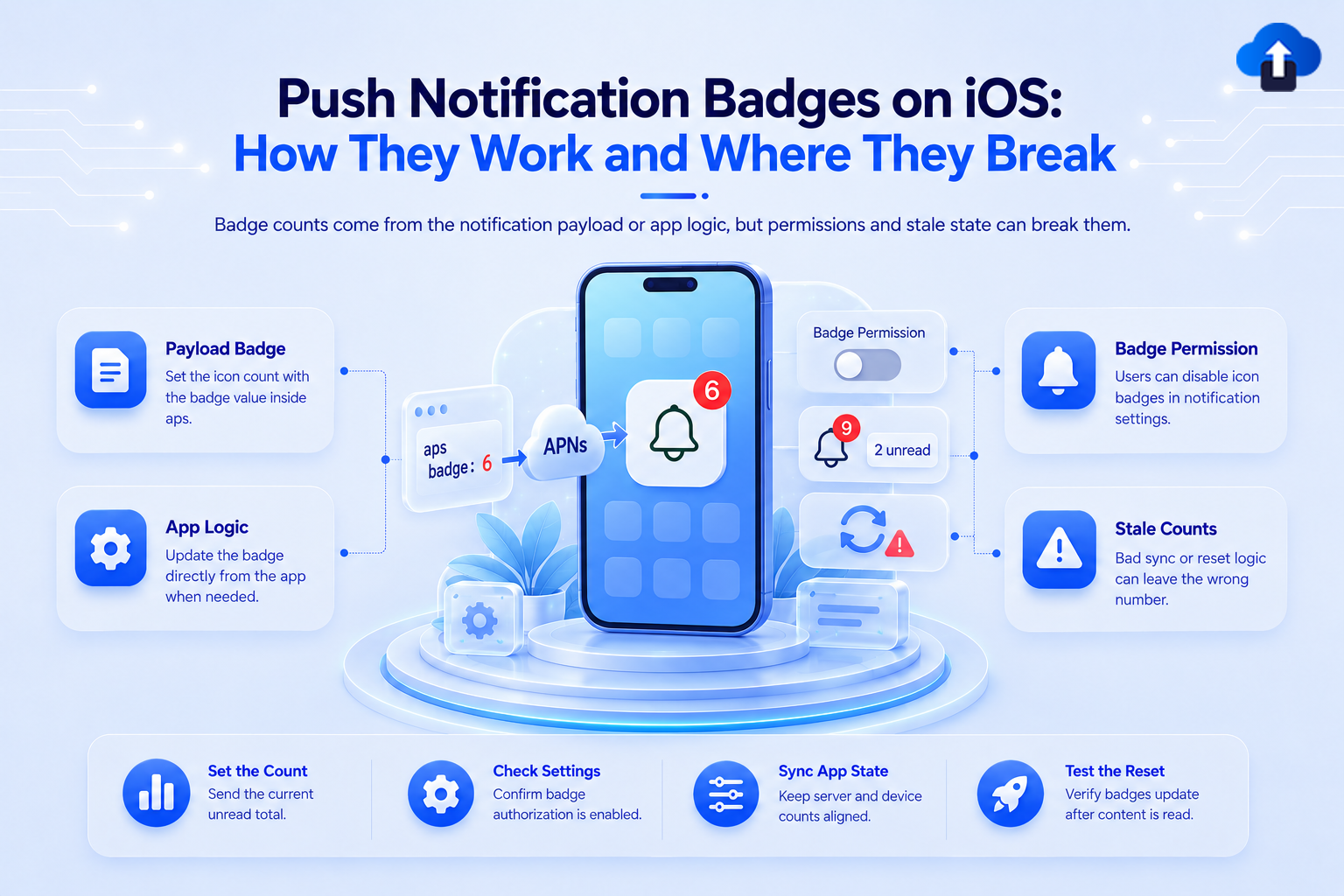
The red number on your app icon seems simple. The implementation details are not.
What the Badge Actually Is
On iOS, the badge is the red circle with a number displayed on your app icon. It signals unread or pending activity - new messages, pending builds, unreviewed items - and persists on the icon until your app explicitly clears it.
A critical detail teams often miss: the badge count is set entirely by your server. The OS renders whatever number the push payload specifies. The device does not auto-increment or auto-decrement. If your server sends badge: 5, the icon shows 5- regardless of what it showed before. If the next push sends badge: 2, it drops to 2. Your server owns the count at all times, and it is responsible for knowing what the current value on each device should be.
Badge display also requires the user to have granted notification permission. If the user has denied notifications, no badge is shown - even if your payload includes a badge value.
## Payload Handling
To set a badge count via push, include the badge key in the aps dictionary alongside your notification alert:
{
  "aps": {
    "alert": {
      "title": "New build ready",
      "body": "v2.5.0 is available for testing"
    },
    "badge": 3,
    "sound": "default"
  }
}
The value is absolute, not relative Sending badge: 3 always sets the count to 3, not increments it by 3. If you want incrementing behavior, your server must track the current badge count per device and send the correct absolute value in each payload.
To clear the badge from the server side without showing a visible alert, send a silent background push with badge: 0 and content-available: 1:
{
  "aps": {
    "content-available": 1,
    "badge": 0
  }
}
This instructs APNs to update the badge without waking the user. Use apns-priority: 5 for this payload - a silent push with priority 10 violates APNs guidelines and risks delivery throttling for your app's push token.
Clearing the Badge Count
Beyond server-side resets, you should clear the badge client-side whenever the user opens the app or navigates to the relevant content. Leaving a stale badge on the icon after the user has seen the content is one of the most common UX complaints in production apps.
iOS 16 introduced UNUserNotificationCenter.setBadgeCount(_:withCompletionHandler:), which replaces the deprecated UIApplication.shared.applicationIconBadgeNumber = 0:
// iOS 16+ -- preferred
UNUserNotificationCenter.current().setBadgeCount(0) { error in
    if let error { print("Badge clear failed: \(error)") }
}
// Pre-iOS 16 fallback
if #unavailable(iOS 16) {
    UIApplication.shared.applicationIconBadgeNumber = 0
}
If your minimum deployment target is below iOS 16, check availability before using the new API and fall back to the deprecated property.
Handling Badge on Notification Tap
When a user taps a notification to open the app, you also need to handle badge clearing in the notification response handler. If you only clear in applicationDidBecomeActive, there's a brief window where the badge is still visible as the app opens from a notification tap:
// UNUserNotificationCenterDelegate
func userNotificationCenter(_ center: UNUserNotificationCenter,
    didReceive response: UNNotificationResponse,
    withCompletionHandler completionHandler: @escaping () -> Void) {
    // Clear badge immediately on notification tap
    UNUserNotificationCenter.current().setBadgeCount(0) { _ in }
    completionHandler()
}
Common Issues
Badge count drifts from server state: If your server increments badge counts without tracking what each device currently shows, counts diverge — especially after a device reinstall, when the badge resets to zero on the device but the server continues from its last stored value. The reliable model: server stores current badge count per device token, resets to zero on a confirmed app-open event (via a ping or silent push acknowledgement), and always sends absolute values in the payload.
Badge not clearing on notification dismissal: Swiping a notification away from the lock screen or notification center does not clear the badge. Users can dismiss all visible notifications and still see a badge. The only way to clear it is via your app code or a `badge: 0` push payload — not through notification dismissal.
Multiple device installs under the same user: Development builds, TestFlight builds, and production builds installed on the same device each have a distinct APNs token. If you store tokens by user ID only, a badge reset sent to one token does not clear the badge on the others. Scope token storage and badge state by userId + bundleIdentifier + environment to avoid mismatched counts across installs.
Notification Service Extension and badge logic: If your app uses a Notification Service Extension to mutate payloads (for rich notifications), you can also update the badge count inside the extension. However, badge state inside an extension is sandboxed from the main app. Do not rely on UserDefaults shared between the extension and app without configuring an App Group.
Silent badge-only pushes require careful APNs priority: A badge: 0 silent push should use apns-priority: 5 (low priority). Sending with apns-priority: 10 for a silent push violates APNs guidelines and can result in push delivery being throttled for your app.
Conclusion
iOS badge counts are straightforward in concept — a number in the payload, a call to clear it on app open — but they break quietly when server state and device state diverge. The failure mode is always the same: the server increments without knowing what the device currently shows, or the app forgets to clear on open. Build the reset path first, then the increment logic. Treat badge count as a server-owned value that the app can only zero out, never read from the OS.
When sending via the AppsOnAir push notifications, you specify the badge count in the notification payload configuration. The platform passes it through to APNs exactly as set — no badge management happens automatically on the platform side. Badge count accuracy is a server-side responsibility; the platform handles the delivery.