.svg)


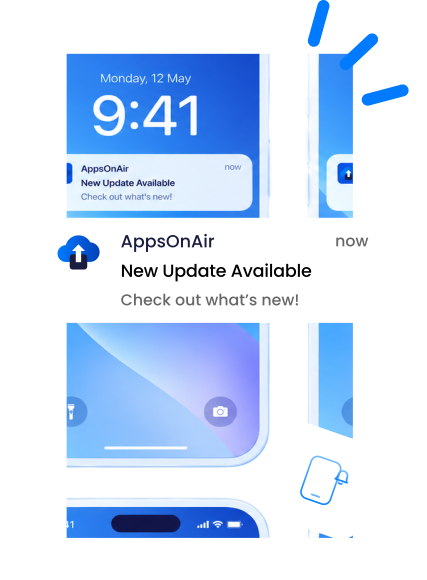

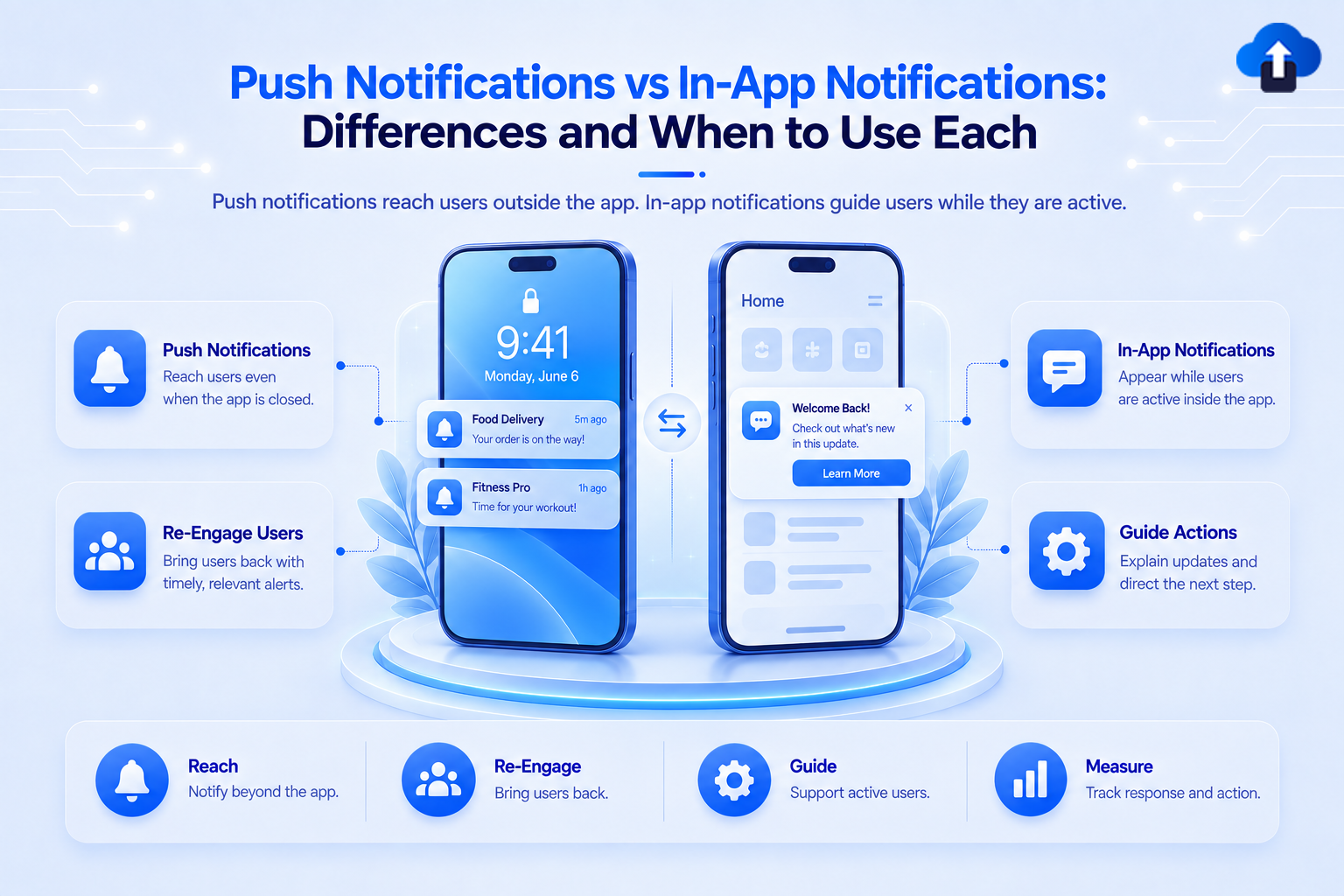
A payment alert appears on a lock screen while the banking app is closed. Later, the user opens the app and sees a banner explaining how to review the transaction. The first message is a push notification. The second is an in-app notification.
Both channels help mobile teams communicate with users, but they work at different moments. Push notifications reach people outside the app. In-app notifications guide people who are already using it.
This guide compares push notifications vs in-app notifications and explains when to use each, when to combine them, and how AppsOnAir Push Notification supports communication outside the active app session.
What is the main difference between push and in-app notifications?
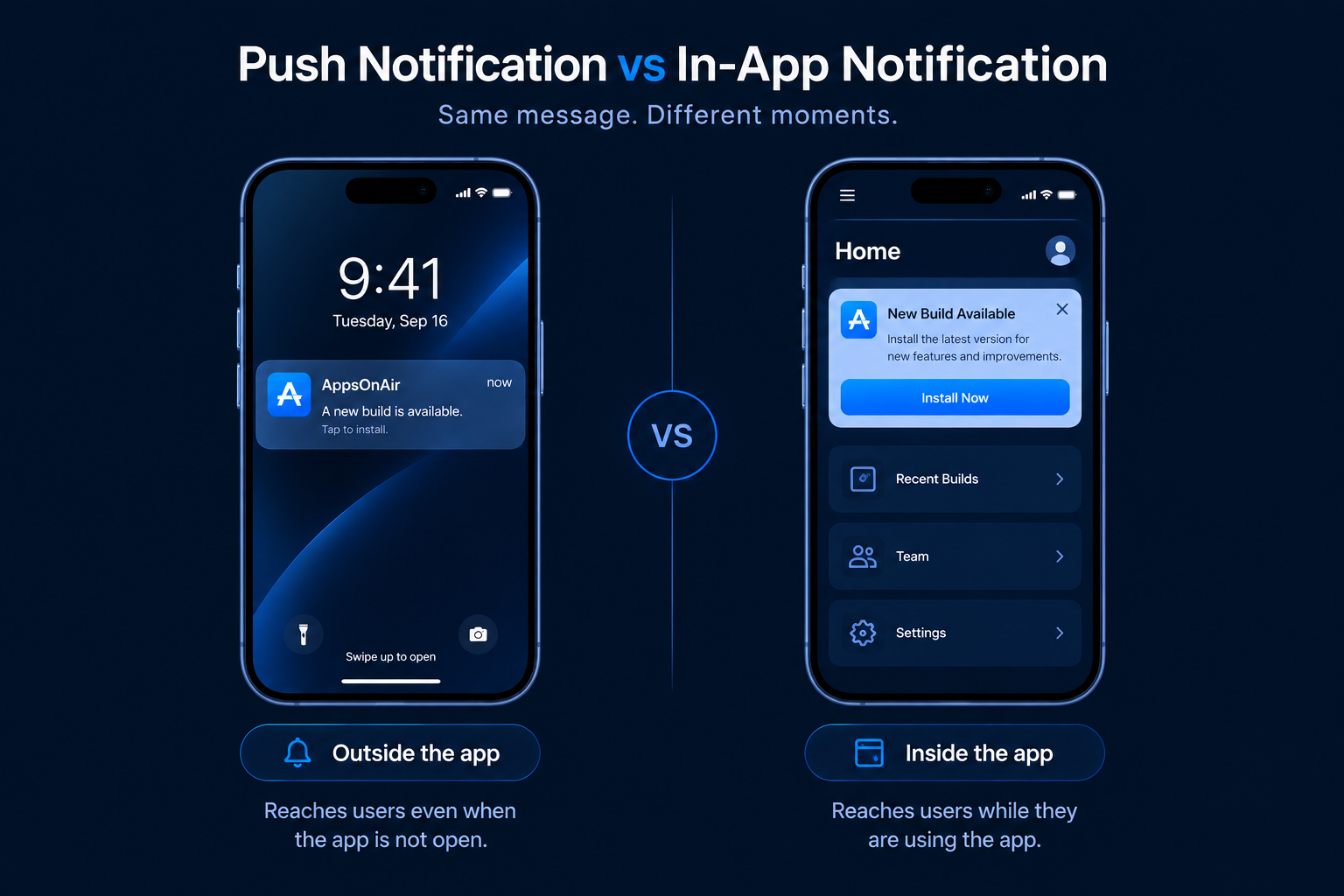
The main difference is where and when the message appears. A push notification appears at the device or operating-system level, such as on the lock screen or in the notification center. It can reach a user when the app is closed or inactive.
An in-app notification appears inside the product while the user is actively using it. It may take the form of a banner, modal, tooltip, toast, or notification inbox. Its content can respond to the screen, task, or step the user has reached.
This difference gives each channel a separate job. Push notifications bring attention back to the app or deliver information that should not wait for the next session. In-app notifications add context, guidance, or an action within the current session.
If you need a broader explanation of delivery, formats, permissions, and metrics, read our guide on what push notifications are.
Push notifications vs in-app notifications at a glance
The following comparison shows how the two channels differ across the factors mobile teams commonly consider.
What are push notifications?
Push notifications are short messages sent by an app to a user's device. They can appear when the app is closed, inactive, or running in the background. Mobile push delivery commonly uses Apple Push Notification Service for Apple devices and Firebase Cloud Messaging for Android.
Push notifications require user permission where the operating system applies it. iOS apps request notification authorization. Android 13 and later require the POST_NOTIFICATIONS runtime permission for most non-exempt app notifications.
Because push notifications sit outside the active app experience, they should be useful without relying on the current screen for context. Examples include an order update, appointment reminder, payment alert, new message, flight change, or expiring task.
Their main strength is reach. Their main limitation is interruption. A poorly timed or irrelevant message can lead users to mute the category or disable notifications entirely.
What are in-app notifications?
In-app notifications are messages shown while someone is actively using an app. They do not need a separate operating-system notification permission because they are part of the app interface.
The term covers several formats. A toast briefly confirms an action. A banner shares an update without taking over the whole screen. A tooltip points to a specific feature. A modal requests more attention. An in-app inbox stores messages so users can review them later.
In-app notifications work well when the message depends on the user's current activity. A tooltip can explain a button when the user reaches it. A banner can announce a feature on the relevant screen. A modal can ask for confirmation before a sensitive action.
Their main strength is context. Their main limitation is reach. Someone who has stopped opening the app will not see an in-app message until they return.
When should you use push notifications?
Use push notifications when the information should reach the user outside an active app session. The message should still make sense without the user seeing the app interface first.
Time-sensitive and security alerts
A new sign-in, payment failure, unusual account activity, gate change, or severe service interruption may require quick attention. Push places the alert where the user can see it without opening the app first.
Urgency should be genuine. Treating every promotion as urgent teaches users to ignore messages that may later matter.
Transactional and service updates
Order confirmations, shipping updates, appointment reminders, booking changes, and task-status updates keep users informed about actions they already took. These messages usually provide clear value and have an expected reason for arriving.
Re-engagement and incomplete journeys
Push can remind users about an unfinished checkout, pending setup step, unread conversation, or saved item. The message should connect to a real action or interest rather than using a generic request to return.
Events that happen while the user is away
Collaboration mentions, new messages, live scores, completed reports, and scheduled reminders often occur outside an active session. Push can notify the user and link directly to the relevant destination.
When should you use in-app notifications?
Use in-app notifications when the user is already inside the product and the message becomes more useful because of the current screen or task.
Onboarding and setup guidance
Tooltips, checklists, banners, and guided steps can help new users complete setup without forcing them to remember instructions from another channel. Show each message when the related action is available.
Feature discovery
An in-app notification can introduce a feature when the user reaches the part of the product where it applies. This is more useful than announcing a feature without showing where to find it or why it matters.
Confirmations and status feedback
Short messages such as "Changes saved," "Upload complete," or "Payment method updated" confirm that an action worked. These messages belong inside the session because they respond to something the user just did.
Contextual upgrades and account notices
Plan limits, trial reminders, billing notices, and upgrade prompts can appear where the user can review details or act. The message should support the current task rather than block it without a clear reason.
Feedback requests
An in-app survey can appear after a completed task, support interaction, or successful workflow. The timing gives the user a specific experience to evaluate.
When should push and in-app notifications work together?
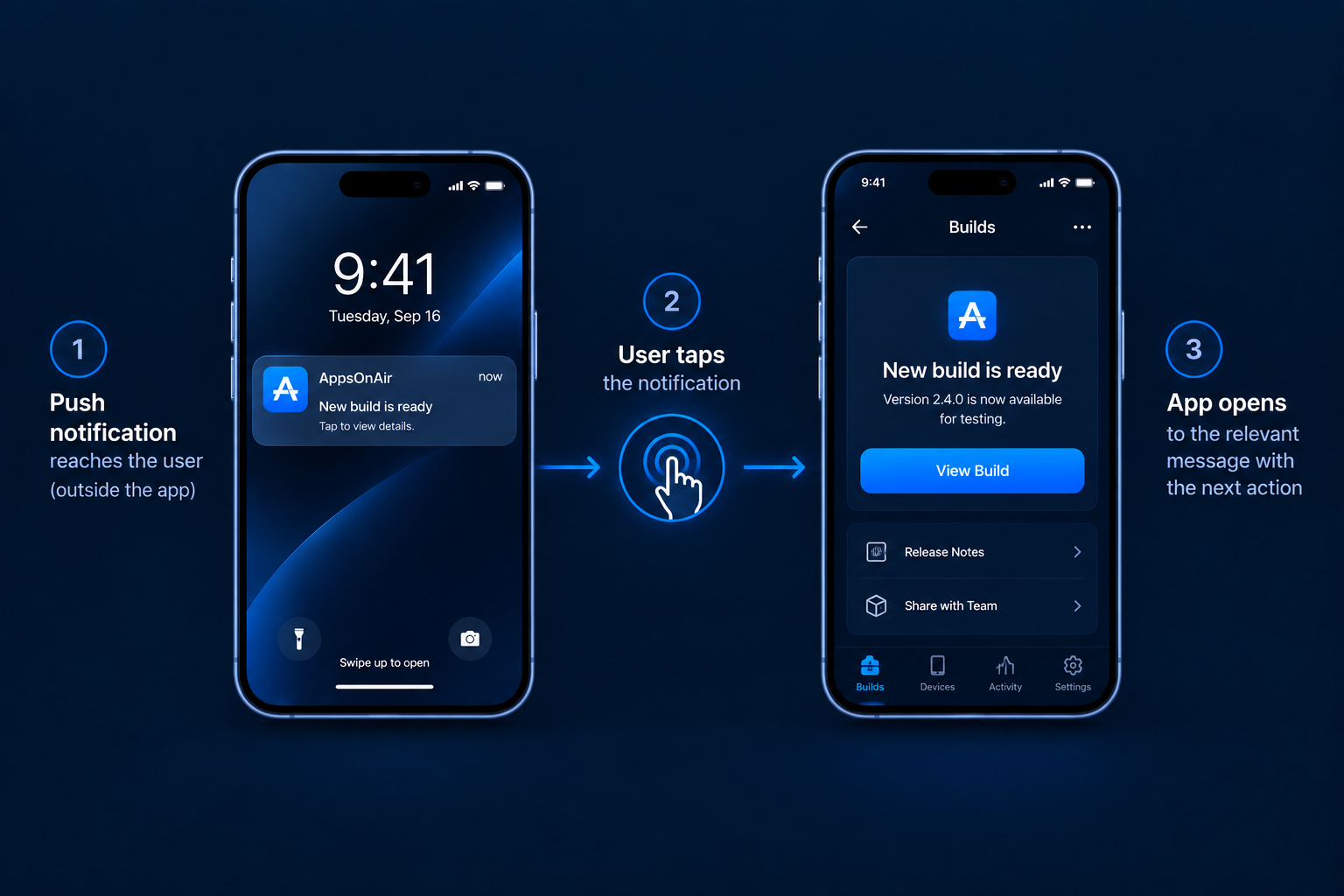
Many journeys need both channels. Push notifications can bring the user back, while an in-app notification provides the details and next action after the app opens.
Consider a failed payment. A push notification tells the user that the payment needs attention. Tapping it opens the billing screen. An in-app banner explains what failed and provides a button to update the payment method.
The same pattern works for an abandoned cart, approval request, security alert, or feature announcement. Each channel handles a different part of the journey.
Coordination matters. Stop the push sequence when the user completes the action. Do not show a repeated in-app message if the issue is already resolved. Use the same wording, destination, and status logic across both channels so the experience does not contradict itself.
How to choose the right channel
Start with the user's state and the message goal. The following questions help narrow the choice.
Is the user currently inside the app?
If yes, an in-app notification usually provides more context. If no, push may be suitable when the message should arrive before the next session.
Does the message need immediate attention?
Push is better for a real-time alert or an update with a limited response window. If the information can wait until the next session, an in-app notification may create less interruption.
Does the message depend on the current screen?
Use in-app messaging when the user needs to see a feature, setting, form, or workflow to understand the message. Use push when the message remains clear outside that context.
Should the message remain available?
A lock-screen notification can be cleared. A toast may disappear after a few seconds. If users need to review the information later, store it in an in-app inbox or another suitable record.
What action should happen next?
Push notification should open the relevant screen through a deep link. An in-app message should place the action beside the explanation. If the message has no clear next step, reconsider whether it needs to be sent.
Measuring push and in-app notification performance
The two channels need different measurements because they reach users in different states.
For push notifications, track permission rate, delivery rate, tap or direct-open rate, conversion after the tap, opt-outs, and negative signals such as uninstalls where available. The primary metric should match the message. A security alert and a promotional offer do not share the same definition of success.
For in-app notifications, track eligible views, dismissals, action clicks, task completion, feature adoption, and progression through the relevant workflow. A tooltip should be judged by whether it helps users complete the next step, not only by whether it was displayed.
When both channels support one journey, measure the complete path. Track the push delivery, app open, in-app view, intended action, and sequence stop. This shows whether the journey worked rather than reporting two disconnected channel metrics.
Manage mobile push notifications with AppsOnAir
AppsOnAir Push Notification helps mobile teams create, target, send, and track push notifications across iOS and Android from one platform.
Teams can target audiences using factors such as platform, language, app version, activity, segments, and customer data. Multiple language versions can be prepared within a notification, while delivery and performance data help teams understand what happened after each send.
AppsOnAir Push Notification handles the part of the journey that reaches users outside the active app. A relevant deep link and a clear in-app destination can then continue the experience after the tap.
Common mistakes to avoid
- Using push for guidance that only makes sense inside a specific screen.
- Relying on in-app messages to reach users who no longer open the app.
- Sending the same message through both channels without checking user activity.
- Opening the app home screen instead of the destination promised by the push notification.
- Treating every update as urgent.
- Measuring views and taps without tracking the intended user action.
- Forgetting to stop reminders after the user completes the task.
Before sending, confirm the audience, user state, timing, destination, and desired outcome. These checks prevent most channel-selection mistakes.
Frequently asked questions
What is the difference between push notifications and in-app notifications?
Push notifications appear at the device level and can reach users when the app is closed. In-app notifications appear inside an open app and provide guidance or information during an active session.
Do in-app notifications require permission?
In-app notifications do not require a separate operating-system notification permission because they appear inside the app interface. Other app features or data use may still require relevant permissions and user consent.
Can push and in-app notifications be used together?
Yes. Push can alert or bring the user back, while an in-app notification provides details and the next action. The two channels should share status logic to prevent repetition.
Which channel is better for urgent messages?
Push notifications are usually better when a time-sensitive message must reach someone outside the app. Delivery and visibility are still affected by permission, device settings, platform rules, and network conditions.
Which channel is better for onboarding?
In-app notifications are better for onboarding because they can respond to the user's current screen and guide each setup step. Push may support onboarding later by reminding users about an unfinished task.
Are in-app notifications the same as push notifications?
No. Both communicate with app users, but they appear in different environments. Push notifications sit outside the active app session, while in-app notifications appear within the product during use.
Final thoughts
Push notifications and in-app notifications solve different communication needs. Use push Notifications to reach users outside the app. Use in-app notifications to guide people who are already active. Combine them when one channel needs to bring the user back and the other needs to continue the task.
AppsOnAir Push Notification helps teams manage the push notification side of that journey across iOS and Android, with targeting, multilingual delivery, and performance tracking in one place.