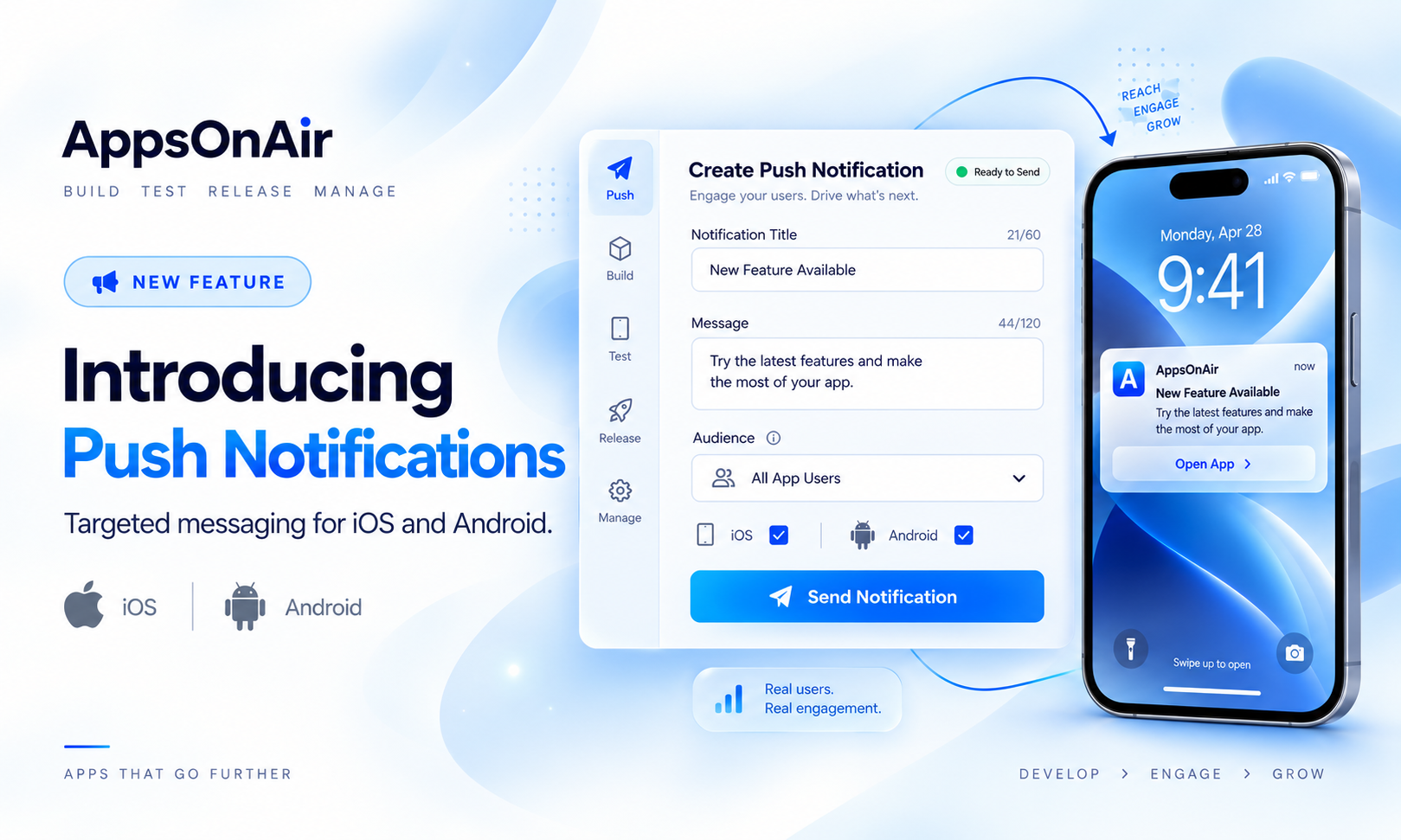


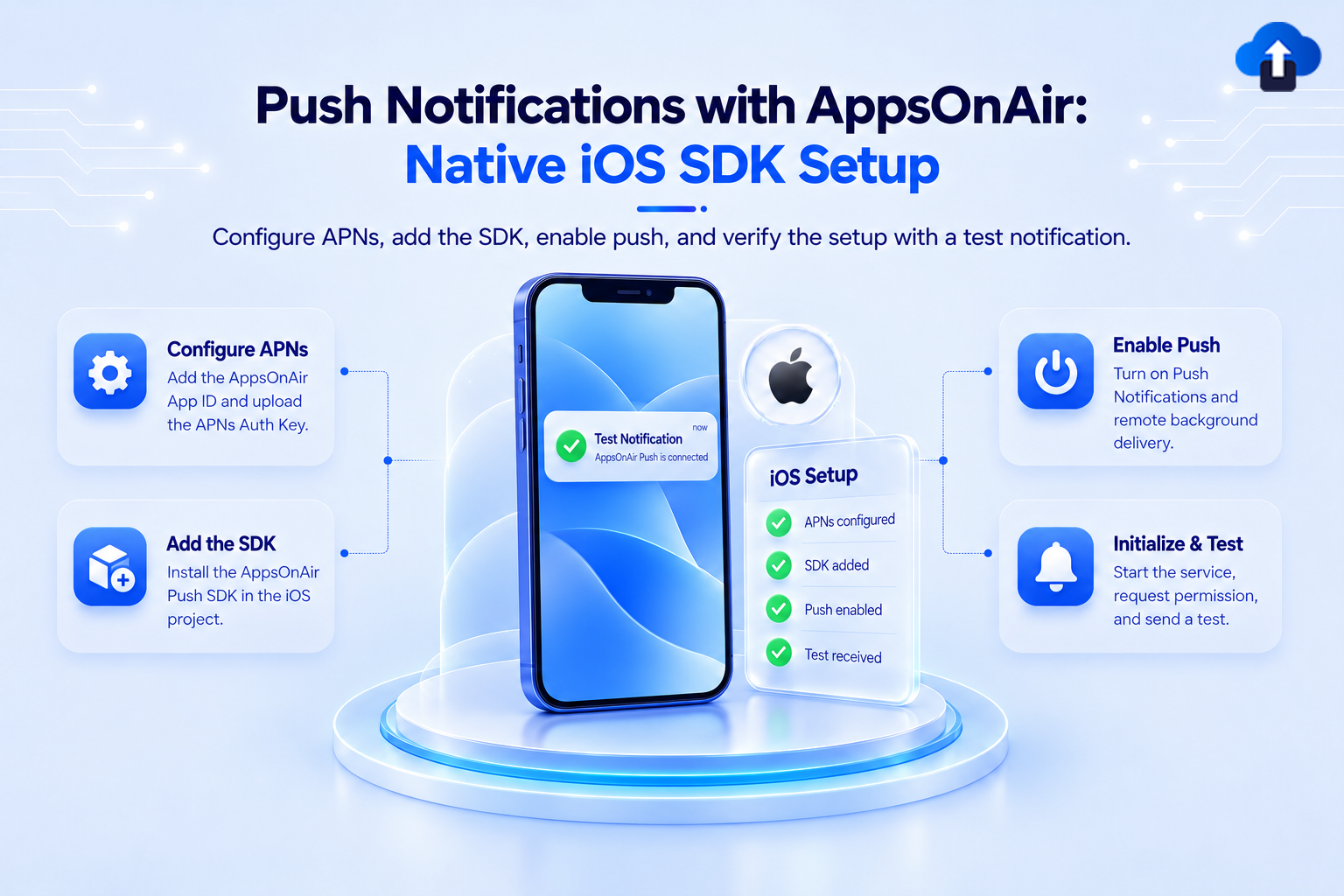
A complete setup guide for integrating AppsOnAir push notifications into native iOS apps (UIKit, SwiftUI, or Objective-C), covering APNs configuration, initialization, targeting, and production edge cases.
Overview
The AppsOnAir iOS SDK delivers push notifications via APNs and surfaces a unified API for token management, segmentation, opt-in control, foreground display, and delivery analytics. Push targeting maps directly to the same distribution groups and app version segments already defined in the AppsOnAir console.
Before starting: upload your APNs Auth Key (`.p8`) in the AppsOnAir console under App Settings → Push Notifications. The SDK will not deliver without credentials configured server-side.
A real device is required to receive APNs tokens. The SDK emits a mock token on Simulator so your registration flow remains testable.
Requirements
Basic push (Steps 1-5) covers: text notifications with title and body, tap-to-open and deep links, foreground display control, user targeting, tags, segments, and opt-in/out.
Rich push (optional extension targets) covers: images in notifications, badge auto-increment, delivered analytics, and custom long-press view. Skip these if basic push is all you need.
AppsOnAir Push Configuration
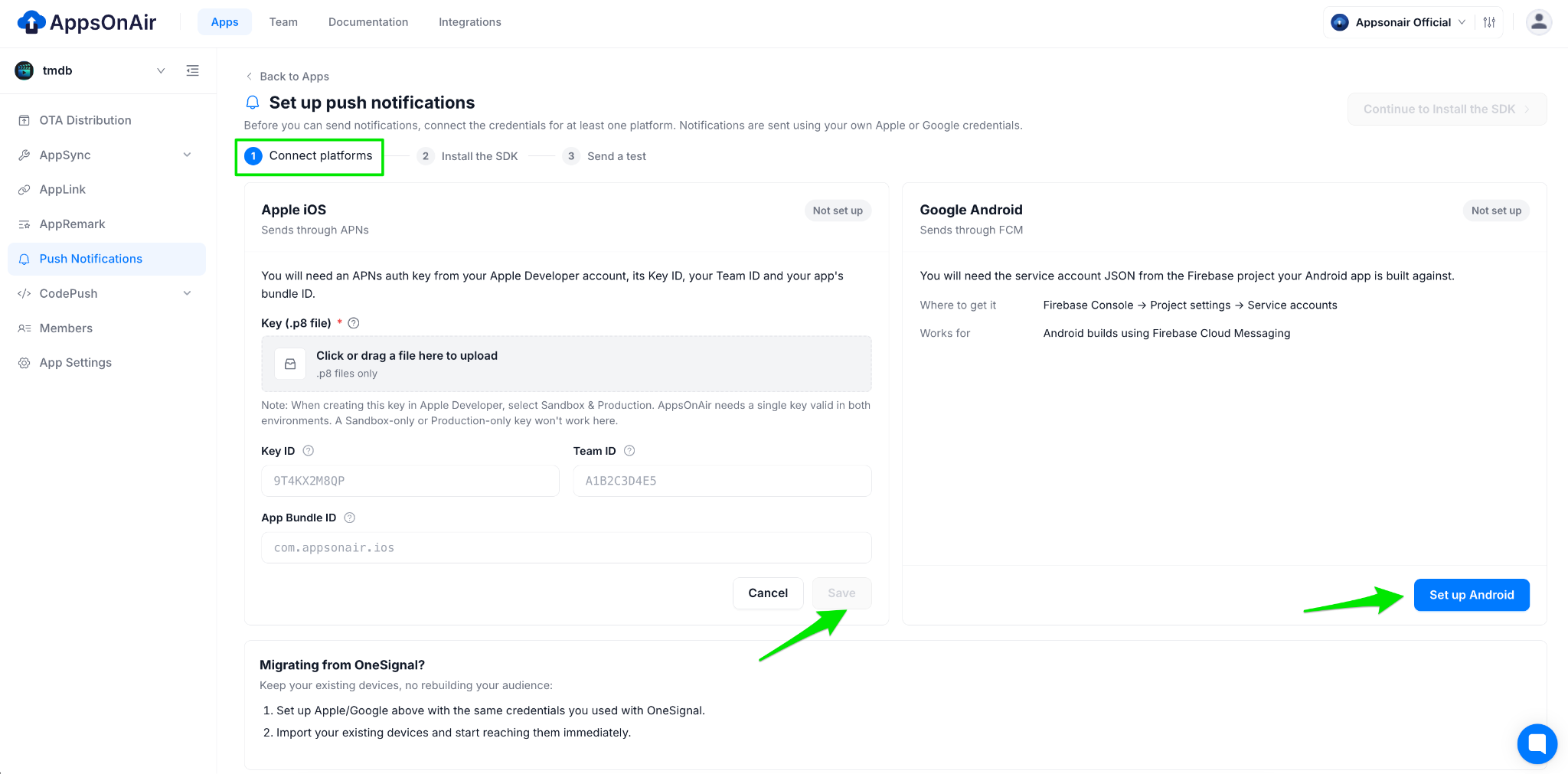
Before starting SDK integration, I need a one-time push notifications configuration setup for the iOS platform.
Credential configuration is a one-time setup following items needed.
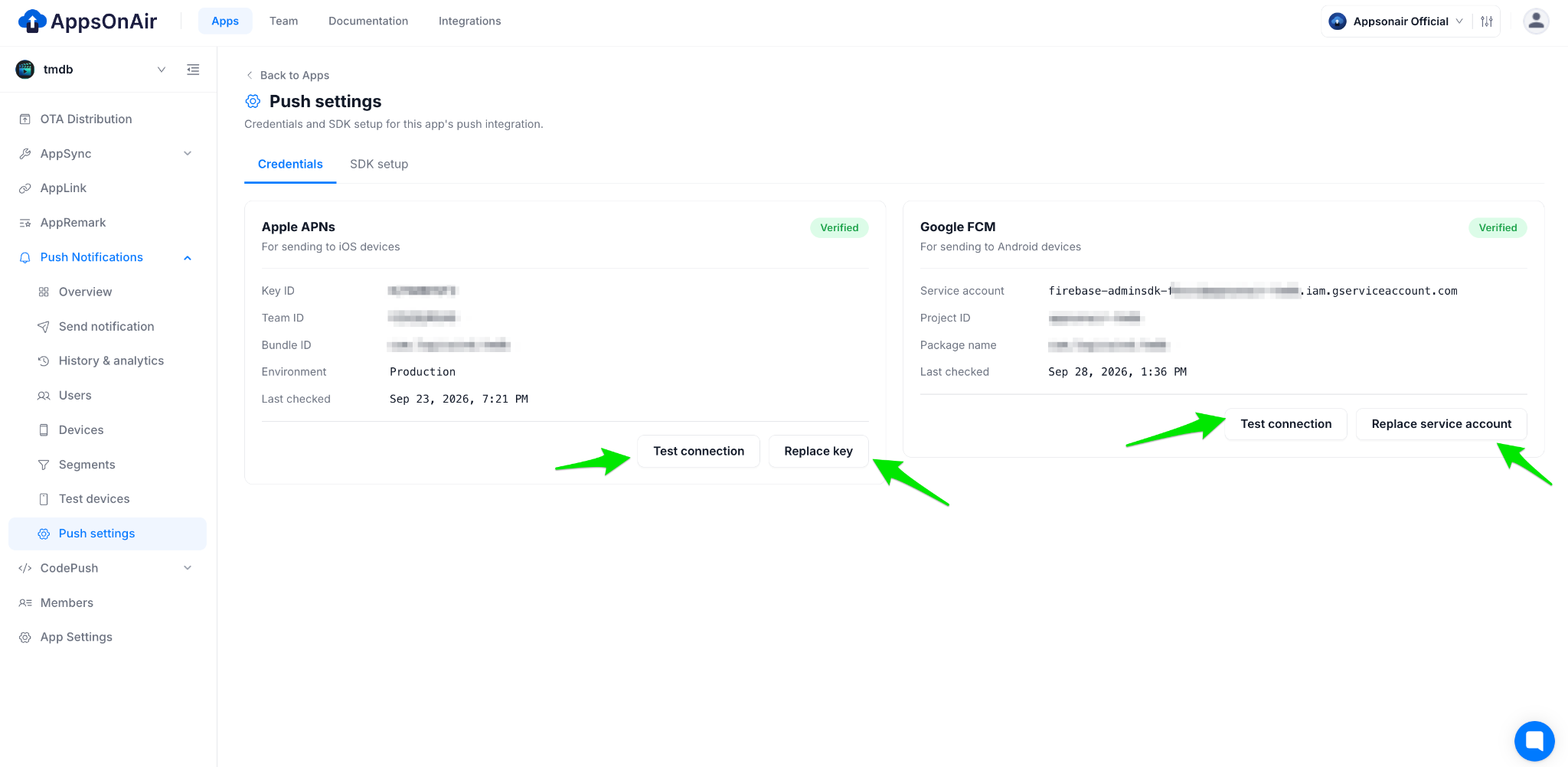
AppsOnAir Push Configuration
Credential configuration is a one-time setup following items needed.
- iOS App BundleID.
- iOS TeamID and KeyID from the apple developer account.
- .P8 file for iOS from the apple developer account. (Make sure .p8 key should be Sandbox & production environment only)
For more details you visit documentation.
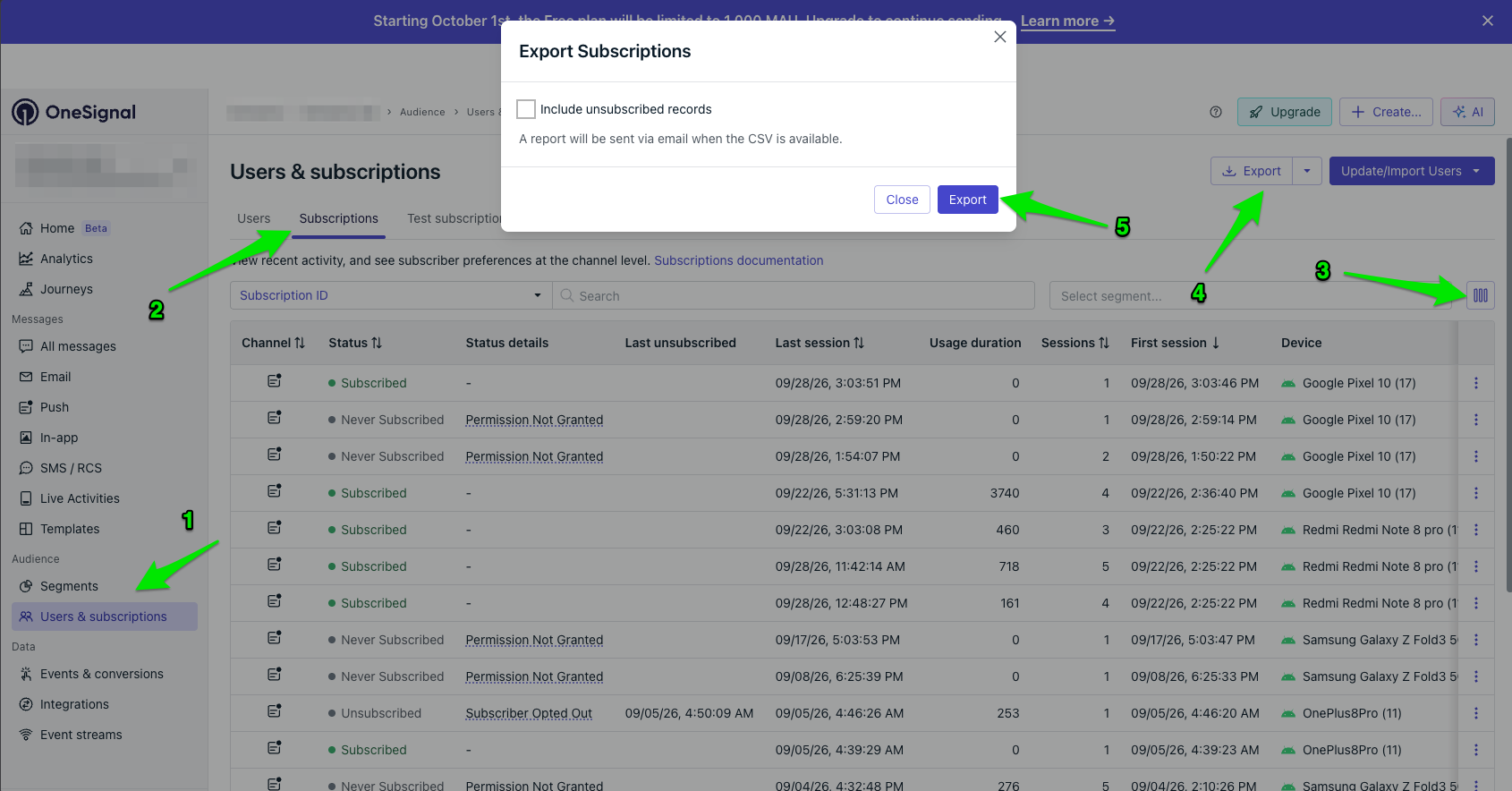
If you want to migrate your Existing OneSignal Push notification to AppsOnAir Push notification service you need export data from OneSignal Dashboard and received via email. Import all you existing data in AppsOnAir web portal under push notification section during first time setup as well as under devices section just tap on import devices CTA
To migrate your existing OneSignal push notification setup to AppsOnAir Push Notifications, export your existing data from the OneSignal Dashboard. You’ll receive the exported data via email.
Once you have the data, import it into the AppsOnAir web portal using either of these options:
- During the initial setup: Import your existing data in the Push Notifications section.
- Anytime later: Navigate to the Devices section and click the Import Devices CTA to import your existing device data.
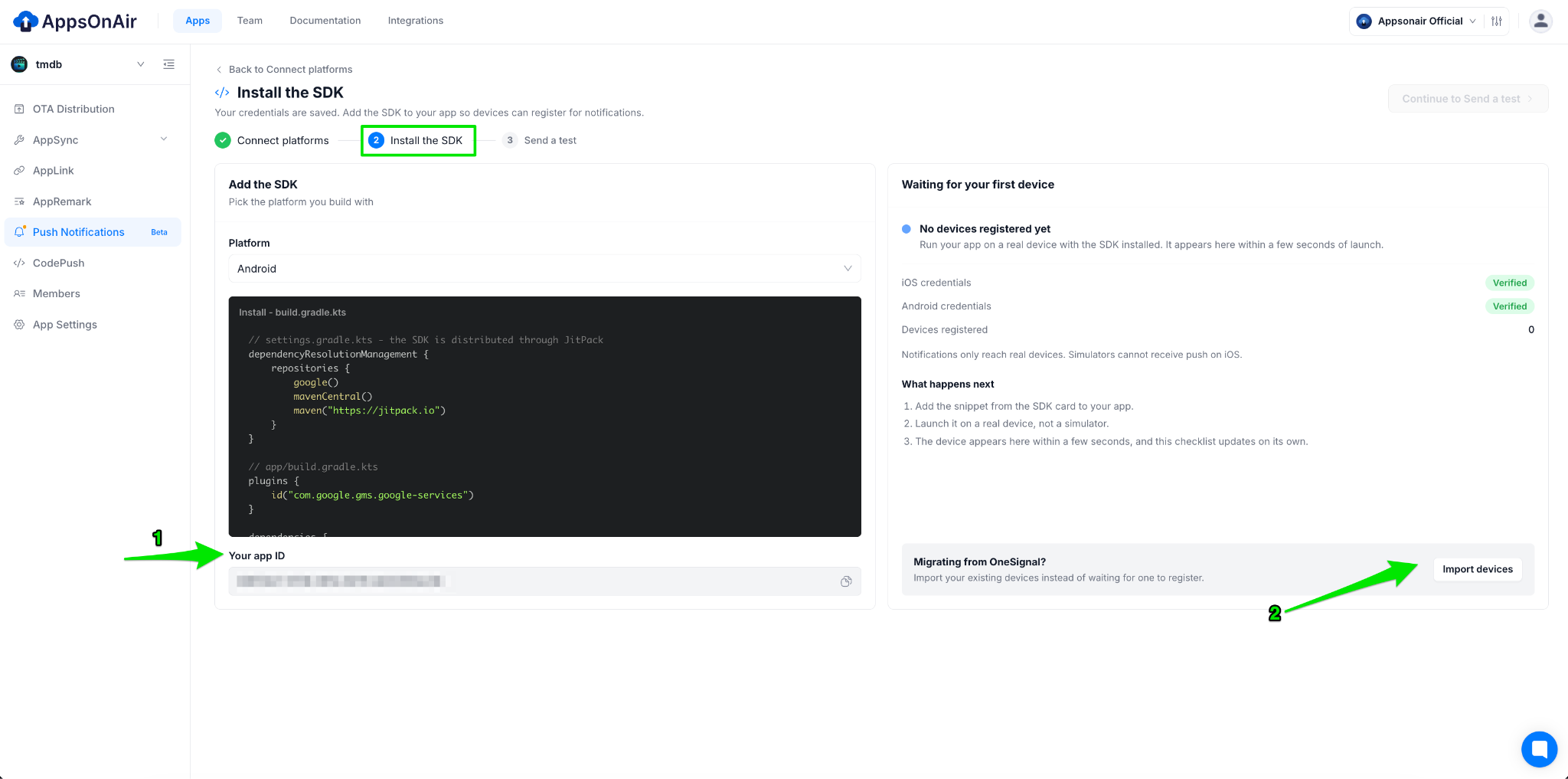
For more information visit OneSignal migration guide.
Step 1: Apple Capabilities
Two capabilities are required on the main app target. Without them the device will not register with APNs and no tokens will be generated.
In Xcode, select your app target → Signing & Capabilities:
- Add Push Notifications — required for APNs registration and push delivery.
- Add Background Modes → enable **Remote notifications — required for silent pushes and background delivery.
If you plan to add the Notification Service Extension later, also add App Groups here (same group on both the main app and the NSE).
iOS always shows your app icon on notifications. APNs has no field for a custom notification icon. To change it, update the app icon in `Assets.xcassets` and ship a new build.
Step 2: Add the SDK
The SDK is distributed as three separate products so you only link what each target needs.
Swift Package Manager: In Xcode: File → Add Package Dependencies, paste the repository URL, and resolve. Link products to targets:
CocoaPods:
platform :ios, '15.0'
target 'MyApp' do
  use_frameworks!
  pod 'AppsOnAir-AppPush', '>= 1.0.6-beta', '< 1.1'
end
# Optional: only if adding extension targets
target 'NotificationService' do
  pod 'AppsOnAir-AppPush-ServiceExt', '>= 1.0.6-beta', '< 1.1'
end
target 'NotificationContent' do
  pod 'AppsOnAir-AppPush-ContentExt', '>= 1.0.6-beta', '< 1.1'
end
Then run:
pod repo update
pod install
Open <project>.xcworkspace after install.
Do not use the deprecated AppsOnAir-AppPush/ServiceExtension or /ContentExtension subspecs. With use_frameworks! They fail at archive time with Multiple commands producing AppsOnAir_AppPush.framework. Use the standalone pod names shown above.
Step 3: Configure Info.plist
Add AppsonairAppId to your `Info.plist` with the App ID from the AppsOnAir console under App Settings → Keys & IDs.
If you use the Notification Service Extension, add AppsOnAirAppGroup to both the main app and NSE Info.plist files (covered in the NSE section below).
Step 4: Initialize the SDK
Call initialize() inside application(_:didFinishLaunchingWithOptions:) so the SDK registers with APNs before any scene connects. Call AppsOnAirBackgroundSync.registerHandlers() before initialize() — background sync handlers must be registered before any scene connects.
Swift (UIKit):
/ AppDelegate.swift
import UIKit
import AppsOnAir_AppPush
@main
class AppDelegate: UIResponder, UIApplicationDelegate {
    func application(
        _ application: UIApplication,
        didFinishLaunchingWithOptions launchOptions: [UIApplication.LaunchOptionsKey: Any]?
    ) -> Bool {
        AppPushService.Debug.logLevel = .verbose  // dev only
        // Must be called before any scene connects
        AppsOnAirBackgroundSync.registerHandlers()
        AppPushService.initialize(debug: true)
        AppPushService.setListener(self)
        AppPushService.Notifications.requestPermission()
        AppsOnAirBackgroundSync.scheduleIfNeeded()
        return true
    }
}
extension AppDelegate: PushListener {
    func onAPNsTokenUpdated(token: String, environment: APNsEnvironment) { }
    func onNotificationReceived(notification: PushNotification) { }
    func onNotificationOpened(notification: PushNotification) { }
    func onError(_ error: PushError) { }
}
Swift (SwiftUI):
// MyApp.swift
import SwiftUI
import AppsOnAir_AppPush
@main
struct MyApp: App {
    @UIApplicationDelegateAdaptor(AppDelegate.self) var appDelegate
    var body: some Scene {
        WindowGroup {
            ContentView()
        }
    }
}
class AppDelegate: NSObject, UIApplicationDelegate, PushListener {
    func application(
        _ application: UIApplication,
        didFinishLaunchingWithOptions launchOptions: [UIApplication.LaunchOptionsKey: Any]? = nil
    ) -> Bool {
        AppPushService.Debug.logLevel = .verbose
        AppsOnAirBackgroundSync.registerHandlers()
        AppPushService.initialize(debug: true)
        AppPushService.setListener(self)
        AppPushService.Notifications.requestPermission()
        AppsOnAirBackgroundSync.scheduleIfNeeded()
        return true
    }
    func onAPNsTokenUpdated(token: String, environment: APNsEnvironment) { }
    func onNotificationReceived(notification: PushNotification) { }
    func onNotificationOpened(notification: PushNotification) { }
    func onError(_ error: PushError) { }
}
Objective-C:
// AppDelegate.m
#import <UIKit/UIKit.h>
@import AppsOnAir_AppPush;
@interface AppDelegate : UIResponder <UIApplicationDelegate, AOAPushListener>
@property (strong, nonatomic) UIWindow *window;
@end
- (BOOL)application:(UIApplication *)application
    didFinishLaunchingWithOptions:(NSDictionary *)launchOptions {
    [AOAPushDebug setLogLevel:AOALogLevelVerbose];
    [AOAPushBackgroundSync registerHandlers];
    [AOAPush initializeWithDebug:YES swizzle:YES];
    [AOAPush setListener:self];
    [AOAPushNotifications requestPermission];
    [AOAPushBackgroundSync scheduleIfNeeded];
    return YES;
}
// All PushListener methods are optional
- (void)onAPNsTokenUpdatedWithToken:(NSString *)token
                        environment:(AOAAPNsEnvironment)environment { }
- (void)onNotificationReceivedWithNotification:(AOAPushNotification *)notification { }
- (void)onNotificationOpenedWithNotification:(AOAPushNotification *)notification { }
- (void)onError:(NSError *)error { }
The SDK hooks APNs token and notification delegate methods automatically via swizzling. This works even when another library owns UNUserNotificationCenter.current().delegate — AppsOnAir pushes still reach the SDK and the other delegate keeps receiving its own notifications.
Step 5: Background Sync (Info.plist)
Add the background task identifier to Info.plist so iOS grants permission to run background tasks:
<key>BGTaskSchedulerPermittedIdentifiers</key>
<array>
    <string>com.appsonair.push.background-sync</string>
</array>
Feature Guide
Subscription Observer
Observe token and opt-in state changes without polling. Register after initialize().
AppPushService.User.pushSubscription.addObserver(self)
func onPushSubscriptionDidChange(state: PushSubscriptionChangedState) {
    print("optedIn:", state.current.optedIn)
    print("token:", state.current.token ?? "")
}
// Observe login / logout
AppPushService.User.addObserver(self)
func onUserStateDidChange(state: UserChangedState) {
    print(state.current.externalId ?? "anonymous")
}
Permission
let granted    = AppPushService.Notifications.permission
let canRequest = AppPushService.Notifications.canRequestPermission
if !granted && canRequest {
    AppPushService.Notifications.requestPermission()
}
// Permanently denied? Send to Settings:
AppPushService.Notifications.requestPermission(fallbackToSettings: true)
// Observe changes
AppPushService.Notifications.addPermissionObserver(self)
func onNotificationPermissionDidChange(permission: Bool) {
    print("permission granted:", permission)
}
User Identity
AppPushService.login("user_12345")   // call when your user signs in
AppPushService.logout()              // call on sign-out; clears tags and aliases
Tags and Segmentation
AppPushService.User.addTag(key: "plan", value: "premium")
AppPushService.User.addTags(["plan": "premium", "region": "us-east"])
AppPushService.User.removeTag("plan")
AppPushService.User.removeTags(["plan", "region"])
// Read from local cache (synchronous)
let cached = AppPushService.User.getTags()
// Fetch from backend (async)
AppPushService.User.getTags { tags in print(tags) }
Language
AppPushService.User.setLanguage("fr")   // ISO 639-1
let lang = AppPushService.User.language
Aliases and Email
AppPushService.User.addAlias(label: "crm_id", id: "CRM-9876")
AppPushService.User.addAliases(["crm_id": "CRM-9876", "hubspot_id": "HS-42"])
AppPushService.User.removeAlias("crm_id")
AppPushService.User.addEmail("user@example.com")
AppPushService.User.removeEmail("user@example.com")
Opt-in and Opt-out
AppPushService.User.pushSubscription.optOut()   // stop delivery, preserve APNs token
AppPushService.User.pushSubscription.optIn()
let isOptedIn = AppPushService.User.pushSubscription.optedIn
Foreground Display Control
By default the SDK shows banners when the app is in the foreground. Call `preventDefault()` to suppress and handle display yourself.
AppPushService.Notifications.addForegroundLifecycleListener(self)
func onWillDisplay(event: NotificationWillDisplayEvent) {
    event.preventDefault()  // suppress; omit this line to show normally
}
Click and Open Listener
AppPushService.Notifications.addClickListener(self)
func onClick(event: NotificationClickEvent) {
    print(event.result.actionId ?? "body tap")
    print(event.result.url ?? "")
}
Badge Count
AppPushService.setBadgeCount(5)
AppPushService.incrementBadgeCount(by: 1)
AppPushService.clearBadgeCount()
// Auto-clear badge when app comes to foreground (default = true)
AppPushService.autoClearBadgeOnForeground = false  // switch to count-down mode
Silent Push
A silent push delivers data to your app without showing a notification. iOS wakes the app in the background for lightweight work such as a content sync. No notification permission is needed — silent pushes reach devices that declined it.
Requirements: Background Modes → Remote notifications enabled (Step 1), payload has aps.content-available: 1 and no alert, sound, or badge.
Set the handler before initialize(). iOS gives you about 30 seconds.
AppPushService.onSilentPushReceived = { userInfo, completion in
    let syncType = userInfo["sync_type"] as? String
    // do lightweight background work
    completion(.newData)   // or .noData / .failed
}
If your AppDelegate already implements didReceiveRemoteNotification:fetchCompletionHandler:, forward the push to the SDK from it:
func application(_ application: UIApplication,
                 didReceiveRemoteNotification userInfo: [AnyHashable: Any],
                 fetchCompletionHandler completionHandler: @escaping (UIBackgroundFetchResult) -> Void) {
    AppPushService.handleSilentPush(userInfo, fetchCompletionHandler: completionHandler)
}
APNs silent payload:
{
  "aps": { "content-available": 1 },
  "notification_id": "sync-001",
  "sync_type": "orders"
}
Remove Delivered Notifications
AppPushService.Notifications.clearAllNotifications()
AppPushService.Notifications.removeNotification(withIdentifier: "abc")
AppPushService.Notifications.removeNotifications(withIdentifiers: ["a", "b"])
REST API
In addition to the SDK, AppsOnAir supports triggering push notifications via REST API, useful for server-side sends, CI/CD workflows, and backend automation.
Notification Service Extension (Optional — Rich Push)
Basic push (Steps 1-5) works without the NSE. Add it only when you need:
The NSE runs in its own process before iOS displays a notification. The AppsOnAir NSE downloads and attaches images, applies payload overrides, updates the badge, and records the
Delivered analytics event.
Step 1: Add the NSE Target
In Xcode: File → New → Target → Notification Service Extension. Name it NotificationService. When asked to activate the scheme, choose Cancel to keep debugging the main app. Set Minimum Deployments to the same version as your app (15.0+).
Xcode sets a new extension to the latest iOS by default. On devices running an older iOS, the extension silently never runs with no crash and no log.
Step 2: Link the SDK to the NSE
SPM: In the package's Add to Target list, choose your NSE target for AppsOnAir-AppPush-ServiceExt. Link to the NSE only, never to the main app.
CocoaPods:
Module to import: `AppsOnAir_AppPush_ServiceExt`
target 'NotificationService' do
  pod 'AppsOnAir-AppPush-ServiceExt', '>= 1.0.6-beta', '< 1.1'
end
Step 3: Share an App Group
The App Group lets the NSE read the App ID and subscription from the main app for delivery receipts, and keeps the running badge count.
- Add App Groups capability to both the main app and NSE target, using the same identifier:
group.<your-main-app-bundle-id>.appsonair
- If you use that exact name, the SDK finds it automatically. Otherwise add it to both Info.plist files:
<key>AppsOnAirAppGroup</key>
<string>group.com.yourcompany.app.appsonair</string>
- In the Apple Developer Portal, enable the App Group on both App IDs and regenerate provisioning profiles.
Step 4: Replace NotificationService
Swift (subclass, recommended):
// NotificationService/NotificationService.swift
import AppsOnAir_AppPush_ServiceExt
class NotificationService: AppsOnAirNotificationServiceExtension {
    // Nothing else required.
}
Optionally modify content before the SDK applies its overrides:
class NotificationService: AppsOnAirNotificationServiceExtension {
    override func modifyContent(_ content: UNMutableNotificationContent,
                                request: UNNotificationRequest) {
        content.threadIdentifier = "orders"
    }
}
Swift (existing NSE class or chaining another SDK):
import UserNotifications
import AppsOnAir_AppPush_ServiceExt
class NotificationService: UNNotificationServiceExtension {
    private var contentHandler: ((UNNotificationContent) -> Void)?
    private var bestAttemptContent: UNMutableNotificationContent?
    private var receivedRequest: UNNotificationRequest?
    override func didReceive(_ request: UNNotificationRequest,
        withContentHandler handler: @escaping (UNNotificationContent) -> Void) {
        guard let content = request.content.mutableCopy() as? UNMutableNotificationContent
        else { return handler(request.content) }
        receivedRequest = request
        bestAttemptContent = content
        contentHandler = handler
        AppPushServiceExtension.didReceiveNotificationExtensionRequest(
            request, with: content, withContentHandler: handler)
        contentHandler = nil
    }
    override func serviceExtensionTimeWillExpire() {
        guard let request = receivedRequest, let handler = contentHandler else { return }
        handler(AppPushServiceExtension.serviceExtensionTimeWillExpireRequest(
            request, with: bestAttemptContent) ?? request.content)
        contentHandler = nil
    }
}
Objective-C:
// NotificationService.m
#import "NotificationService.h"
@import AppsOnAir_AppPush_ServiceExt;
@implementation NotificationService
- (void)didReceiveNotificationRequest:(UNNotificationRequest *)request
                   withContentHandler:(void (^)(UNNotificationContent *))contentHandler {
    self.receivedRequest    = request;
    self.contentHandler     = contentHandler;
    self.bestAttemptContent = [request.content mutableCopy];
    [AOAPushExtension didReceiveNotificationRequest:request
                                withContentHandler:contentHandler];
    self.contentHandler = nil;
}
- (void)serviceExtensionTimeWillExpire {
    [AOAPushExtension serviceExtensionTimeWillExpireRequest:self.receivedRequest
                                       bestAttemptContent:self.bestAttemptContent
                                           contentHandler:self.contentHandler];
    self.contentHandler = nil;
}
@end
Step 5: Send mutable-content
iOS runs the NSE only when the payload contains "mutable-content": 1:
{
  "aps": {
    "alert": { "title": "New offer", "body": "Tap to view" },
    "mutable-content": 1
  },
  "notification_id": "notif-abc-123",
  "big_picture": "https://cdn.example.com/offer.jpg"
}
Attachment rules:
Notification Content Extension (Optional — Custom Long-Press View)
The NCE replaces the expanded (long-press) view of a notification. The SDK's built-in AppsOnAirContentViewController shows a full-width image, title, and body. It requires the NSE to download the image first.
Step 1: Add the NCE Target
File → New → Target → Notification Content Extension. Name it NotificationContent. Set Minimum Deployments to match your app (15.0+).
Step 2: Link the SDK to the NCE
SPM: Add AppsOnAir-AppPush-ContentExt to the NCE target only.
target 'NotificationContent' do
  pod 'AppsOnAir-AppPush-ContentExt', '>= 1.0.6-beta', '< 1.1'
end
Module to import: AppsOnAir_AppPush_ContentExt
Step 3: Replace the View Controller
Delete MainInterface.storyboard (Move to Trash). The SDK builds its UI in code. Then replace NotificationViewController.swift:
// NotificationContent/NotificationViewController.swift
import UserNotifications
import AppsOnAir_AppPush_ContentExt
class NotificationViewController: AppsOnAirContentViewController {
    // Optional: customise on top of the built-in image + title + body
    override func configure(with notification: UNNotification) {
        super.configure(with: notification)
    }
}
Step 4: Configure the NCE Info.plist
Replace NSExtensionMainStoryboard with NSExtensionPrincipalClass and set your category ID:
<key>NSExtension</key>
<dict>
    <key>NSExtensionAttributes</key>
    <dict>
        <key>UNNotificationExtensionCategory</key>
        <string>aoa_rich</string>
        <key>UNNotificationExtensionInitialContentSizeRatio</key>
        <real>1</real>
    </dict>
    <key>NSExtensionPointIdentifier</key>
    <string>com.apple.usernotifications.content-extension</string>
    <key>NSExtensionPrincipalClass</key>
    <string>$(PRODUCT_MODULE_NAME).NotificationViewController</string>
</dict>
Step 5: Send the Category
iOS opens the NCE only when aps.category matches UNNotificationExtensionCategory:
{
  "aps": {
    "alert": { "title": "Order shipped", "body": "Long-press to see details" },
    "category": "aoa_rich",
    "mutable-content": 1
  },
  "notification_id": "notif-abc-123",
  "big_picture": "https://cdn.example.com/parcel.jpg"
}
If a payload has actions but no aps.category, the NSE assigns a generated category for the buttons. That generated category won't match your NCE. Always send aps.category explicitly when you want the NCE.
Payload Reference
Custom keys are siblings of aps, not inside it.
When Notifications Won't Be Delivered
Push delivery depends on OS settings and device state, not just your code.
Troubleshooting
Setup Checklist
Main app
- AppsonairAppId in Info.plist
- Push Notifications and Background Modes → Remote notifications enabled
- AppsOnAir-AppPush linked and initialize() called in didFinishLaunchingWithOptions
- AppsOnAirBackgroundSync.registerHandlers() called before initialize()
- BGTaskSchedulerPermittedIdentifiers contains com.appsonair.push.background-sync
NSE (images, badge, delivered analytics)
- NSE target added with Minimum Deployments matching the app
- AppsOnAir-AppPush-ServiceExt linked to the NSE only
- NotificationService subclasses AppsOnAirNotificationServiceExtension
- Same App Group on both main app and NSE, enabled on both App IDs in Developer Portal
- AppsOnAirAppGroup in both Info.plist files (unless using group.<bundle-id>.appsonair)
- Pushes sent with mutable-content: 1
NCE (custom expanded view)
- NCE target added with Minimum Deployments matching the app
- AppsOnAir-AppPush-ContentExt linked to the NCE only
- MainInterface.storyboard deleted and NSExtensionPrincipalClass set
- UNNotificationExtensionCategory matches the aps.category you send
Log Levels
Set before initialize():
Conclusion
The AppsOnAir Push Notification iOS SDK handles APNs registration, swizzling, and credential management behind a clean API. Basic setup is five steps: capabilities, SDK dependency, Info.plist, AppDelegate initialization, and background sync. Everything beyond that, segmentation, silent push, rich media, and custom long-press views, is opt-in via extension targets. For teams already using AppsOnAir for OTA distribution, push targeting plugs directly into existing build segments and distribution groups without additional configuration.