.png)


Universal links, custom schemes, AASA files, assetlinks.json - everything that can break with deep links on iOS 27 and Android 16, and how to catch it before it reaches production.
Why Deep Links Are Critical Infrastructure
Deep links are the silent glue that holds mobile user journeys together. Every OTA update notification that routes a tester to the right build, every push notification that opens a specific screen, every marketing campaign URL that bypasses the home screen - all of these depend on deep links resolving correctly. A misconfigured AASA file or a wrong SHA-256 fingerprint silently breaks every one of those journeys with no error on your end. You find out from a user report, or you notice the funnel drop.
The failure mode is what makes deep links dangerous: they don't crash. They fall back - to the browser, to the App Store, or to the app's home screen. Users see the wrong destination and move on. Your analytics don't capture the intent. The problem can go undetected for weeks.
This guide covers every misconfiguration that breaks deep links in production on iOS 27 and Android 16, with the exact checks to catch each one.
What Deep Links Are (Brief)
Universal Links and App Links are the recommended approach for production. Custom schemes have no ownership verification - any app can claim any scheme - which makes them appropriate only for internal or development use.
iOS Universal Links: What Can Go Wrong
1. AASA File Not at the Correct Path
Apple fetches the `apple-app-site-association` file via its CDN at app install time. The file must be reachable at exactly:
https://yourdomain.com/.well-known/apple-app-site-association
Common breakage points:
- The .well-known directory exists but the web server is not configured to serve files without extensions from it
- A redirect (301/302) sits in front of the path - Apple does not follow redirects for AASA fetches
- A CDN or reverse proxy strips the /.well-known/ path before routing to origin
- The file is served over HTTP, not HTTPS
- A misconfigured Nginx `location` block returns 403 or 404 for the path
Quick check:
curl -I https://yourdomain.com/.well-known/apple-app-site-association
# Expect: HTTP/2 200, Content-Type: application/json
# Any redirect (301/302) or non-200 = Universal Links broken
2. Wrong Content-Type Header
Apple requires the response Content-Type header to be application/json. Serving it as text/plain, application/octet-stream, or application/x-apple-assetlinks+json causes Apple's validation to fail silently - no error is surfaced to the user or the developer.
3. Path Pattern Misconfiguration
The `applinks` component controls Universal Link path matching. The `webcredentials` component is for Shared Web Credentials (AutoFill passwords) - they serve different purposes and are not interchangeable.
Common mistakes:
- Placing app link paths inside the webcredentials key
- Using glob patterns not supported by the version of iOS you're targeting (iOS 13–15 used paths; iOS 16+ uses components)
- Forgetting that path matching is case-sensitive
- Not accounting for query parameters - the ? component must be explicitly handled
4. Associated Domains Entitlement Mismatch
Every app that claims a domain must have the domain listed under `Associated Domains` in its entitlements file:
applinks:yourdomain.comThe AASA file must list the correct Team ID and bundle identifier. A single character mismatch between the entitlement and the AASA `appIDs` entry silently disables Universal Links for that domain.
# Check your Team ID
# Xcode → Signing & Capabilities → Team
# Format: TEAMID.com.yourcompany.yourapp
5. iOS 27 Stricter AASA Validation
iOS 27 tightened AASA file validation. Files that passed on iOS 26 may fail on iOS 27 if they contain:
- Unrecognized top-level JSON keys
- Trailing commas (invalid JSON)
- Deprecated paths format (use components instead)
- Missing details array structure
iOS 27 also performs AASA re-validation on app update. A previously valid AASA that now contains stale bundle IDs or a removed team entry will cause Universal Links to stop working on app update - not just on fresh install.
Correct AASA Structure (iOS 16+)
{
  "applinks": {
    "details": [
      {
        "appIDs": ["TEAMID.com.yourcompany.yourapp"],
        "components": [
          {
            "/": "/product/*",
            "comment": "Match all product pages"
          },
          {
            "/": "/checkout",
            "?": { "ref": "?" },
            "comment": "Match checkout with any query param"
          },
          {
            "/": "/campaign/*",
            "comment": "Match all campaign URLs"
          }
        ]
      }
    ]
  },
  "webcredentials": {
    "apps": ["TEAMID.com.yourcompany.yourapp"]
  }
}
Official source
Android App Links: What Can Go Wrong
1. assetlinks.json Not at the Correct Path
The Digital Asset Links file must be publicly accessible at:
https://yourdomain.com/.well-known/assetlinks.jsonSame constraints as iOS: no redirects, no authentication, HTTPS only, must return Content-Type: application/json. Android verifies this file at install time on Android 12+ (API 31+) and re-verifies on update.
curl -s https://yourdomain.com/.well-known/assetlinks.json | python3 -m json.tool
# Must return valid JSON with no error
2. Wrong Package Name or SHA-256 Fingerprint
The package_name field must exactly match the applicationId in your build.gradle. Case-sensitive, no trailing spaces.
The sha256_cert_fingerprints array must include the fingerprint of every signing certificate that can produce a release build. If you use Google Play App Signing, you need two fingerprints:
- The upload key fingerprint (the key you sign the APK/AAB with before uploading)
- The app signing key fingerprint (Google's key used to sign the build delivered to users)
Find the Play App Signing key fingerprint in: Play Console → Setup → App Integrity → App signing.
# Get fingerprint from your local keystore
keytool -list -v -keystore release.jks -alias your-key-alias
# Look for: SHA256: AB:CD:EF:...
# Verify assetlinks.json on a connected device
adb shell pm verify-app-links --re-verify com.yourcompany.yourapp
adb shell pm get-app-links com.yourcompany.yourapp
# Look for: verified: true
3. Intent Filter Misconfiguration
The intent filter for App Links requires all of the following to be present and correct:
<activity android:name=".MainActivity">
    <intent-filter android:autoVerify="true">
        <action android:name="android.intent.action.VIEW" />
        <category android:name="android.intent.category.DEFAULT" />
        <category android:name="android.intent.category.BROWSABLE" />
        <data
            android:scheme="https"
            android:host="yourdomain.com" />
    </intent-filter>
</activity>
Missing android:autoVerify="true" means the system skips Digital Asset Links verification entirely and falls back to the browser. Missing BROWSABLE or DEFAULT category means the intent filter is never matched by browser-originated taps.
4. Flutter-Specific AndroidManifest Pitfall
Flutter projects have two AndroidManifest.xml files: one at android/app/src/main/AndroidManifest.xml (main) and one at android/app/src/debug/AndroidManifest.xml (debug override). App Links intent filters must be in the main manifest. A filter added only to the debug manifest works in debug builds and breaks in release.
Correct assetlinks.json Structure
[
  {
    "relation": ["delegate_permission/common.handle_all_urls"],
    "target": {
      "namespace": "android_app",
      "package_name": "com.yourcompany.yourapp",
      "sha256_cert_fingerprints": [
        "AB:CD:EF:12:34:56:78:90:AB:CD:EF:12:34:56:78:90:AB:CD:EF:12:34:56:78:90:AB:CD:EF:12:34:56:78"
      ]
    }
  }
]
If using Play App Signing, include both fingerprints:
"sha256_cert_fingerprints": [
  "UPLOAD_KEY_FINGERPRINT",
  "PLAY_APP_SIGNING_KEY_FINGERPRINT"
]
Official source:
Custom URL Schemes: Pitfalls
Scheme Not Registered
iOS: The scheme must be declared in `Info.plist` under `CFBundleURLTypes`. Schemes configured only in Flutter route tables or in code without a plist entry are not registered at the OS level.
<key>CFBundleURLTypes</key>
<array>
  <dict>
    <key>CFBundleURLSchemes</key>
    <array>
      <string>myapp</string>
    </array>
  </dict>
</array>
Android: The scheme requires a <data android:scheme="myapp" /> entry inside an intent filter in AndroidManifest.xml. Omitting it or using an incorrect casing breaks routing.
Scheme Conflicts
Custom schemes are unowned - any app can register `myapp://`. On iOS, behavior when two apps claim the same scheme is undefined. On Android, the system presents a chooser. This is why custom schemes are inappropriate for production user-facing links. Use Universal Links / App Links for anything that routes real user traffic.
iOS 27 Scheme Validation Changes
iOS 27 introduces stricter validation on LSApplicationQueriesSchemes. Apps that call canOpenURL(_:) for schemes not registered by any installed app now receive a console warning. Future releases may restrict this further. Prefer Universal Links and avoid relying on scheme-based routing for cross-app communication.
React Native and Flutter: Framework-Specific Deep Link Pitfalls
Linking API - the correct module for production: React Native ships a built-in Linking module (react-native) that handles Universal Links on iOS and App Links on Android natively. The older
react-native-deep-linking community package predates this integration and wraps custom URL scheme handling only - it does not handle Universal Links or App Links. For production deep link handling, use the built-in Linking module.
intentFilters in app.json (Expo) or AndroidManifest.xml must match assetlinks.json exactly: In an Expo managed project, App Links are configured via the `intentFilters` array in `app.json`. The `host` value in `intentFilters` must be byte-for-byte identical to the domain in `assetlinks.json`. A trailing slash, a subdomain mismatch, or a `www.` prefix discrepancy between the two breaks verification silently - the system logs no error and falls back to the browser.
Universal Links on iOS in React Native require the Associated Domains capability: This is added in Xcode under Signing & Capabilities - the same requirement as a native iOS app. In Expo managed workflow, this is configured via the `associatedDomains` array in `app.json` under the `ios` key. Teams using bare workflow must add it manually in Xcode. Missing this capability means Universal Links are never claimed by the app, regardless of AASA file health.
Cold-start vs. warm-start handling: React Native exposes two mechanisms for receiving deep links:
- Linking.getInitialURL() - resolves the URL that launched the app from a killed state (cold start). Must be called in component mount or before navigation is initialized.
- Linking.addEventListener(url, handler) - fires when a link arrives while the app is already running (warm start).
A missing getInitialURL() call means any link tapped when the app is not running routes to the home screen rather than the intended destination. This is the most common deep link bug in React Native apps and is invisible in testing if QA always tests with the app already open.
// Cold-start handler -- must be present
useEffect(() => {
  Linking.getInitialURL().then((url) => {
    if (url) handleDeepLink(url);
  });
  // Warm-start handler
  const subscription = Linking.addEventListener('url', ({ url }) => handleDeepLink(url));
  return () => subscription.remove();
}, []);
Official sources:
Flutter
uni_links / app_links package wraps native APIs - the intent filter still goes in AndroidManifest.xml. Packages like app_links and uni_links do not configure the Android intent filter automatically. The <intent-filter android:autoVerify="true"> block must be added manually to android/app/src/main/AndroidManifest.xml. A common mistake is to assume the pub.dev package handles this - it handles the Dart-side routing only.
Flutter Dart route handlers must be initialized before runApp()` completes: The app_links and uni_links packages provide a stream for incoming links. If the handler is registered after the first frame renders, cold-start links - links that launched the app from a killed state - are dropped. The correct pattern is to call getInitialLink() (or getInitialAppLink() in app_links) synchronously before runApp() or in the first frame of main(), and attach the stream listener immediately.
void main() async {
  WidgetsFlutterBinding.ensureInitialized();
  final appLinks = AppLinks();
  // Handle cold-start link before runApp
  final initialLink = await appLinks.getInitialLink();
  runApp(MyApp(initialLink: initialLink));
  // Warm-start listener attached in MyApp widget tree
}
CFBundleURLTypes: ordering matters when multiple SDKs register URL schemes. On iOS, GIDSignIn (Google Sign-In), Facebook SDK, and other third-party SDKs each register a URL scheme in CFBundleURLTypes in Info.plist. If your app's own scheme is not listed first - or if SDK-registered schemes are accidentally duplicated - iOS may route an incoming URL to the wrong handler. Review CFBundleURLTypes in ios/Runner/Info.plist and ensure your app's scheme is explicitly declared and appears before any SDK-injected schemes.
Official sources:
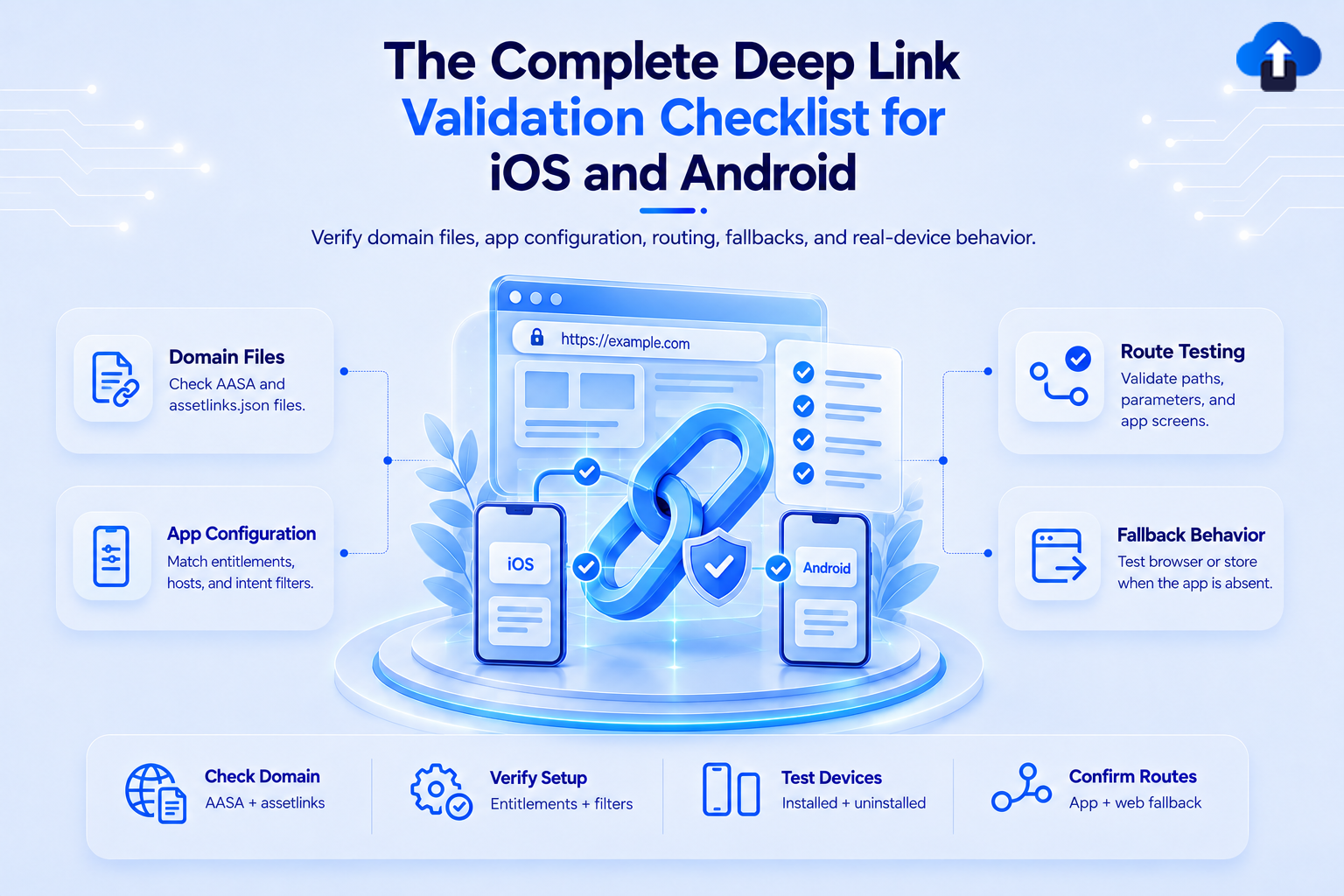
Complete Testing Checklist
Run this before every release that touches deep link configuration, and after any CDN or infrastructure change that could affect .well-known paths.
Server / file validation:
- curl -I https://yourdomain.com/.well-known/apple-app-site-association returns HTTP 200 and Content-Type: application/json
- curl -I https://yourdomain.com/.well-known/assetlinks.json returns HTTP 200 and Content-Type: application/json
- Both files return valid JSON with no syntax errors
- AASA uses the components format (not deprecated paths)
- AASA appIDs contains the correct Team ID + bundle identifier
- assetlinks.json contains all active signing certificate fingerprints including Play App Signing key
iOS device testing:
- Test Universal Links on a physical iOS device - they do not function in Simulator
- Install the app fresh; tap a universal link from Safari → confirm correct screen opens
- Kill the app; tap a universal link from Messages → confirm correct screen opens (not home screen)
- Uninstall the app, tap the link → confirm fallback web page loads correctly
Android device testing
- Run adb shell pm verify-app-links --re-verify com.yourpackage after install
- Run adb shell pm get-app-links com.yourpackage → confirm verified: true
- Test cold-open from Messages or Chrome with app killed → confirm correct screen
- Test with both upload key build and Play App Signing build if using Play App Signing
Path and edge case testing:
- Test every path pattern in the AASA/assetlinks.json against real URLs
- Test trailing slash variants (/product vs /product/)
- Test query parameters (/checkout?ref=email)
- Repeat all checks after any bundle ID, signing certificate, or Associated Domains entitlement change
AppsOnAir Link Validator
The AppsOnAir Link Validator automates the server-side checks: AASA file availability and Content-Type, assetlinks.json structure and fingerprint format, custom scheme registration patterns, and path pattern matching against your URLs - without a device or a new app build.
Run it before every release, after any CDN or infrastructure change, and after rotating signing certificates. Link failures in push notification tap destinations and OTA update flows are among the most common sources of user-facing breakage that developers never see - because there's no crash, only a silent wrong destination.
Conclusion
Deep links are critical to reliable mobile user journeys, but small configuration errors can silently break them. Validate your AASA, assetlinks.json, entitlements, signing details, and cold-start flows before every release.