.png)


An order update appears on your lock screen. A banking app warns you about a new sign-in. An appointment reminder arrives while the app is closed. These are all push notifications.
For mobile app teams, push notifications provide a direct way to share useful, timely information outside the active app experience. This guide explains what push notifications are, how they work, the formats and purposes they support, and how to use them responsibly. It also looks at measurement, permissions, deep links, and how AppsOnAir Mobile Push helps teams manage mobile notifications as part of the wider app lifecycle.
What are push notifications?
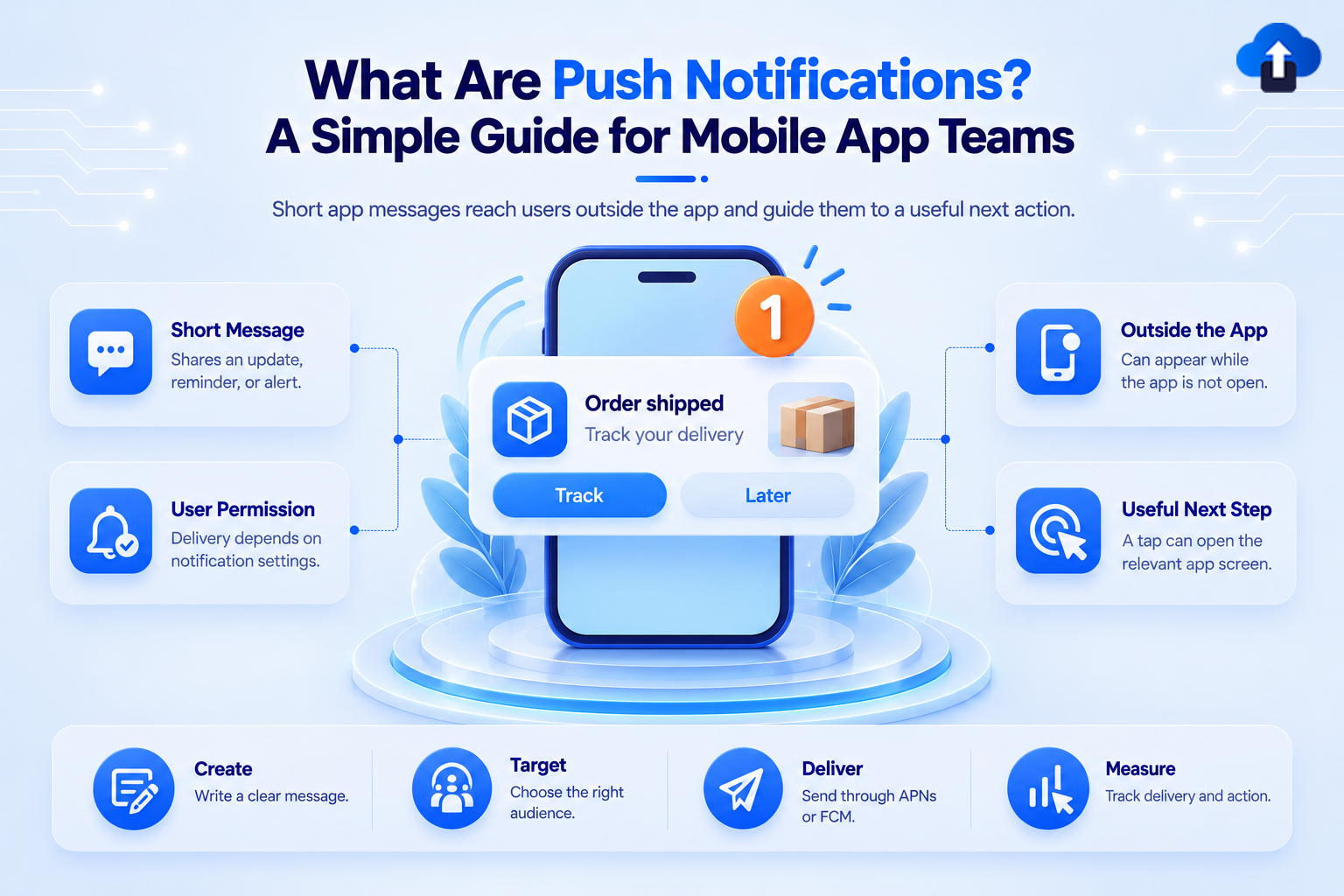
Push notifications are short messages that an app sends to a user's device. They can appear on the lock screen, in the notification center, or as a banner, even when the app is not open. A notification can share an update, request an action, or take the user to a relevant screen in the app.
The app usually needs to be installed on the device. The user must also allow notifications where the operating system requires permission. Device settings, app settings, and platform rules can affect whether and how a message appears.
Mobile push notifications can carry order updates, payment alerts, reminders, security notices, content updates, and promotional messages. This guide focuses on notifications sent by iOS and Android apps. Web push notifications follow a related idea, but they reach users through a browser rather than an installed mobile app.
What does a push notification contain?
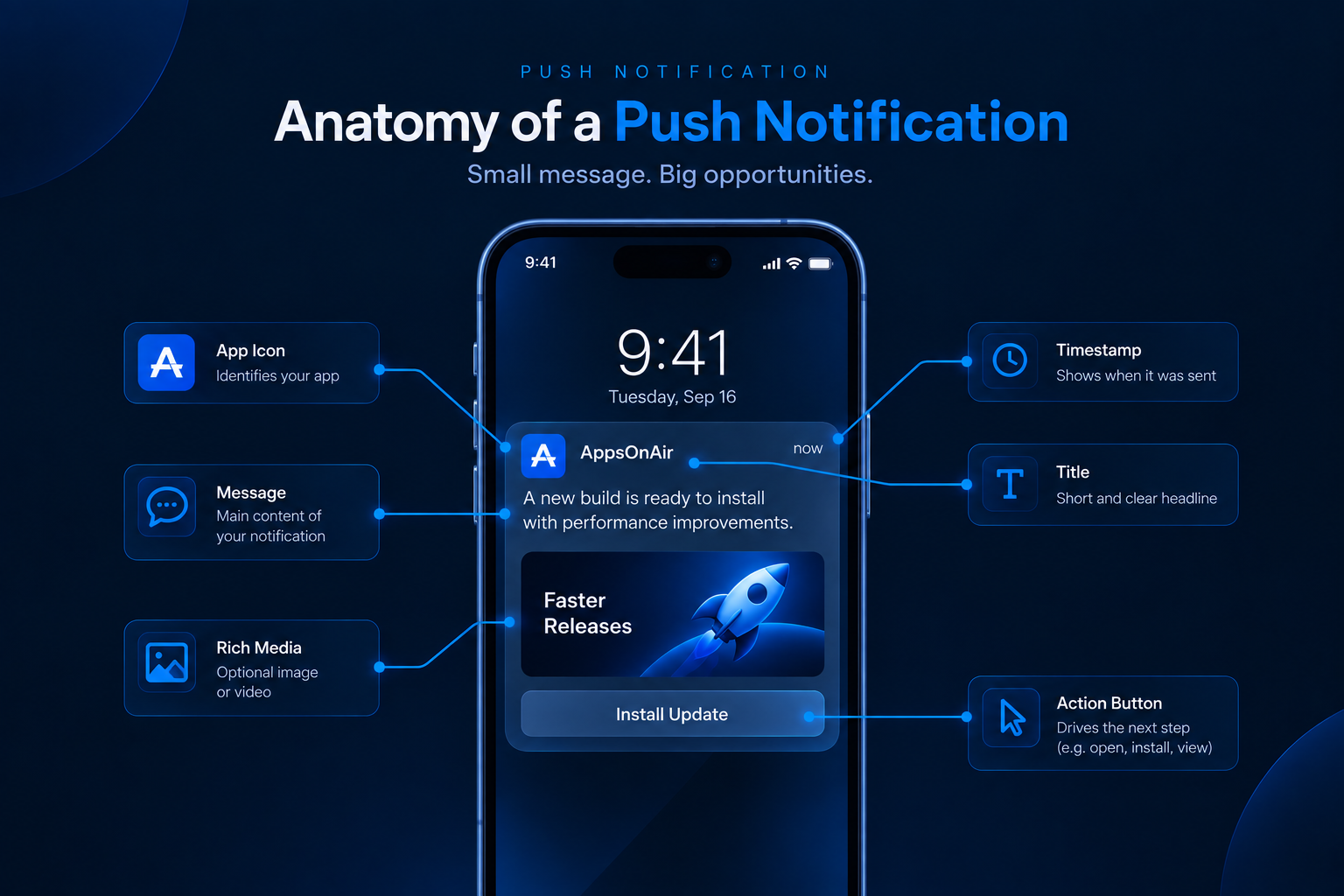
A basic push notification contains an app name or icon, a title, and a short message. It may also show a timestamp, play a sound, update the badge on the app icon, or include an image. Some notifications offer action buttons so the user can respond without first navigating through the app.
The notification can also contain a destination. When the user taps it, the app may open to an order, conversation, article, booking, or another relevant screen.
The available elements vary across operating systems and device types. App configuration, notification settings, and the device's current state can also change the final presentation. Mobile teams should therefore treat a notification design as adaptable, not as a fixed layout that will look identical everywhere.
How do push notifications work?
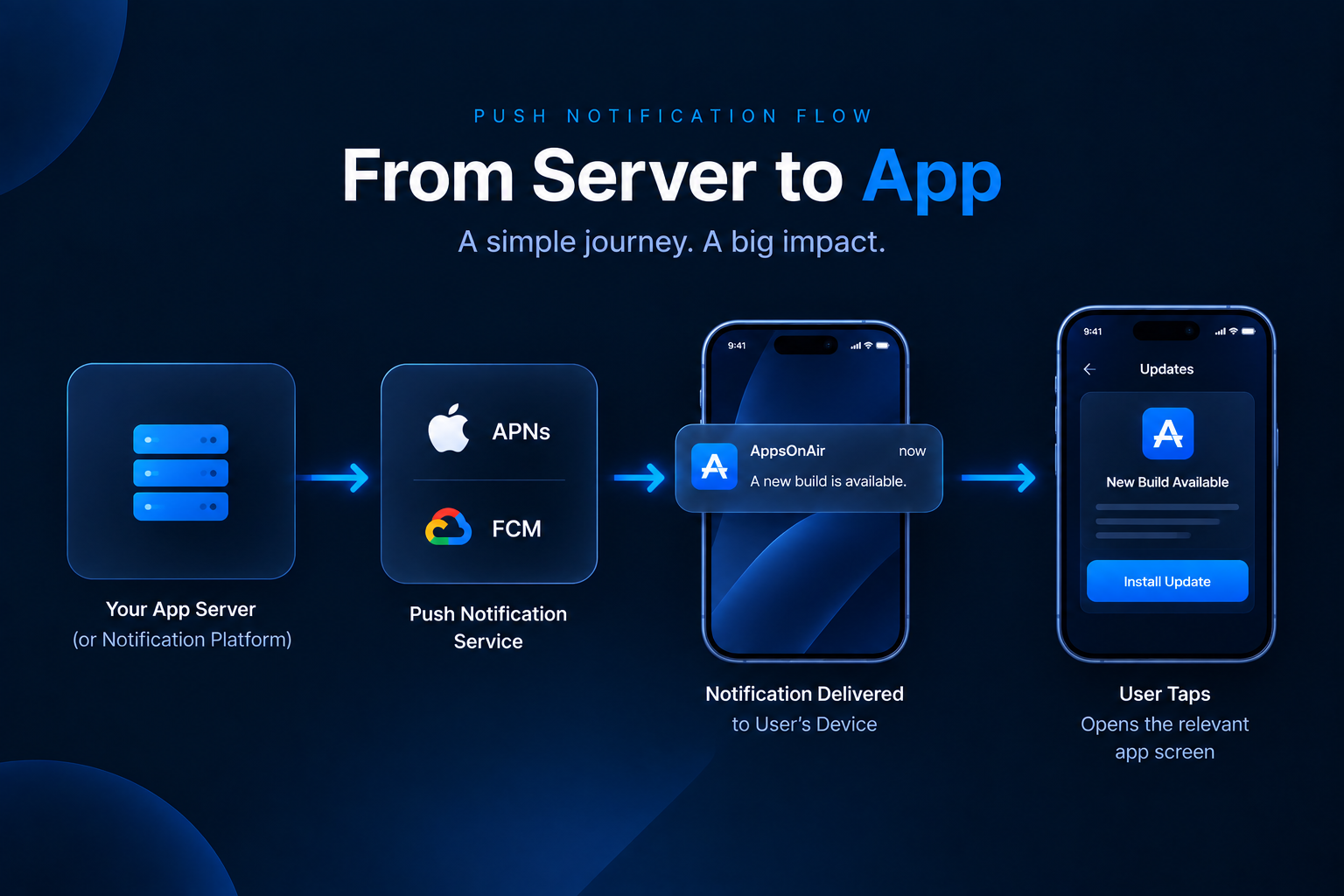
Push notification delivery involves the app, a trusted sending system, the platform's notification service, and the user's device. The implementation differs by platform, but the basic process is similar.
Permission and device registration
The app asks for notification permission where required. The request should explain what the user will receive before showing the system prompt.
After registration, the platform provides a device or registration token. The sending system uses it to identify the app installation that should receive the message. A token can change or become invalid, so it is not a permanent user identifier.
Message delivery through APNs or FCM
The app's server or notification platform sends the message to the relevant delivery service. Apple Push Notification Service, or APNs, manages delivery to Apple devices. Firebase Cloud Messaging, or FCM, commonly handles Android delivery and supports other platforms.
The platform service then attempts to route the message to the registered device. Network conditions, token validity, platform policies, power settings, and user preferences can affect delivery.
Display and user action
The operating system decides how the notification appears based on its contents, device state, settings, platform rules, and app configuration. It may show a banner, add the message to the notification center, or update a badge.
When the user taps the notification, the app can open normally or move to a specific destination through a deep link. That destination should match the message. An order notification, for example, should open the relevant order rather than the app's home screen.
Types of push notifications
Teams often mix a notification's purpose with its format. A transactional notification describes why the message was sent. A rich notification describes how the message is presented. Separating these two classifications makes campaign planning and reporting clearer.
Types based on purpose
Transactional notifications communicate activity related to a user's account or action. Examples include an order confirmation, payment receipt, delivery update, or password change.
Security notifications alert users to sign-ins, verification requests, suspicious activity, or other account events that may require attention.
Reminder notifications help users remember an appointment, subscription renewal, unfinished task, or scheduled event. Their value depends heavily on timing and accuracy.
Behavioral or triggered notifications respond to a relevant user action or state. A shopping app might remind a user about an incomplete checkout, while a learning app might prompt the next lesson after a period of inactivity.
Promotional notifications announce an offer, product release, or campaign. These messages need careful targeting because broad and frequent promotions can quickly create notification fatigue.
Service and content updates share information such as a flight delay, breaking news, match result, service interruption, or newly available content.
Types based on format
A notification can appear as a banner, alert, badge, or notification-center entry. Rich notifications add supported media such as an image. Actionable notifications offer buttons that let users complete a simple action, such as confirming a booking or marking a task complete.
Silent or background notifications may update app data without showing a visible alert. Support and behavior vary by platform, operating-system version, app state, and provider. Teams should check the rules for each supported platform instead of assuming that every format works the same way.
Push notification examples and use cases
Useful push notifications help users understand what happened or what they can do next. The message should serve the user's immediate context, not only the company's campaign goal.
An ecommerce app can confirm that an order shipped and link to tracking. A banking app can flag a new sign-in or card transaction so the account holder can review it. A travel app can report a gate change and open the latest trip details.
A healthcare app can remind a patient about an appointment and provide the correct rescheduling option. A media or sports app can deliver selected breaking stories or match updates without sending every available update. A productivity app can remind a user about a due task or scheduled meeting.
These examples have different levels of urgency. A fraud alert may need immediate attention, while a content recommendation can wait. Message priority, timing, destination, and frequency should reflect that difference.
Push notifications vs in-app messages vs SMS
Push notifications, in-app messages, and SMS can all reach mobile users, but they work in different contexts. The best choice depends on whether the app is installed, whether the user is active inside it, and what action the message requires.
Push notifications work well when an installed app needs to reach a user outside an active session. In-app messages are better for guidance that depends on what the user is doing inside the app. SMS can reach a phone without the app, but it may involve different costs, consent requirements, and user expectations.
One channel does not always perform better than another. Consider urgency, context, consent, cost, and the user's current relationship with the app. Some journeys may use more than one channel, but each message should have a clear reason for being there.
Benefits and limitations of push notifications
Push notifications can support important app experiences, but they also have limits. Teams need to understand both before deciding where notifications belong in a user journey.
Main benefits
Push notifications can deliver timely service information without requiring users to open the app first. They can remind users about relevant tasks, bring them back to an unfinished journey, and provide a direct path to a specific app screen.
They also support actions that matter to the user. A customer can track an order, review a security alert, confirm an appointment, or check a schedule change with fewer steps. For the app team, notifications create a measurable connection between a message and the next in-app action.
Important limitations
Notifications depend on user permission and device settings. They offer little space, can display differently across platforms, and may not arrive or appear exactly when expected. A delivered message is also not the same as a read message.
Poor targeting, unclear copy, and excessive frequency can lead users to mute notifications or disable them entirely. Teams should therefore protect attention rather than treating notification access as unlimited.
Permission, privacy, and user control
A permission prompt should appear when the user understands the value of opting in. Asking on the first screen, before the user has seen the app, gives little context. Asking after an order, booking, followed topic, or alert preference makes the benefit easier to understand.
On Apple platforms, apps request authorization for the notification interactions they plan to use. Android 13 and later also use the POST_NOTIFICATIONS runtime permission for non-exempt app notifications. Newly installed apps on supported Android versions cannot send those notifications until the user grants permission.
Users can change system settings, disable notifications, or adjust supported categories and channels. Apps should also provide clear preference controls where possible, such as choosing order updates without receiving promotional messages.
Explain what data supports targeting and why the notification is relevant. Collect only what the product needs, respect user choices, and review applicable privacy and communication requirements with qualified legal counsel.
Push notification best practices
Good push notification programs focus on user value. The permission request, message, timing, destination, and measurement plan should support the same purpose.
Explain the value before requesting permission
Tell users what they will receive before displaying the operating system prompt. "Get delivery updates for this order" is clearer than a general request to enable notifications. Ask at a moment connected to that value.
Match the message to the user's context
Send information that fits the user's activity, preferences, or current journey. Relevance can come from a subscription choice, app event, language, platform, or service status without requiring extensive personal data.
Control timing and frequency
Consider the user's time zone, message urgency, and recent notification volume. A security alert and a weekly content suggestion need different timing rules. No single frequency works for every app or message type.
Keep the message clear and actionable
Use a specific title and concise body copy. Tell the user what happened and what action is available. Avoid fake urgency, unclear teasers, and wording that makes the notification sound more important than it is.
Send users to the right destination
A tap should continue the journey promised by the message. Use a deep link to open the order, booking, conversation, article, or task mentioned in the notification. AppsOnAir AppLink can help mobile teams route users to the correct destination and define suitable fallback behavior.
Test across devices and measure outcomes
Test notifications across supported operating systems, screen sizes, app states, and permission settings. Check for truncated copy, missing media, broken actions, and incorrect destinations.
Measure what happens after the tap. If the message asks a user to confirm an appointment, the confirmation matters more than the tap alone. Use each notification's intended action to define success.
How to measure push notification performance
Push notification metrics should show both delivery health and user outcomes. Common measurements include:
- Permission or opt-in rate: The share of eligible users who allow notifications.
- Delivery rate: The share of attempted messages reported as delivered under the provider's definition.
- Direct open or tap rate: The share of notifications that users open or tap directly.
- Conversion or completion rate: The share of recipients who complete the intended action, such as confirming a booking or finishing a purchase.
- Opt-out rate: The share of users who disable notifications or a notification category.
- Negative signals: Uninstalls, complaints, or declining engagement after sends, when that data is available.
Metric definitions can differ between platforms and providers, so document how your team calculates each one. Choose the main metric based on the message goal. An order-status notification should not be judged by the same criteria as a promotional campaign.
How push notifications fit into the mobile app lifecycle
A push notification is an entry point, not the complete experience. The journey continues when the user taps it. The app must recognize the intended destination, account for the user's authentication state, and load content that works with the installed app version.
If the target screen is unavailable, the app needs a useful fallback. It might open a related section, show an explanation, request a sign-in, or guide the user to update the app. A dead end can turn a useful message into frustration.
Deep links connect the message with the correct in-app screen. Version controls, routing rules, and app-state handling then help the team deliver a consistent journey across different devices and app versions.
Manage mobile push notifications with AppsOnAir
AppsOnAir Mobile Push brings push notification management into the same platform mobile teams use across the app lifecycle. Teams can create, target, send, and monitor notifications for iOS and Android without separating messaging from the rest of their mobile operations.
AppsOnAir Push supports audience targeting using factors such as platform, language, app version, activity, segments, and customer data. Teams can prepare language-specific messages, work with their Apple and Firebase credentials, and review delivery and performance data from one place.
This connection matters because the notification is only the first step. Deep links, app versions, user state, and the destination after the tap all shape the final experience.
Common push notification mistakes
Many notification problems begin before the message is sent. Watch for these common mistakes:
- Requesting permission before explaining why notifications are useful.
- Sending the same generic message to every user.
- Sending too often or at times that ignore the user's context.
- Using vague copy, fake urgency, or a misleading action.
- Opening the app home screen instead of the promised destination.
- Ignoring differences between devices and operating systems.
- Measuring taps without tracking the intended outcome.
A simple review process can catch most of these issues. Confirm the audience, purpose, timing, copy, destination, and success metric before each send.
Frequently asked questions
What is a push notification in simple terms?
A push notification is a short message an app sends to a user's device. It may appear while the app is closed and can provide an update, reminder, alert, or relevant link.
Do push notifications work when an app is closed?
Yes. They can arrive while an app is in the background or inactive. Delivery and display still depend on permission, device settings, network conditions, and platform rules.
Does a user need to install the app to receive push notifications?
Mobile push notifications usually require the app to be installed and registered on the device. Web push follows a different process and does not require the same mobile app installation.
What is the difference between push notifications and SMS?
Push notifications come from an installed app and depend on notification permission. SMS arrives in the messaging inbox, does not require the app, and may involve carrier costs and different consent requirements.
What is the difference between push notifications and in-app messages?
Push notifications can reach users outside an active session. In-app messages appear inside the open app, making them useful for onboarding, guidance, and prompts tied to the current screen.
How often should an app send push notifications?
There is no universal ideal frequency. Adjust it based on message value, urgency, user preferences, engagement, and opt-outs. Transactional alerts and promotional messages need different rules.
Final thoughts
Effective push notifications deliver timely information and lead users to a useful next action. Success depends on permission, relevance, timing, clear copy, reliable routing, and measurement beyond the tap.
AppsOnAir Mobile Push helps mobile teams manage that connection alongside other parts of the app lifecycle, so each notification can continue into the right in-app experience.