.png)


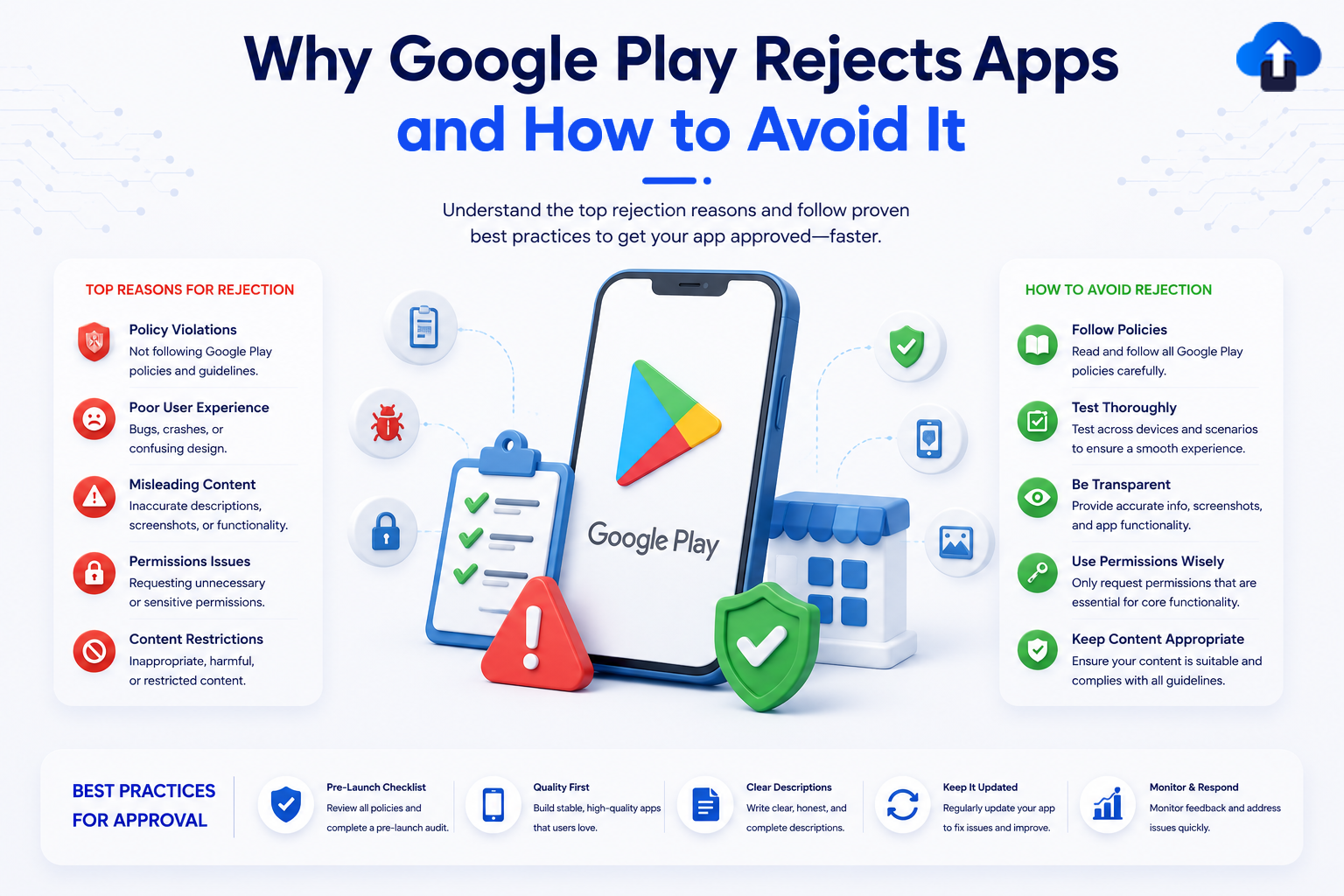
You spent three months building your app. You tested it. You polished it. You submitted it. Then came the email: “Your app has been rejected.”
No clear fix. No direct support. Just a policy link and a deadline. Here is exactly how to make sure it never happens again.
Introduction
Google Play is the world’s largest app marketplace with over 3.5 billion active Android devices and more than 2.5 million apps listed as of 2025. Getting your app onto the Play Store is not just about writing good code; it is about understanding a detailed, frequently updated set of policies that Google enforces both automatically and manually.
Every year, Google increases the sophistication of its automated review pipeline. In 2023, Google reported removing 2.28 billion policy-violating apps and banning 333,000 developer accounts. In 2024, it expanded its AI-assisted review to catch deceptive metadata and hidden data collection at scale.
The good news: most rejections are entirely preventable. The reasons are consistent, the fixes are well-documented, and the patterns are clear once you know what to look for.
This guide covers every major rejection category, the corresponding policy section, and the concrete fix.
Problem Statement: Why Rejections Are So Painful
Google Play rejections hit developers in three ways:
- Time loss. A rejection can delay your launch by days or weeks. The review cycle is not instant; re-submissions after a rejection typically take an additional 3–7 days.
- Account risk. Repeated violations escalate from app rejection → app removal → developer account termination. A terminated account loses all apps, all revenue, and all user reviews permanently.
- Opacity. Google’s rejection emails reference policy pages rather than specific lines of your app. Without knowing which exact behavior triggered the flag, developers often fix the wrong thing and resubmit incorrectly.
Understanding the specific, documented reasons behind rejections is the only reliable way to avoid them.
How Google Play Reviews Apps
Before diving into the reasons for rejection, it helps to understand who actually reviews your app.
Google’s Three-Layer Review System
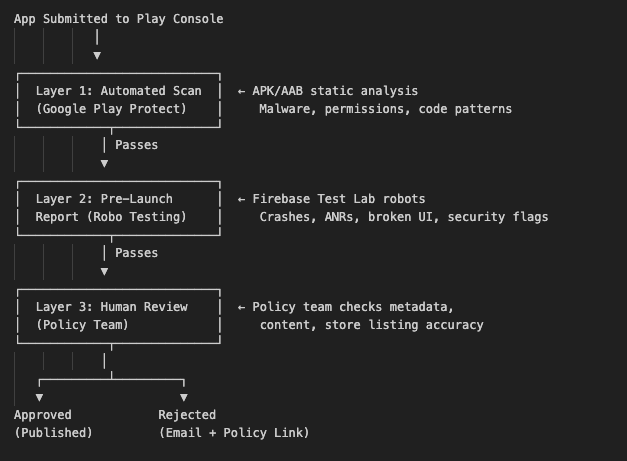
Review timelines:
- New apps: 3 - 7 days
- Updates to existing apps: 2 - 48 hours (faster for established, clean-history accounts
- Apps flagged by automation: can extend to 2+ weeks for human review
The 10 Most Common Rejection Reasons (and How to Fix Them)
Reason 1: Missing or Inadequate Privacy Policy
Policy Reference: Google Play User Data Policy
Why it triggers rejection: Any app that collects, transmits, or handles personal data, including device identifiers, location, contacts, camera, microphone, or usage data, must have a publicly accessible privacy policy linked in both the app and the Play Store listing. This is enforced for all apps regardless of category.
What “inadequate” means:
- A generic template that does not match your actual data practices
- A broken or 404 URL
- A policy hosted behind a login wall - No mention of third-party SDKs (Firebase, Ads, Analytics) that collect data.
Fix :
In your Play Console store listing:
Store Listing → App Content → Privacy Policy → Enter URL
In your app (required for apps targeting users who may be under 13 or in the EU):
 // Show privacy policy link on first launch or in settings
 val privacyPolicyUrl = "https://yourapp.com/privacy"
fun openPrivacyPolicy(context: Context) {
   val intent = Intent(Intent.ACTION_VIEW, Uri.parse(privacyPolicyUrl))
   context.startActivity(intent)
 }
Privacy policy must include:
- What data do you collect
- Why do you collect it
- Who you share it with (list every third-party SDK)
- How users can request deletion
- Your contact information
Important: A privacy policy URL that returns a 404 or redirects to a login page is treated the same as having no policy at all. Test the URL from an incognito browser before submitting.
Reason 2: Incomplete or Inaccurate Data Safety Section
Policy Reference: Data Safety Section Requirements
Why it triggers rejection: Google requires every app to accurately declare in the Play Console's Data Safety form what data it collects, why it collects it, and whether it is shared with third parties. Mismatches between your declaration and your app’s actual behavior (detected via static analysis) trigger rejection.
Common mistakes:
- Declaring “no data collected” while using Firebase Analytics or Crashlytics
- Not declaring advertising ID collection when using AdMob
- Missing location data declaration when using the Fused Location Provider
Fix: Data Safety section categories to check:
Play Console → App Content → Data Safety
How to audit your declared data programmatically:
 // Check which permissions your app declares vs what you report in Data Safety
 // Run this in debug builds to print all declared permissions
 fun logDeclaredPermissions(context: Context) {
   val packageInfo = context.packageManager.getPackageInfo(
       context.packageName,
       PackageManager.GET_PERMISSIONS
   )
   packageInfo.requestedPermissions?.forEach { permission ->
       Log.d("DataSafety", "Declared permission: $permission")
   }
 }
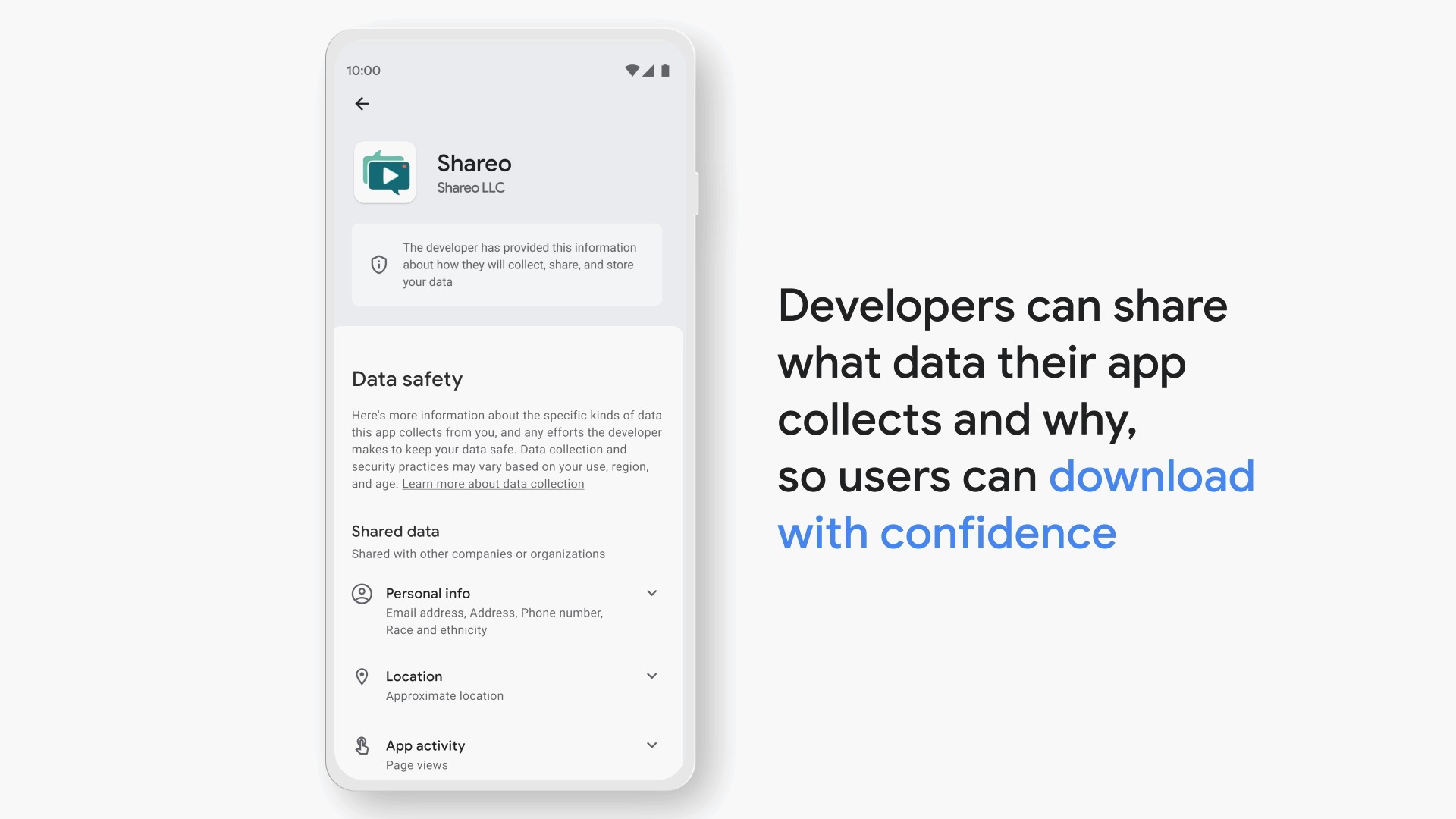
Source: Google Play Help Data Safety Section · How the Data Safety card appears to users when an app shares data · 2026
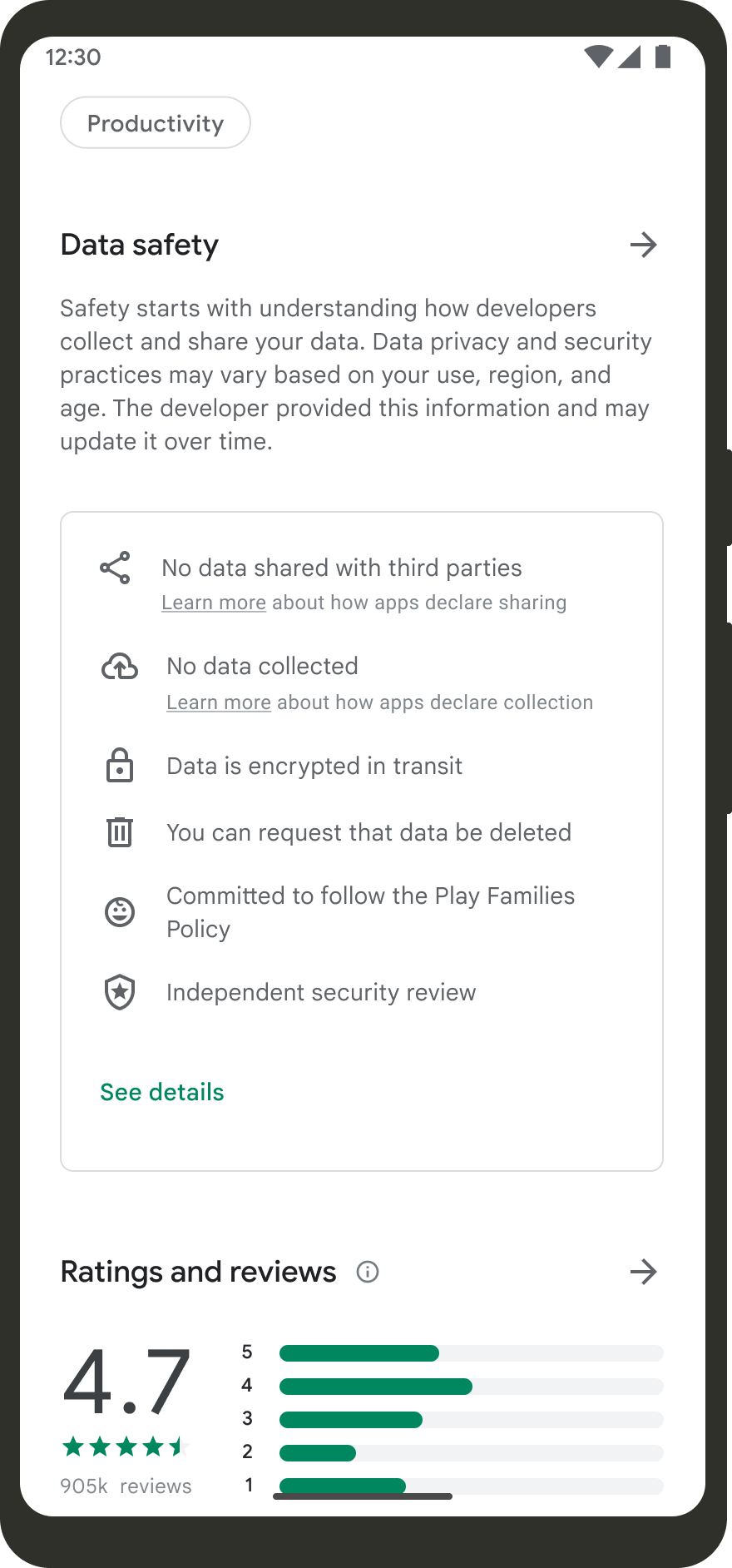
Source: Google Play Help Data Safety Section · Data Safety card when an app declares it collects no data · 2026
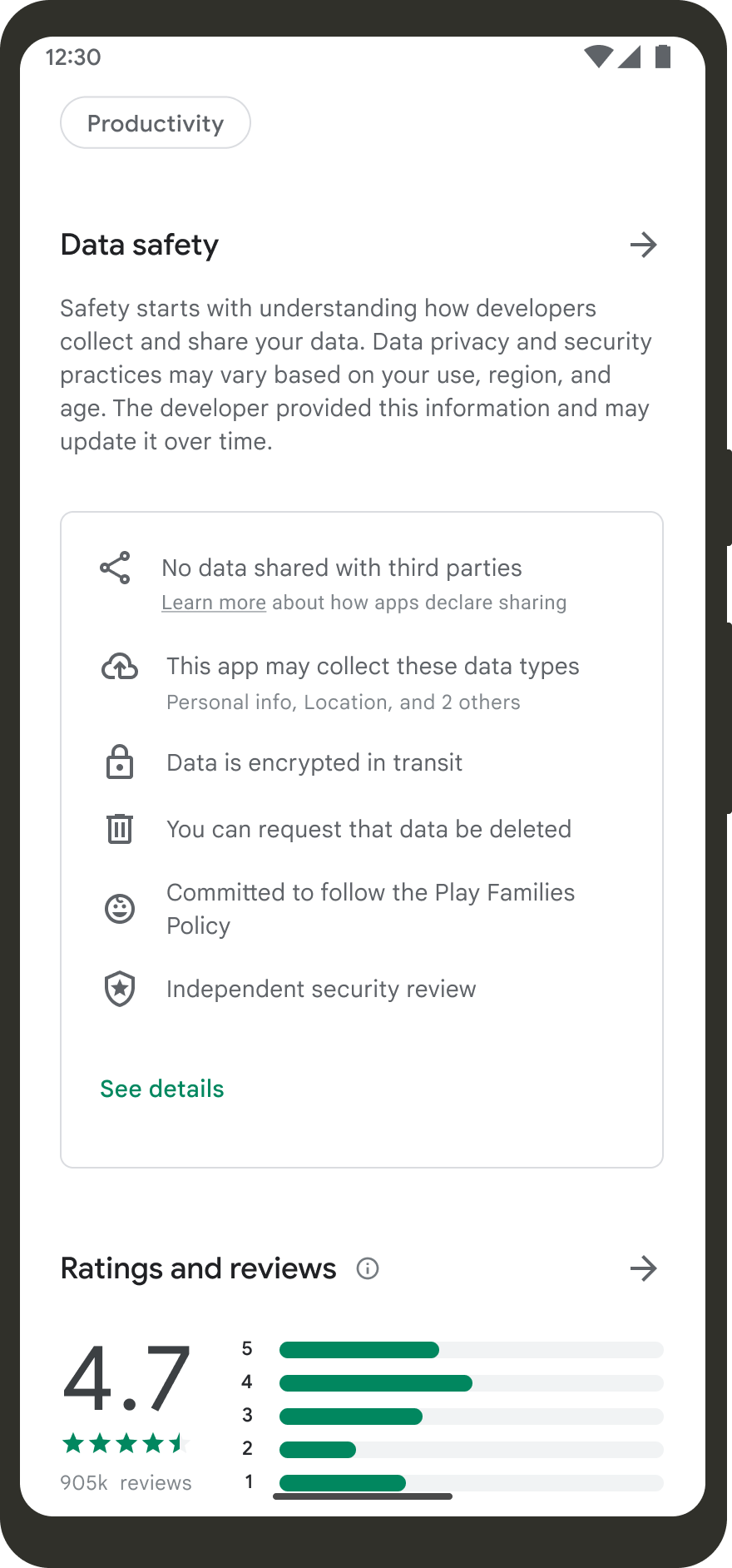
Source: Google Play Help Data Safety Section · Data Safety card when data is collected but not shared with third parties · 2026
Reason 3: Target API Level Below Google’s Minimum Requirement
Policy Reference: Target API Level Requirements
Why it triggers rejection: Google enforces a minimum targetSdkVersion for all app submissions. Apps that do not meet the requirement are rejected outright, regardless of content.
2025 Requirements: | Submission Type | Minimum targetSdkVersion | |—|—| | New apps | API 34 (Android 14) | | Existing app updates | API 34 (Android 14) | | Wear OS apps | API 34 | | Android TV apps | API 34 |
Fix : Update build.gradle (Groovy):
android {
   compileSdk 35  // Android 15


   defaultConfig {
       applicationId "com.yourcompany.yourapp"
       minSdk 24               // Android 7.0 minimum (recommended)
       targetSdk 34            // Android 14 — minimum required for 2025
       versionCode 12
       versionName "2.1.0"
   }
 }
Fix: Update build.gradle.kts (Kotlin DSL):
android {
   compileSdk = 35


   defaultConfig {
       applicationId = "com.yourcompany.yourapp"
       minSdk = 24
       targetSdk = 34          // Must be 34+ for Play Store submissions in 2025
       versionCode = 12
       versionName = "2.1.0"
   }
 }
After updating targetSdk, test for behavioral changes:
# Run lint to catch targetSdk compatibility issues
./gradlew lint


# Check for deprecated API usage
./gradlew lintDebug --stacktrace
Important: Raising targetSdk is not just a number change to a number. Android 12+ introduced exact alarm restrictions, Android 13+ changed notification permissions, and Android 14+ enforces foreground service types. Test thoroughly before re-submitting.
Reason 4: Dangerous Permissions Without Justification
Policy Reference: Permissions Policy
Why it triggers rejection: Google classifies certain permissions as “dangerous” they require explicit user consent at runtime and must be justified by your app’s core functionality. Declaring permissions your app does not genuinely need is a direct policy violation.
Commonly flagged permissions:
Fix : Use intent-based alternatives where possible:
//
// ❌ BAD — Requesting CAMERA permission just to capture a photo
// Requires full camera permission + policy justification


// ✅ GOOD — Use the system camera intent (no permission needed)
fun openCameraWithIntent(launcher: ActivityResultLauncher<Uri>, photoUri: Uri) {
  val intent = Intent(MediaStore.ACTION_IMAGE_CAPTURE).apply {
      putExtra(MediaStore.EXTRA_OUTPUT, photoUri)
  }
  launcher.launch(photoUri)
}


// ✅ GOOD — Use photo picker (no READ_MEDIA_IMAGES permission needed on Android 13+)
fun openPhotoPicker(launcher: ActivityResultLauncher<PickVisualMediaRequest>) {
    launcher.launch(PickVisualMediaRequest(ActivityResultContracts.PickVisualMedia.ImageOnly))
}
Fix: Request only the permission level you need:
<!-- AndroidManifest.xml -->


<!-- ❌ BAD — Precise location when you only need approximate -->
<!-- <uses-permission android:name="android.permission.ACCESS_FINE_LOCATION" /> -->


<!-- ✅ GOOD — Request coarse only if that's all your feature needs -->
<uses-permission android:name="android.permission.ACCESS_COARSE_LOCATION" />


<!-- ✅ GOOD — If you need fine, declare both and let the user choose on Android 12+ -->
<uses-permission android:name="android.permission.ACCESS_FINE_LOCATION" />
<uses-permission android:name="android.permission.ACCESS_COARSE_LOCATION" />
Fix: Remove permissions your app does not use:
# Find all permissions declared in the merged manifest
./gradlew :app:processDebugManifest


# Review the merged manifest output
cat app/build/intermediates/merged_manifest/debug/AndroidManifest.xml | grep "uses-permission"
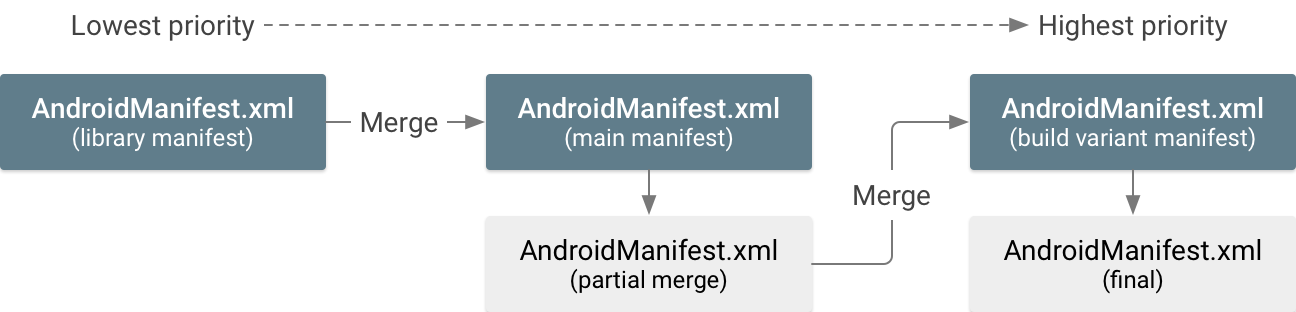
Source: Android Developers Manage Manifest Files · Official diagram showing how Android merges manifests from app + libraries at build time · 2026
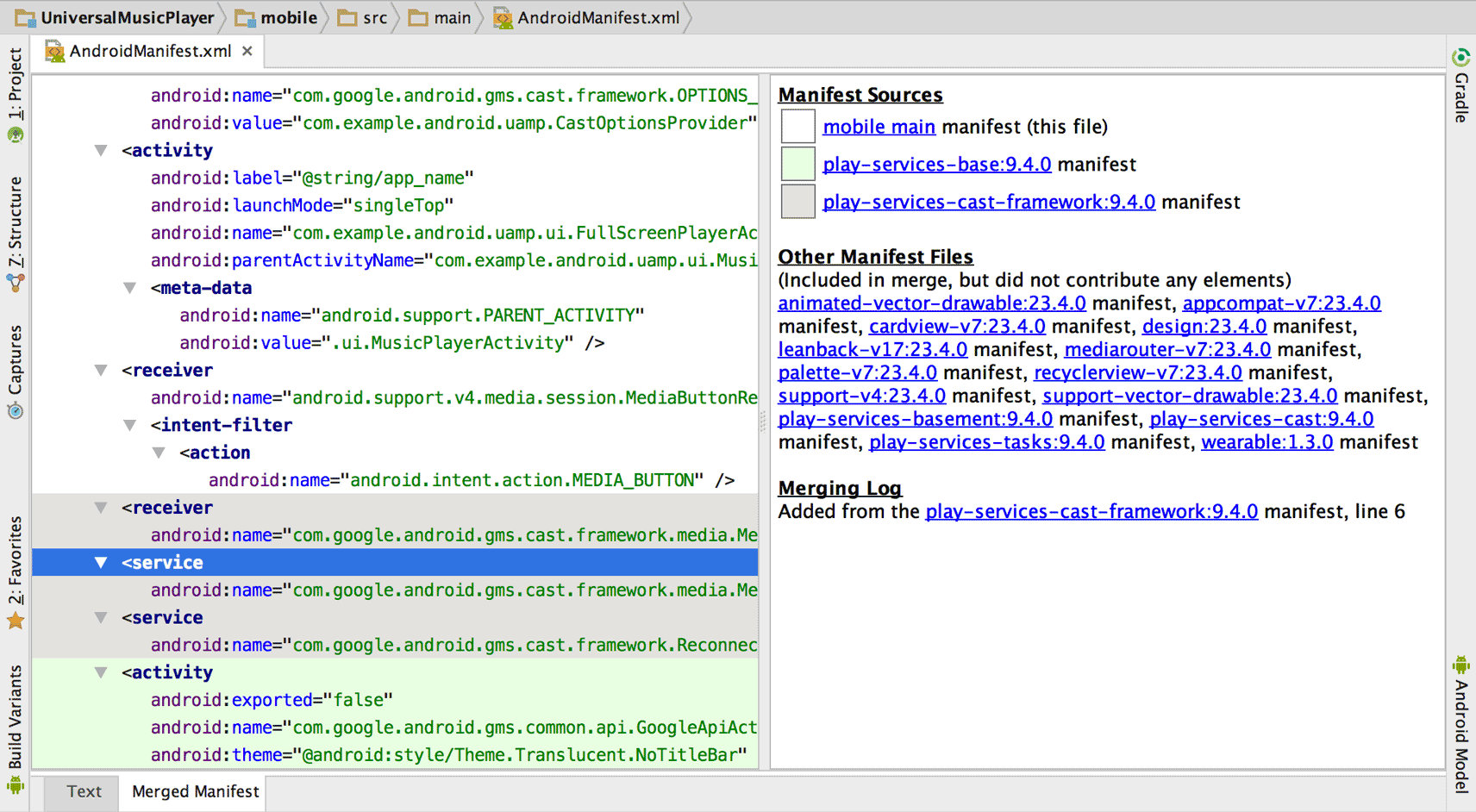
Source: Android Developers Manage Manifest Files · The Merged Manifest tab in Android Studio left pane shows merged output, right pane shows which file contributed each permission · 2026
Reason 5 : App Crashes or ANRs Detected in Pre-Launch Report
Why it triggers rejection: Google’s automated Robo tester runs your app on real devices via Firebase Test Lab before review. If it detects crashes (force closes) or ANRs (Application Not Responding UI thread blocked for 5+ seconds), your app may be rejected or flagged with quality warnings.
Fix : Run the pre-launch report locally before submitting:
# Run baseline profile + startup check
./gradlew :app:connectedDebugAndroidTest


# Run Firebase Test Lab from CLI (requires gcloud setup)
gcloud firebase test android run \
--type robo \
--app app/build/outputs/apk/release/app-release.apk \
--device model=Pixel6,version=34,locale=en,orientation=portrait \
--timeout 90s
Fix: Detect and handle ANRs with StrictMode in debug builds:
class MyApplication : Application() {


  override fun onCreate() {
      super.onCreate()


      if (BuildConfig.DEBUG) {
          // Catch main-thread disk/network violations before they become ANRs
          StrictMode.setThreadPolicy(
              StrictMode.ThreadPolicy.Builder()
                  .detectDiskReads()
                  .detectDiskWrites()
                  .detectNetwork()
                  .penaltyLog()
                  .penaltyFlashScreen()
                  .build()
          )
      }
  }
}
Source: Google Play Console Pre-Launch Reports · Example of an EditText accessibility issue flagged by the automated Robo tester before submission · 2026
Source: Google Play Console Pre-Launch Reports · Accessibility label issues detected in the pre-launch report · 2026
Fix: Move heavy work off the main thread:
// ❌ BAD — SharedPreferences read on main thread (triggers StrictMode + potential ANR)
val token = sharedPreferences.getString("auth_token", null)


// ✅ GOOD — Use DataStore (async) instead of SharedPreferences
val tokenFlow: Flow<String?> = context.dataStore.data.map { prefs ->
  prefs[AUTH_TOKEN_KEY]
}


// Collect in a coroutine, never on the main thread
viewModelScope.launch {
  tokenFlow.collect { token ->
      // use token safely
  }
}
Reason 6: Misleading Metadata (Title, Description, Screenshots)
Why it triggers rejection:
Google’s human review team checks that your store listing accurately represents your app. Common violations include:
- Keyword stuffing in the title or description (e.g., “Calculator — best free calculator math calculator 2025”)
- Screenshots that don’t match the actual app UI
- Fake review solicitation language in the description (“Rate us 5 stars!”)
- Claiming features your app does not have (“AI-powered” when it’s a static list)
- Impersonating other apps with similar names, icons, or screenshots
What Google checks:
App Title → Max 50 characters. No keyword stuffing. Must match app function.
Short Description → Max 80 characters. No promotional superlatives.
Full Description → Max 4,000 characters. Must reflect actual app features.
Screenshots → Must show actual app UI. No device frames that mislead the screen size.
App Icon → Cannot resemble system icons or other popular apps.
Fix: Title and description checklist:
 ✅ Title: "Budget Tracker – Expense Manager"       (clear, accurate, 34 chars)
 ❌ Title: "Budget Tracker – Best FREE Money App Expense Finance 2025" (stuffed)
✅ Description: Start with the core value proposition.
             List actual features with honest capability claims.
             No "Download now!" "Best in class", or star rating requests.
 ✅ Screenshots: Capture from a real device or emulator running your actual app.
             Match the device frame to the screenshot device type.
             Include at least one screenshot per major feature.
Source: Google Blog How to Resolve Google Play Policy Issues · Official Google guidance on identifying and fixing metadata and content policy violations · 2026
Reason 7: Content Rating Questionnaire Mismatch
Policy Reference: App Content Rating
Why it triggers rejection: Every app must complete the IARC content rating questionnaire in Play Console. If your app contains content that contradicts your stated rating, violence, mature themes, or user-generated content with no moderation, Google rejects it.
Common mistakes:
- Selecting the “Everyone” rating but allowing unrestricted user-generated content
- Enabling social features (chat, forums) but declaring no interactive elements
- Containing any reference to real-money gambling without a valid license declaration.
Fix: Complete the rating questionnaire accurately:
Play Console → App Content → App Content Rating → Start Questionnaire
Key questions that trip developers up:
Reason 8: Foreground Service Type Not Declared (Android 14+)
Why it triggers rejection: Android 14 (API 34) made foreground service type declarations mandatory. Apps targeting API 34+ that use foreground services without a declared type crash at runtime and are rejected by the automated scanner.
Fix: Declare foreground service type in AndroidManifest.xml:
<!-- AndroidManifest.xml -->
<manifest>


  <!-- Required permission for each service type used -->
  <uses-permission android:name="android.permission.FOREGROUND_SERVICE" />
  <uses-permissionandroid:name="android.permission.FOREGROUND_SERVICE_MEDIA_PLAYBACK" />


  <application>


      <!-- ✅ CORRECT — Declare the type attribute on your service -->
      <service
          android:name=".MusicPlayerService"
          android:foregroundServiceType="mediaPlayback"
          android:exported="false" />


      <!-- ✅ For location tracking services -->
      <service
          android:name=".LocationTrackingService"
          android:foregroundServiceType="location"
          android:exported="false" />


  </application>
</manifest>
Fix : Start foreground service with matching type in Kotlin:
// ✅ API 34+ — Must pass service type when calling startForeground()
class MusicPlayerService : Service() {


  override fun onStartCommand(intent: Intent?, flags: Int, startId: Int): Int {
      val notification = buildNotification()


      if (Build.VERSION.SDK_INT >= Build.VERSION_CODES.UPSIDE_DOWN_CAKE) {
          // Pass the service type that matches your manifest declaration
          startForeground(
              NOTIFICATION_ID,
              notification,
              ServiceInfo.FOREGROUND_SERVICE_TYPE_MEDIA_PLAYBACK
          )
      } else {
          startForeground(NOTIFICATION_ID, notification)
      }


      return START_STICKY
   }
 }
Valid foreground service types for API 34+:
Reason 9 : Sensitive App Category Without Required Declaration
Policy Reference: Financial Services Policy | Health & Medical Policy
Why it triggers rejection: Apps in regulated categories require additional declarations and sometimes pre-approval before they can be listed.
Categories requiring special declarations:
Fix : Check if your app falls into a sensitive category:
Play Console → App Content → App Content → scroll to "Sensitive App Content" declarations
Source: Google Play Console · The Policy Center within Play Console, where sensitive category declarations and compliance deadlines are managed · 2026
Reason 10 : Intellectual Property Violation
Why it triggers rejection: Google’s systems and human reviewers check for trademark infringement in app names, package names, icons, screenshots, and descriptions.
Common violations:
- Using another company’s brand name in your app title (“WhatsApp Backup Manager”)
- An icon that closely resembles a major app’s logo
- Screenshots showing competitor app UI - Using copyrighted music in demo videos
Fix : Pre-submission IP checklist:
App Name → Search USPTO (US) or EUIPO (EU) trademark databases before naming
Package Name → Use your own company domain: com.yourcompany.yourapp
App Icon → Original design; run reverse image search to check similarity
Screenshots → Only show your own app UI; blur or remove any third-party content.
Description → Do not mention competitor app names unless for legitimate comparison.
Audio/Video → Use only royalty-free or original content in the preview video.s
Pre-Submission Checklist: Run This Before Every Release
TECHNICAL
- targetSdkVersion ≥ 34 in build.gradle
- All foreground services have a type declared (API 34+)
- Lint passes with no errors: ./gradlew lint
- No crashes on Pixel 6 emulator (API 34) cold start
- StrictMode passes in debug build (no main-thread disk/network)
- APK/AAB built with release signing (not debug keystore)
PERMISSIONS
- Every permission in AndroidManifest.xml is actively used
- Dangerous permissions have a runtime request dialog with rationale
- No READ_CALL_LOG, PROCESS_OUTGOING_CALLS, or SMS permissions unless genuinely needed
- BACKGROUND_LOCATION uses the two-step permission request flow
STORE LISTING
- Title ≤ 50 characters, no keyword stuffing
- The description accurately represents all features
- Screenshots taken from actual device/emulator (not mockups with fake data)
- Content rating questionnaire completed and accurate
- Privacy policy URL is live, public, and loads without login
DATA SAFETY
- All third-party SDKs (Firebase, AdMob, Crashlytics) are declared in Data Safety.
- Location data collection is declared if any location API is used
- "Data shared with third parties" accurately reflects SDK data practices
- Data deletion request contact/link provided if collecting personal data
COMPLIANCE
- No trademarked names in title, icon, or description
- The app icon is original and does not resemble another major app's icon
- No solicitation of ratings in the app or description
- No fake or incentivized review language
Source: Google Play Console · The “Release with Confidence” section of Play Console shows quality signals before you publish · 2026
What to Do When Your App Gets Rejected
Step 1 : Read the Rejection Email Carefully
Google’s rejection emails include:
- The policy section that was violated
- A deadline to appeal or resubmit (typically 30 days)
- In some cases, specific examples from your app.
Step 2 : Map the Violation to Your App
Policy cited in email
│
▼
Read the full policy page linked in the email.l
│
▼
Identify every place in your app that could trigger that policy
│
▼
Fix ALL instances (not just the obvious one — reviewers check everything)
│
▼
Re-test on a clean device with no prior app install
│
▼
Re-submit with an accurate update summary in the release notes
Step 3 : Appeal If You Disagree
If you believe the rejection is incorrect:
Play Console → Inbox → Select rejection email → "Appeal" button
Write a clear, factual explanation referencing the specific policy
Attach screenshots proving compliance
Do NOT resubmit the same app without changes and expect a different result
Appeals are reviewed by a different team from the original review
Important: Do not attempt to create a new developer account to resubmit a rejected app. Google links accounts by payment method, device, and IP address. Creating a secondary account after a rejection or ban violates the Developer Distribution Agreement and results in permanent termination of all associated accounts.
Key Takeaways
Privacy policy is non-negotiable: any app that handles user data must have one, publicly accessible, accurately written.
Data Safety must match reality: Google’s scanners detect SDK usage and compare it to your declaration; mismatches are caught
targetSdkVersion 34 is the 2025 floor: update it or your submission is rejected before a human sees it
Only request permissions you actually use: audit your merged manifest before every release
Foreground service types are mandatory on API 34+: no type declaration = crash = rejection
Metadata matters as much as code: misleading titles, stuffed descriptions, and mismatched screenshots are policy violations
Sensitive categories need declarations: financial, VPN, health, and accessibility apps have extra requirements
Rejections are not bans: fix the specific issue, re-test completely, and re-submit confidently
Conclusion
Getting rejected by Google Play is frustrating, but it is rarely random. Every rejection maps to a documented policy, and every policy has a clear fix.
The teams that consistently ship without rejection share one habit: they treat the Play Store policies as part of their development process, not an afterthought at submission time. They audit permissions before writing code that needs them. They fill out the Data Safety form when they add a new SDK. They run their app through the pre-launch report before every major release.
Build that habit, and the Play Store review process becomes a formality rather than a gatekeeping nightmare.
Your app is ready. Now make sure Google agrees.
Reference Links
Official Google Documentation
- Google Play Developer Policy Center
- Target API Level Requirements 2025
- User Data Policy Privacy Policy Requirements
- Data Safety Section Developer Guide
- Permissions Policy Dangerous Permissions
- App Content Rating IARC Questionnaire
- Financial Services Policy
SDK & API References
- Android 14 Behavior Changes targetSdk 34
- Runtime Permissions Guide Android Developers
- Photo Picker Android Developers
- DataStore Guide Android Developers
- StrictMode Android Developers
- Firebase Test Lab Pre-launch Report
Tools
- Play Console Pre-launch Report
- Google Play Policy Compliance Checker (Self-assessment)
- Android Lint Documentation