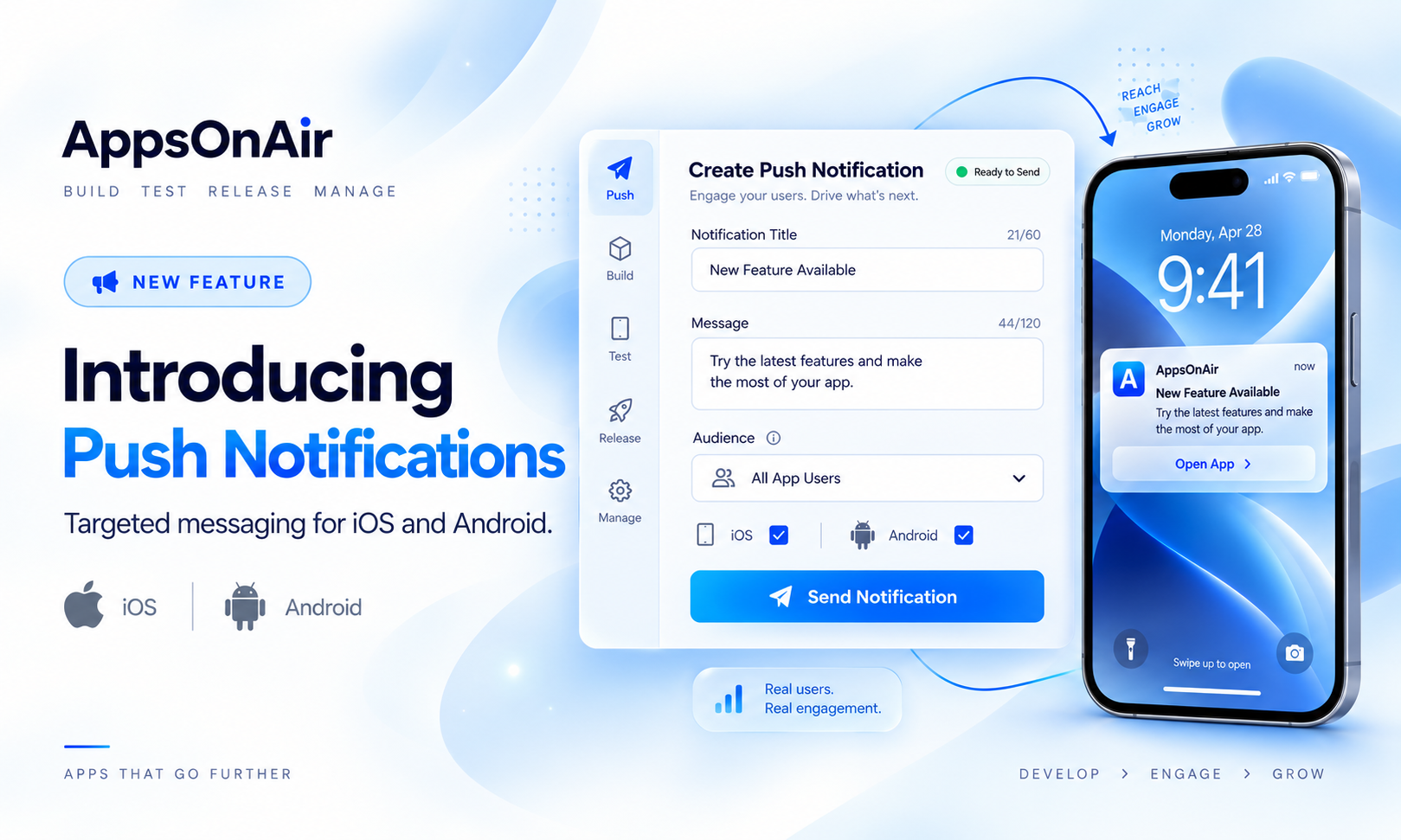


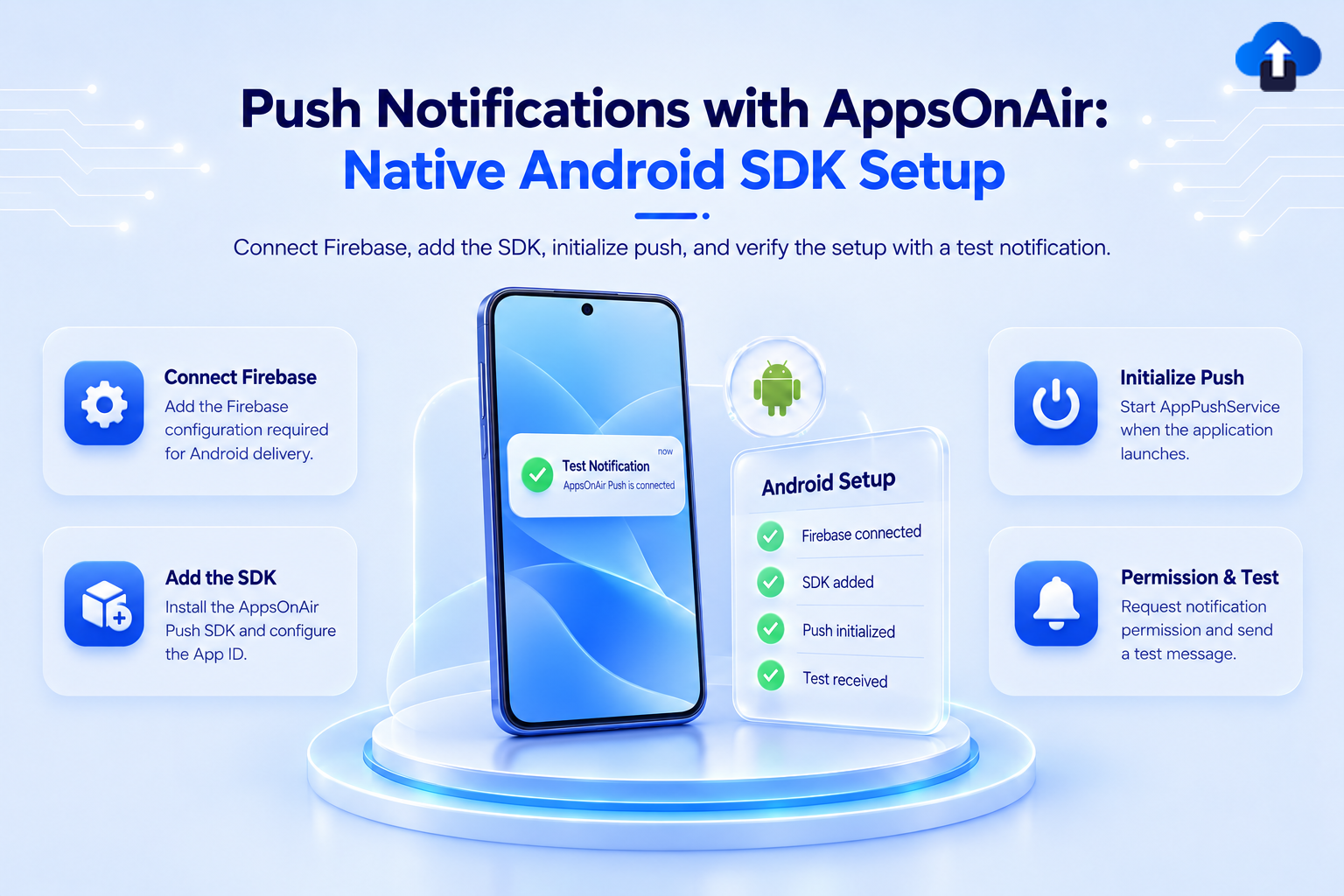
A complete setup guide for integrating AppsOnAir push notifications into native Android apps, covering Firebase configuration, initialization, targeting, and production edge cases.
Overview
The AppsOnAir Android SDK sits on top of Firebase Cloud Messaging (FCM) and surfaces a unified API for token management, segmentation, opt-in control, and delivery analytics. Push targeting maps directly to the same distribution groups and app version segments already defined in the AppsOnAir console.
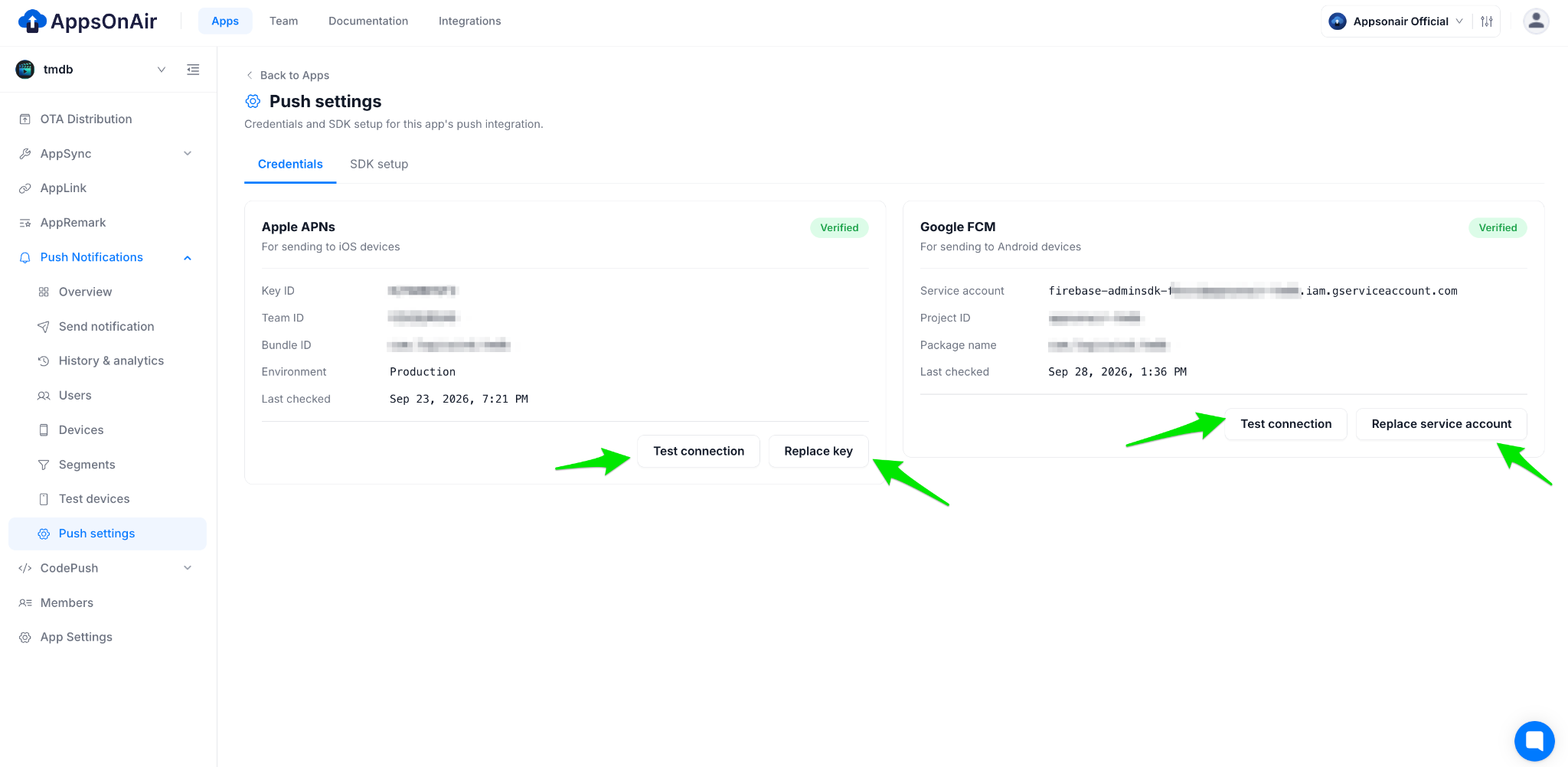
Before starting: upload your Firebase service account JSON in the AppsOnAir console under App Settings → Push Notifications. The SDK will not deliver without credentials configured server-side.
Requirements
Basic push (Steps 1-5) covers: text notifications with title and body, tap-to-open and deep links, images (automatic via data payload), foreground display control, user targeting, tags, segments, and opt-in/out.
Advanced features are all handled by the SDK with no separate targets: images via `big_picture` data key, notification channels (Android 8.0+), silent push, and badge count.
AppsOnAir Push Configuration
Before starting SDK integration, I need a one-time push notifications configuration setup for the android platform.
Credential configuration is a one-time setup following items needed.
- Android Package name.
- Firebase Google Services Account Json on file for Android
For more details you visit documentation.
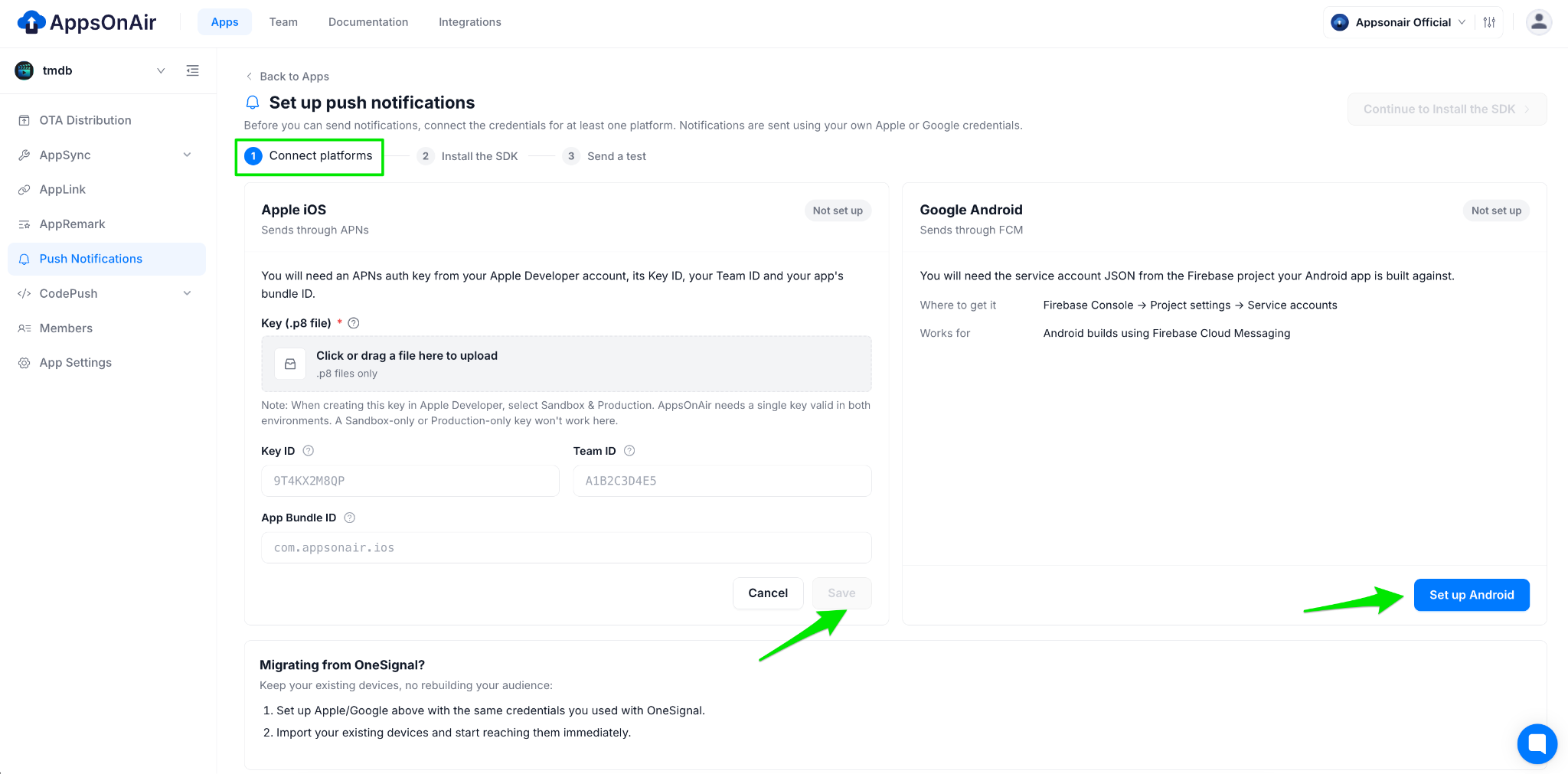
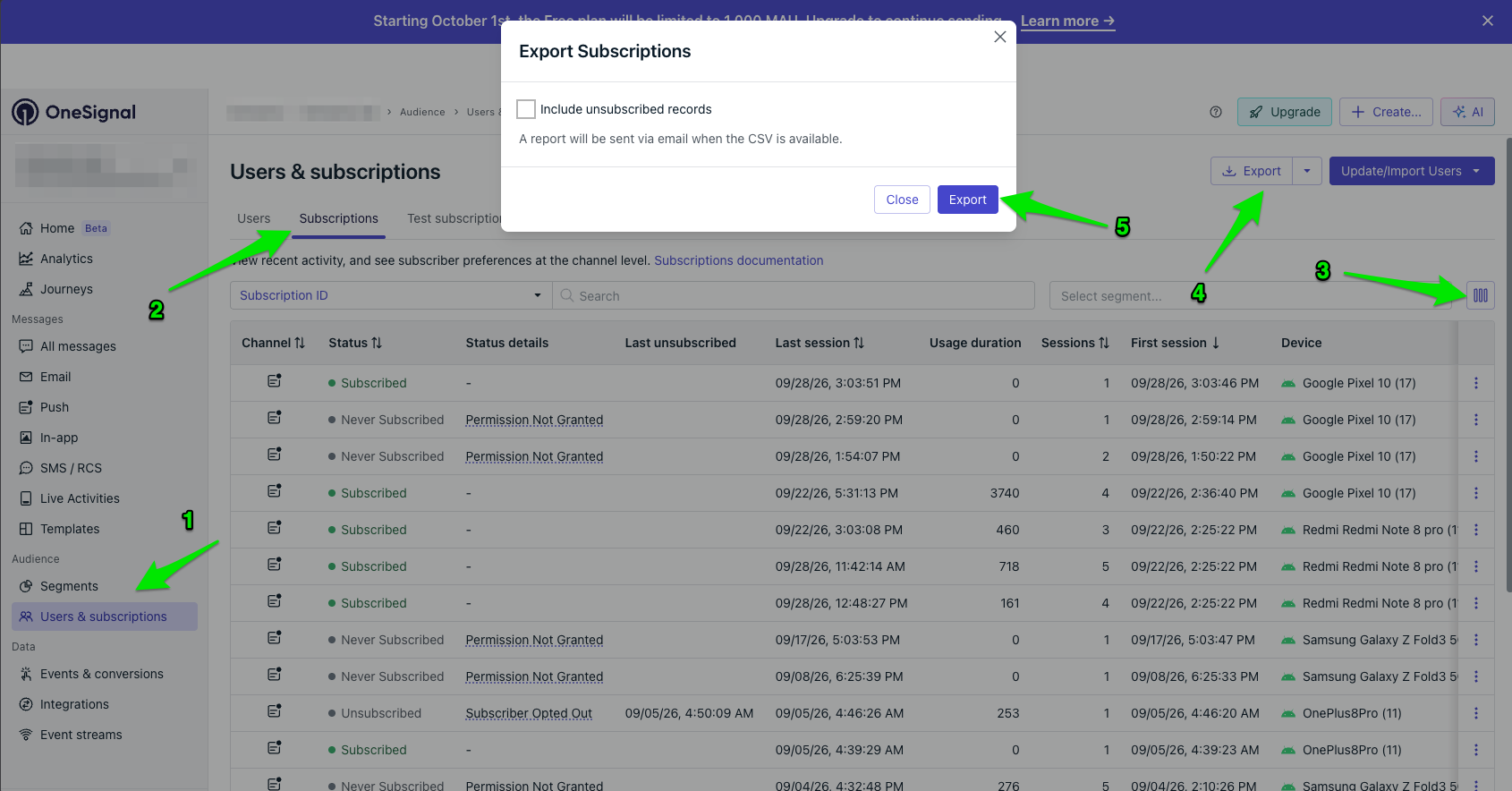
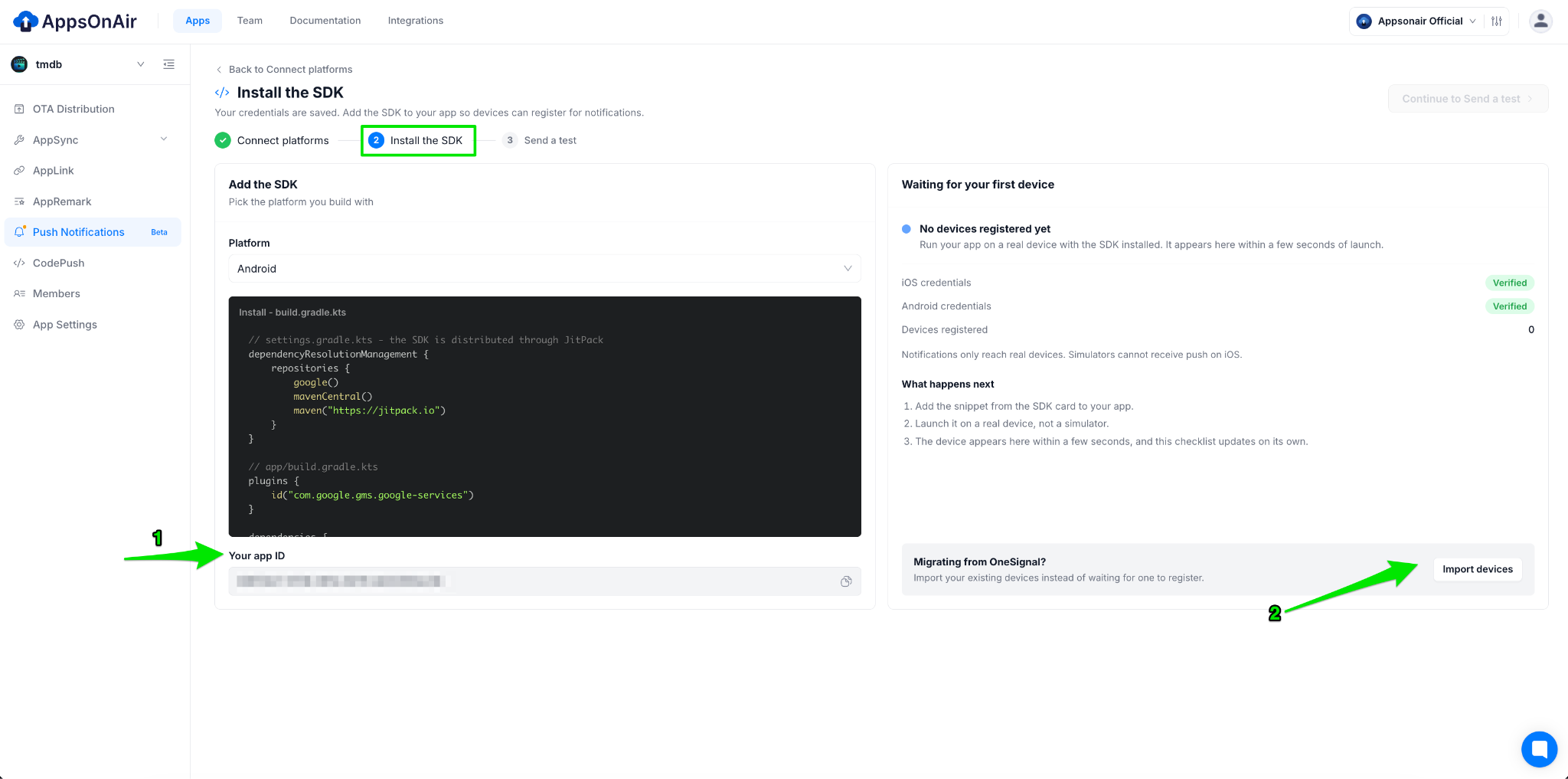
If you want to migrate your Existing OneSignal Push notification to AppsOnAir Push notification service you need export data from OneSignal Dashboard and received via email. Import all you existing data in AppsOnAir web portal under push notification section during first time setup as well as under devices section just tap on import devices CTA
To migrate your existing OneSignal push notification setup to AppsOnAir Push Notifications, export your existing data from the OneSignal Dashboard. You’ll receive the exported data via email.
Once you have the data, import it into the AppsOnAir web portal using either of these options:
- During the initial setup: Import your existing data in the Push Notifications section.
- Anytime later: Navigate to the Devices section and click the Import Devices CTA to import your existing device data.
For more information visit OneSignal migration guide.
Step 1: Firebase Setup
1. Open the Firebase Console and add your Android app.
2. Download google-services.json and place it in your app/ folder.
Step 2: Add the SDK Dependency
Add JitPack and the Google Services plugin, then declare the SDK dependency.
Kotlin DSL:
// settings.gradle.kts
dependencyResolutionManagement {
    repositoriesMode.set(RepositoriesMode.FAIL_ON_PROJECT_REPOS)
    repositories {
        google()
        mavenCentral()
        maven("https://jitpack.io")
    }
}
// build.gradle.kts (root)
plugins {
    id("com.google.gms.google-services") version "4.4.2" apply false
}
// app/build.gradle.kts
plugins {
    id("com.google.gms.google-services")
}
android {
    compileOptions {
        sourceCompatibility = JavaVersion.VERSION_17
        targetCompatibility = JavaVersion.VERSION_17
    }
    kotlinOptions { jvmTarget = "17" }
}
dependencies {
    implementation("com.github.apps-on-air:appsonair-android-push-notification:1.0.6-beta")
}
Groovy DSL:
// settings.gradle
dependencyResolutionManagement {
    repositoriesMode.set(RepositoriesMode.FAIL_ON_PROJECT_REPOS)
    repositories {
        google()
        mavenCentral()
        maven { url 'https://jitpack.io' }
    }
}
// build.gradle (root)
plugins {
    id 'com.google.gms.google-services' version '4.4.2' apply false
}
// app/build.gradle
plugins {
    id 'com.google.gms.google-services'
}
android {
    compileOptions {
        sourceCompatibility JavaVersion.VERSION_17
        targetCompatibility JavaVersion.VERSION_17
    }
}
dependencies {
    implementation 'com.github.apps-on-air:appsonair-android-push-notification:1.0.6-beta'
}
Sync Gradle in Android Studio after editing these files.
Step 3: Notification Icon and Color
Android draws the status-bar icon from its alpha channel only. Every non-transparent pixel becomes one solid color. Without a proper icon, the SDK falls back to your launcher icon, which renders as a white square.
Icon requirements: white silhouette on a transparent background, stored in res/drawable (not mipmap), as a vector drawable or PNGs per density.
PNG sizes for a 24dp icon
Use Android Studio's File → New → Image Asset → Icon type: Notification Icons to generate all densities from one source image.
Vector drawable example:
<!-- app/src/main/res/drawable/ic_stat_appsonair_default.xml -->
<vector xmlns:android="http://schemas.android.com/apk/res/android"
    android:width="24dp"
    android:height="24dp"
    android:viewportWidth="24"
    android:viewportHeight="24"
    android:tint="#FFFFFF">
    <path
        android:fillColor="#FFFFFF"
        android:pathData="M12,22c1.1,0 2,-0.9 2,-2h-4c0,1.1 0.9,2 2,2z..." />
</vector>
Accent color (must be a color resource, not a raw hex in the manifest):
<!-- res/values/colors.xml -->
<resources>
    <color name="appsonair_notification_accent_color">#2E6BE6</color>
</resources>
Declare both AppsOnAir and Firebase meta-data entries in AndroidManifest.xml. Two pairs are required: one for notifications the SDK renders, one for notification-block messages Firebase renders itself when the app is backgrounded.
<application ...>
    <!-- AppsOnAir SDK: data-only and foreground notifications -->
    <meta-data
        android:name="com.appsonair.apppush.default_notification_icon"
        android:resource="@drawable/ic_stat_appsonair_default" />
    <meta-data
        android:name="com.appsonair.apppush.default_notification_color"
        android:resource="@color/appsonair_notification_accent_color" />
    <!-- Firebase: notification-block messages rendered in background -->
    <meta-data
        android:name="com.google.firebase.messaging.default_notification_icon"
        android:resource="@drawable/ic_stat_appsonair_default" />
    <meta-data
        android:name="com.google.firebase.messaging.default_notification_color"
        android:resource="@color/appsonair_notification_accent_color" />
</application>
Icon precedence for SDK-rendered notifications:
Step 4: Initialize the SDK
Initialize in your Application class so it starts before any Activity exists. Silent pushes can arrive while no Activity is running, so register setSilentPushListener here too, before initialize().
// MyApp.kt
import android.app.Application
import com.appsonair.apppush.AppPushService
import com.appsonair.apppush.LogLevel
class MyApp : Application() {
    override fun onCreate() {
        super.onCreate()
        AppPushService.Debug.logLevel = LogLevel.VERBOSE  // dev only
        // Register BEFORE initialize() so silent pushes are not missed
        AppPushService.setSilentPushListener { data ->
            // Runs on a background thread
            Log.d("MyApp", "Silent push: $data")
        }
        AppPushService.initialize(this)
    }
}
Register MyApp in AndroidManifest.xml:
<application android:name=".MyApp" ...>
Step 5: Wire Your Activity
Implement PushListener in your main Activity to receive notification events and handle taps:
// MainActivity.kt
class MainActivity : AppCompatActivity(), PushListener {
    override fun onCreate(savedInstanceState: Bundle?) {
        super.onCreate(savedInstanceState)
        setContentView(R.layout.activity_main)
        AppPushService.setListener(this)
        AppPushService.requestNotificationPermission(this)
        AppPushService.handleNotificationTapIntent(intent)  // cold-start taps
    }
    override fun onNewIntent(intent: Intent?) {
        super.onNewIntent(intent)
        intent?.let { AppPushService.handleNotificationTapIntent(it) }
    }
    override fun onDestroy() {
        super.onDestroy()
        AppPushService.setListener(null)
    }
    override fun onTokenUpdated(token: String) { }
    override fun onNotificationReceived(notification: PushNotification) { }
    override fun onNotificationOpened(notification: PushNotification) { }
    override fun onError(error: PushError) { }
}
Always call handleNotificationTapIntent in both onCreate and onNewIntent. When the app is killed and the user taps a notification, Android relaunches via an Intent. Missing the `onCreate` call means cold-start taps are lost.
Feature Guide
Subscription Observer
Observe token and opt-in state changes without polling. Register after initialize().
AppPushService.User.pushSubscription.addObserver(object : IPushSubscriptionObserver {
    override fun onPushSubscriptionDidChange(state: PushSubscriptionChangedState) {
        println("optedIn: ${state.current.optedIn}")
        println("token: ${state.current.token}")
    }
})
Permission
val granted    = AppPushService.Notifications.permission(context)
val canRequest = AppPushService.Notifications.canRequestPermission(context)
AppPushService.Notifications.requestPermission(activity)
// Permanently denied on Android 13+? Send to Settings:
AppPushService.Notifications.requestPermission(activity, fallbackToSettings = true)
AppPushService.Notifications.addPermissionObserver(object : INotificationPermissionObserver {
    override fun onNotificationPermissionDidChange(permission: Boolean) { }
})
On Android 13+, two denials permanently suppress the system dialog. Request at a meaningful point in onboarding, not at app launch.
User Identity
AppPushService.login("user_12345")   // associate after login
AppPushService.logout()              // disassociate on sign-out; clears tags and aliases
Tags and Segmentation
AppPushService.User.addTag("plan", "premium")
AppPushService.User.addTags(mapOf("plan" to "premium", "region" to "us-east"))
AppPushService.User.removeTag("plan")
AppPushService.User.getTags { tags -> /* callback on main thread */ }
Language
AppPushService.User.setLanguage("fr")   // ISO 639-1
val current = AppPushService.User.language
Aliases and Email
AppPushService.User.addAlias("crm_id", "CRM-9876")
AppPushService.User.addAliases(mapOf("crm_id" to "CRM-9876"))
AppPushService.User.removeAlias("crm_id")
AppPushService.User.addEmail("user@example.com")
AppPushService.User.removeEmail("user@example.com")
Opt-in and Opt-out
AppPushService.User.pushSubscription.optOut()   // stop delivery, preserve OS permission
AppPushService.User.pushSubscription.optIn()
val optedIn = AppPushService.User.pushSubscription.optedIn
// Fetch server's copy
AppPushService.User.pushSubscription.getOptedIn { optedIn -> }
Foreground Display Control
AppPushService.Notifications.addForegroundLifecycleListener(object : INotificationLifecycleListener {
    override fun onWillDisplay(event: NotificationWillDisplayEvent) {
        // Do nothing: SDK displays it.
        // Call preventDefault(): suppressed entirely, handle display yourself.
        event.preventDefault()
    }
})
Handling Taps
AppPushService.Notifications.addClickListener(object : INotificationClickListener {
    override fun onClick(event: NotificationClickEvent) {
        val actionId = event.result.actionId   // null = body tap, else action button ID
        val url      = event.result.url
    }
})
Notification Channels (Android 8.0+)
Separate channels let users control notification types independently in Settings.
AppPushService.Notifications.createNotificationChannel(
    context     = applicationContext,
    id          = "transactional",
    name        = "Transactional Notifications",
    importance  = NotificationManager.IMPORTANCE_HIGH,
    description = "Order updates and alerts"
)
AppPushService.Notifications.deleteNotificationChannel(context, "transactional")
A channel's sound is fixed at creation. To change it, use a new channel ID.
Dismissing Notifications
AppPushService.Notifications.clearAllNotifications(context)
AppPushService.Notifications.removeNotification(context, "order-4821")         // by notification_id
AppPushService.Notifications.removeGroupedNotifications(context, groupKey = "orders")
Badge Count
Supported on Samsung, Huawei, Xiaomi, Sony, and ASUS launchers.
AppPushService.setBadgeCount(context, 5)
AppPushService.clearBadgeCount(context)
Silent Push
A silent push delivers data to your app without showing a notification. The SDK treats a push as silent when its data payload contains "silent": "true". Only the exact string "true" counts: "1" or "TRUE" will show as a normal notification.
Register the listener in Application.onCreate(). A silent push can arrive while no Activity exists, so a listener registered in an Activity would miss it.
AppPushService.setSilentPushListener { data ->
    // Runs on a background thread
    Log.d("MyApp", "Silent push received: $data")
}
FCM payload for a silent push:
{
  "message": {
    "token": "device-fcm-token",
    "data": {
      "notification_id": "sync-001",
      "silent":          "true",
      "sync_type":       "orders"
    }
  }
}
The payload must be data-only. If a `notification` block is present, Firebase renders the notification itself and the listener never fires.
Rich Media (Images)
Include big_picture in a data-only payload for an expanded image with BigPictureStyle. large_icon sets the collapsed thumbnail independently.
{
  "message": {
    "token": "device-fcm-token",
    "data": {
      "notification_id": "notif-123",
      "title":           "New offer",
      "body":            "Limited time deal",
      "big_picture":     "https://cdn.example.com/offer.jpg",
      "large_icon":      "https://cdn.example.com/brand-thumb.png"
    }
  }
}
JPEG, PNG, WebP, and SVG are supported. Images must respond within 10 seconds and be under 10 MB. Big pictures are scaled to 1024x1024 px; large icons to 256x256 px.
REST API
In addition to the SDK, AppsOnAir supports triggering push notifications via REST API, useful for server-side sends, CI/CD workflows, and backend automation. For more details check this documentation.
Payload Reference
When Notifications Won't Be Delivered
Push delivery depends on OS state, manufacturer battery managers, and user settings, not just your code.
Troubleshooting
Setup Checklist
- Setup google-services.json in app/
- Google Services plugin applied in both build.gradle.kts files
- JitPack added and SDK dependency declared, Gradle synced
- AppsonairAppId in AndroidManifest.xml
- White-on-transparent icon in res/drawable*
- Accent color in res/values/colors.xml
- Both AppsOnAir and Firebase icon/color meta-data in manifest
- setSilentPushListener registered before initialize() in Application.onCreate()
- AppPushService.initialize(this) called in Application.onCreate()
- handleNotificationTapIntent called in both onCreate and onNewIntent
- Notification permission requested (Android 13+)
Log Levels
Set before initialize():
Conclusion
The AppsOnAir Android Push Notification SDK handles the FCM integration surface behind a clean API. Basic setup is five steps: Firebase, Gradle, notification icon, Application initialization, and Activity wiring. Everything beyond that, segmentation, silent push, rich media, channels, is opt-in. For teams already using AppsOnAir for OTA distribution, push targeting plugs directly into existing build segments and distribution groups without additional configuration.